This page walks through creating a user in the admin console and the everyday actions on an existing one: identifiers, claims, roles, devices and offline access, passkeys, limits, temporary passwords and deletion. For what each card and button means, see User.
Before you start
- You need
users:manageto create and change users.users:readis enough to search and to look at a user. - Select the tenant in the sidebar first. Roles, Reset limits and Reset password act on the selected tenant. Users themselves are not tenant-scoped.
- For roles, create the roles first: How to register a role.
1. Search for a user
- Open Users. The screen starts empty: Versola does not list users, you look them up.
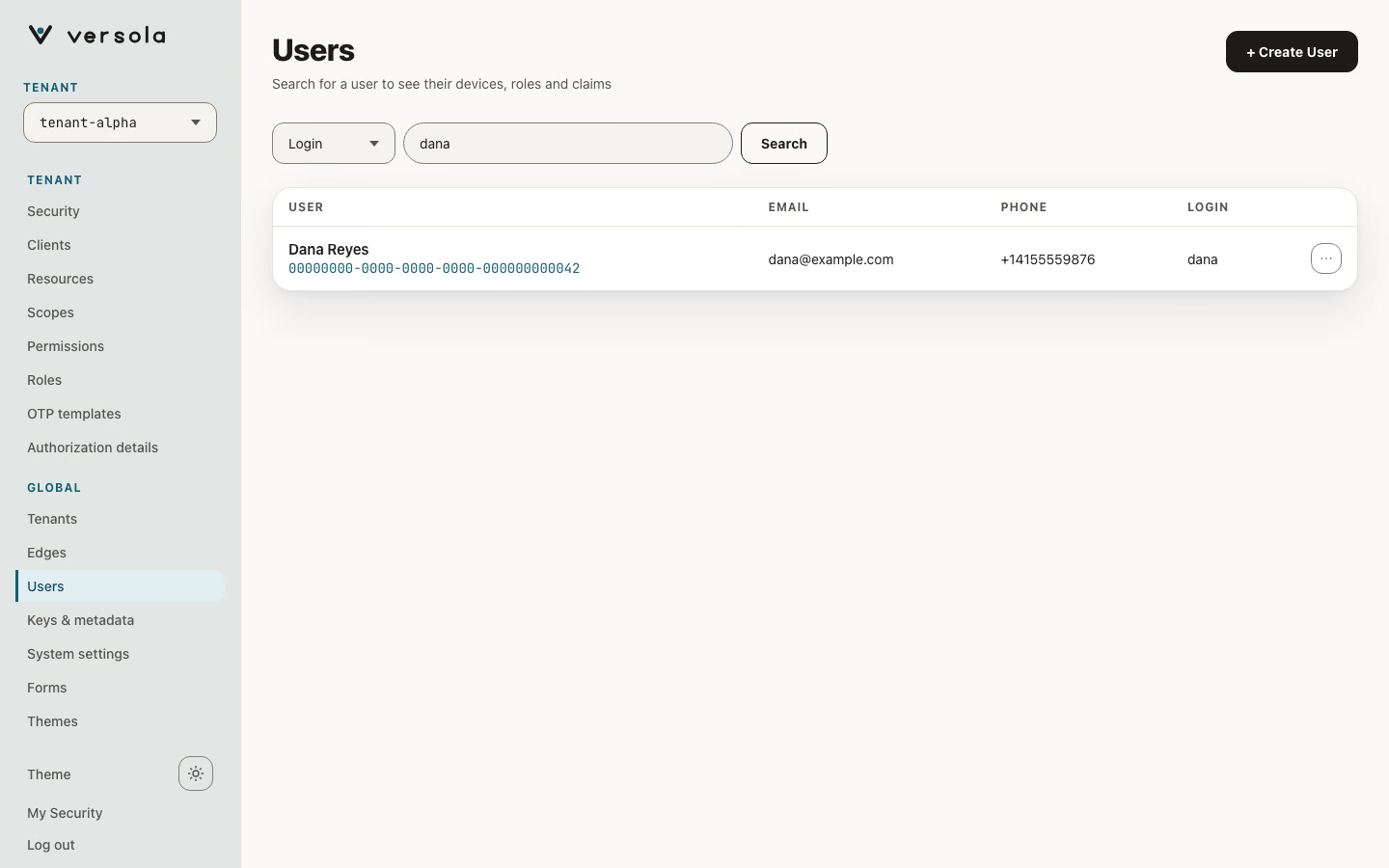
- Pick Login, Email, Phone or ID, type the exact value and click Search. The match is exact, so a part of a login finds nothing. Typing a UUID, a leading
+or an@switches the selector for you. - Click the user’s row, or choose Open in its menu, to open the user’s page.
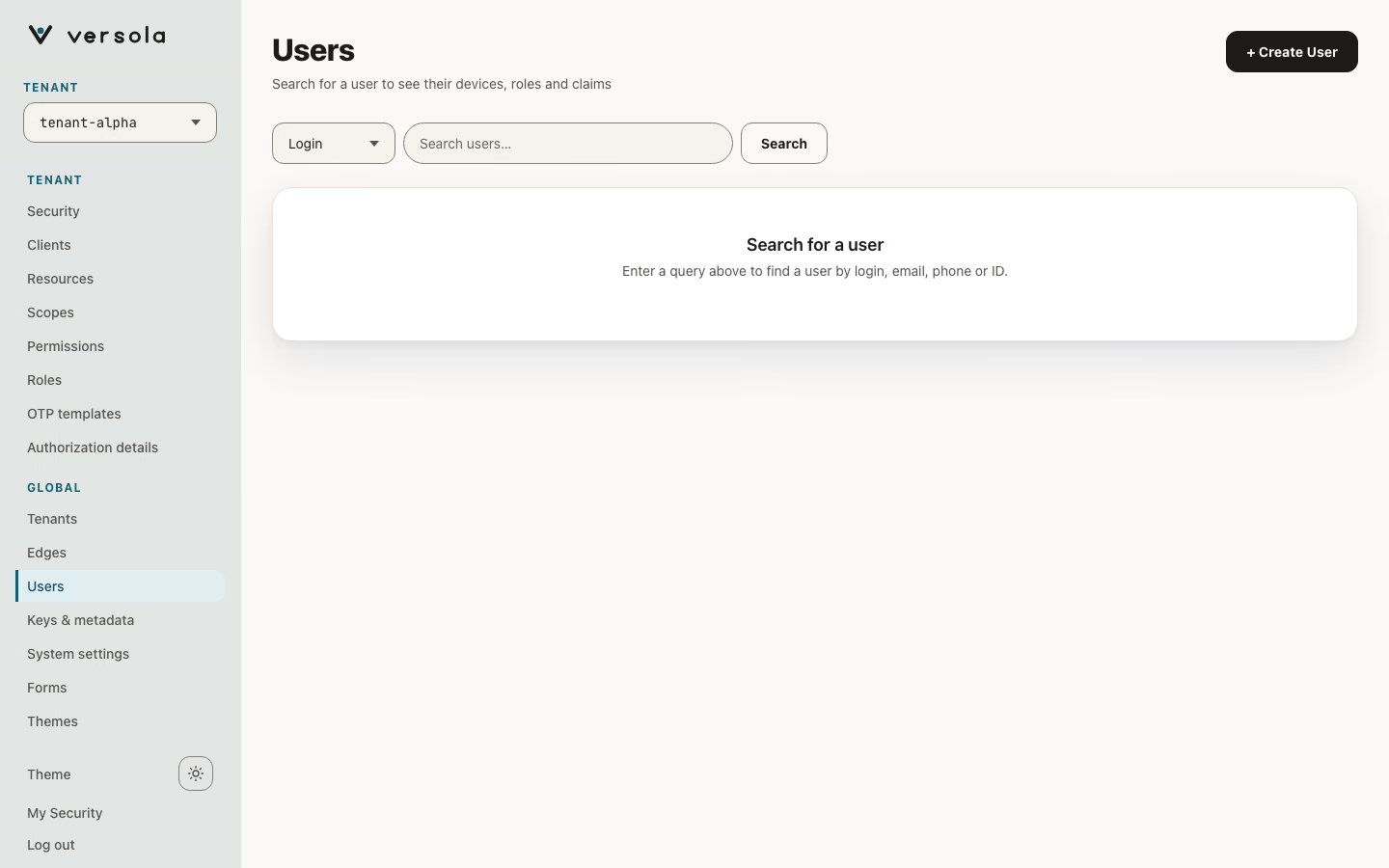
The result is a table with the user’s name and ID, email, phone and login. A user with no name claims shows No name.
2. Create a user
- Click + Create User.
- Fill in Email, Phone and Login. Each is optional, but give at least one, or the user cannot sign in. Each must be unique on the platform.
- Enter the phone in E.164 form, for example
+14155552671. The form rejects anything else with “Invalid phone number (use E.164 format, e.g. +15551234567)”, and the number is stored in canonical E.164. - Click Create User. The new user’s page opens.
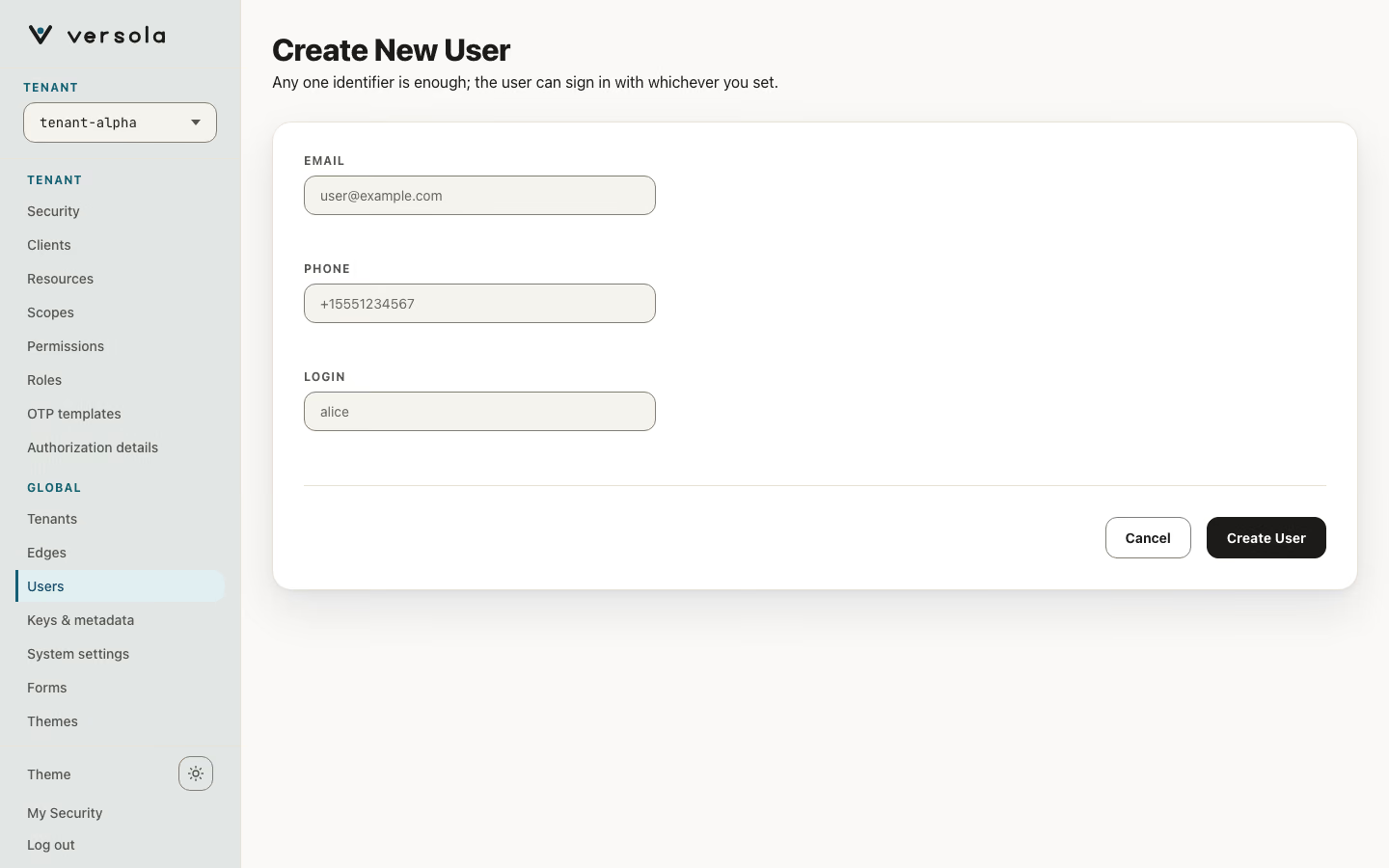
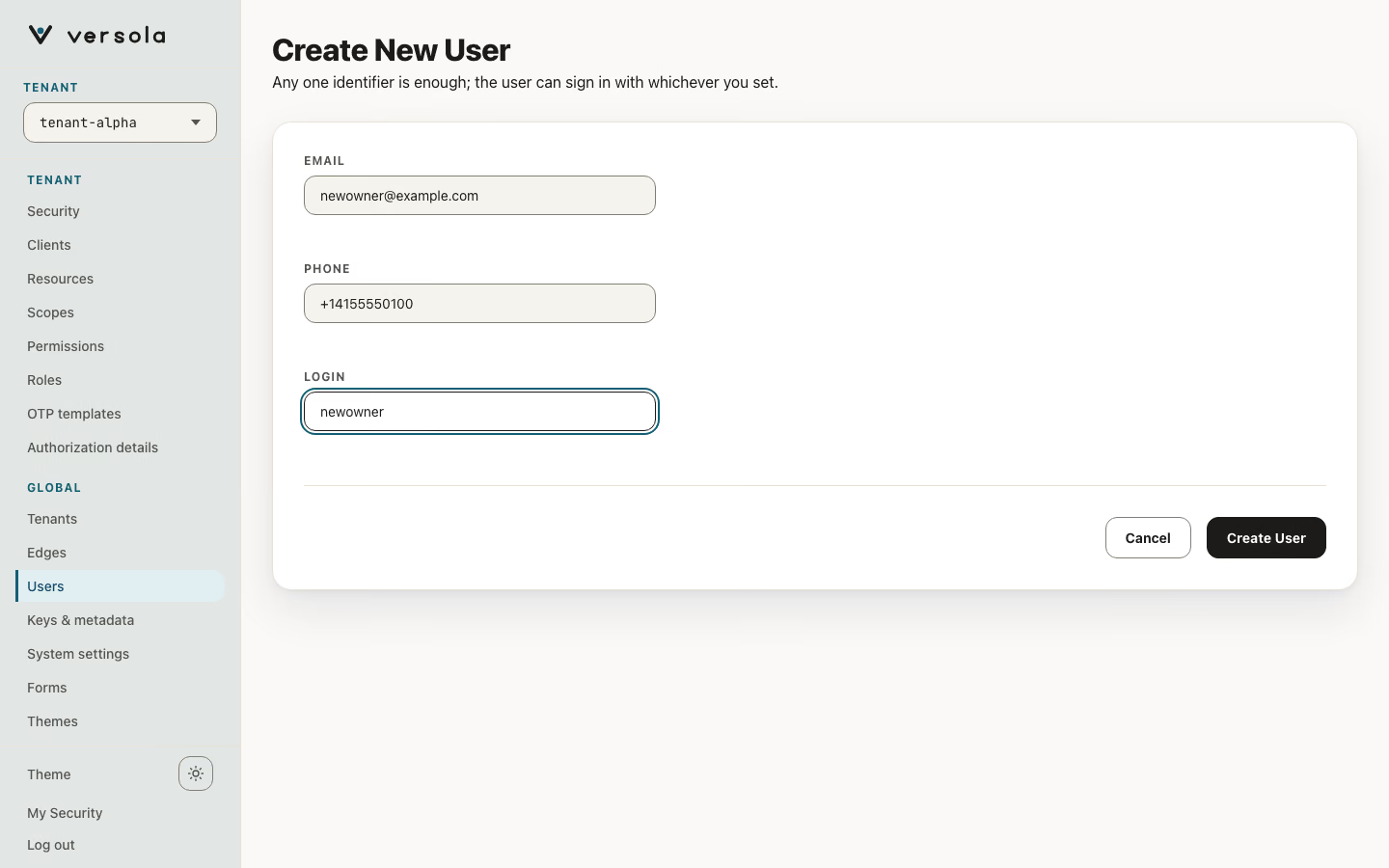
The form has no password field. A new user signs in through the client’s sign-in flow, or you set a temporary password in step 8. If an identifier already belongs to another user, the form says One of the identifiers is already taken by another user. and nothing is created.
3. Edit identifiers
Click Edit on the Identifiers card. The editor opens with the current values. Change what you need and click Save identifiers. Only changed fields are sent, and a user must keep at least one identifier.
4. Edit claims
- Click Edit on the Claims card.
- Tick a claim to give it a value, or untick it to remove it, and click Save claims.
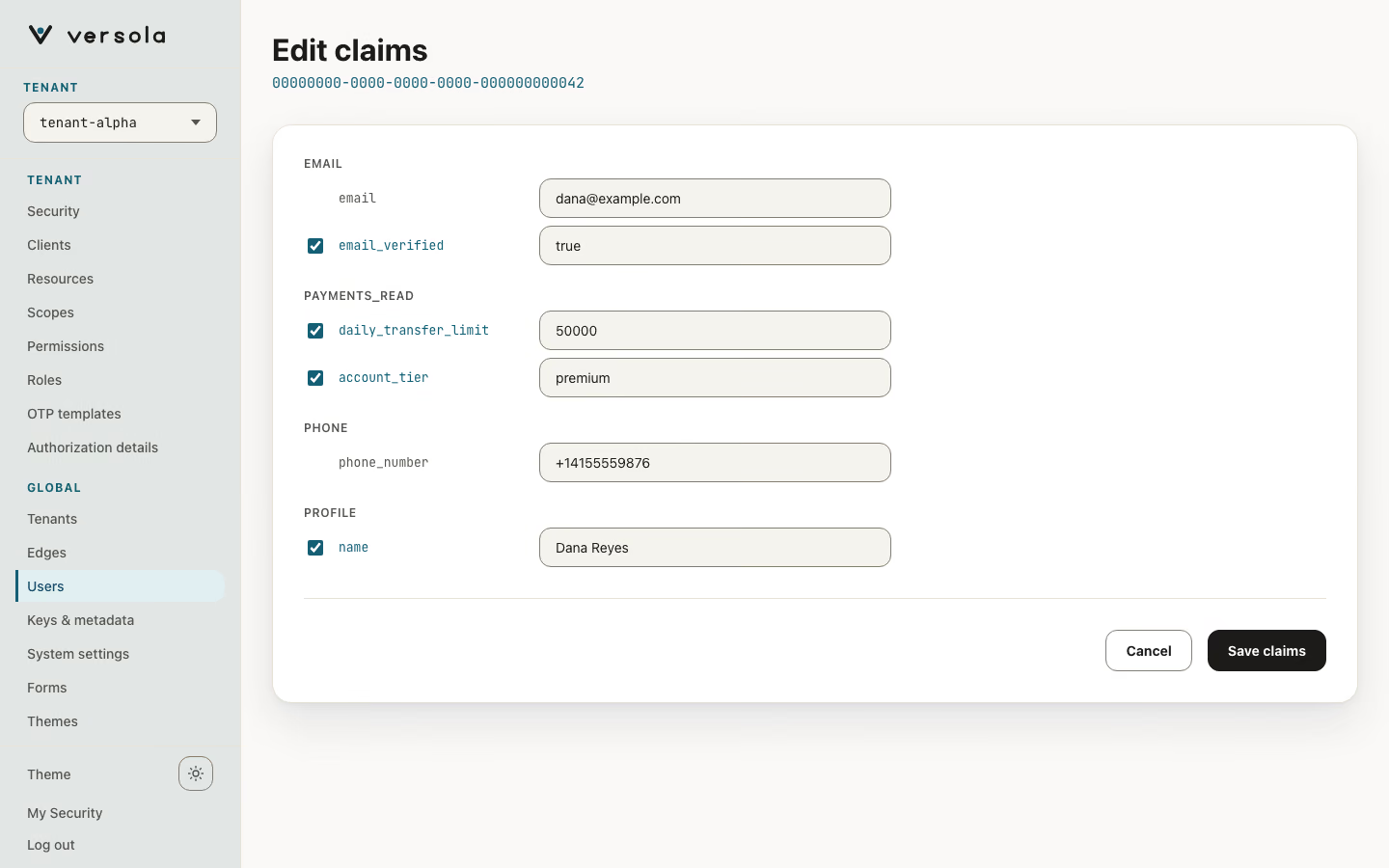
Claims are grouped by scope, so you see which scope releases which claim. email and phone_number mirror the identifiers and cannot be edited here. true, false, numbers and JSON arrays or objects are saved as such, everything else as text.
5. Assign roles
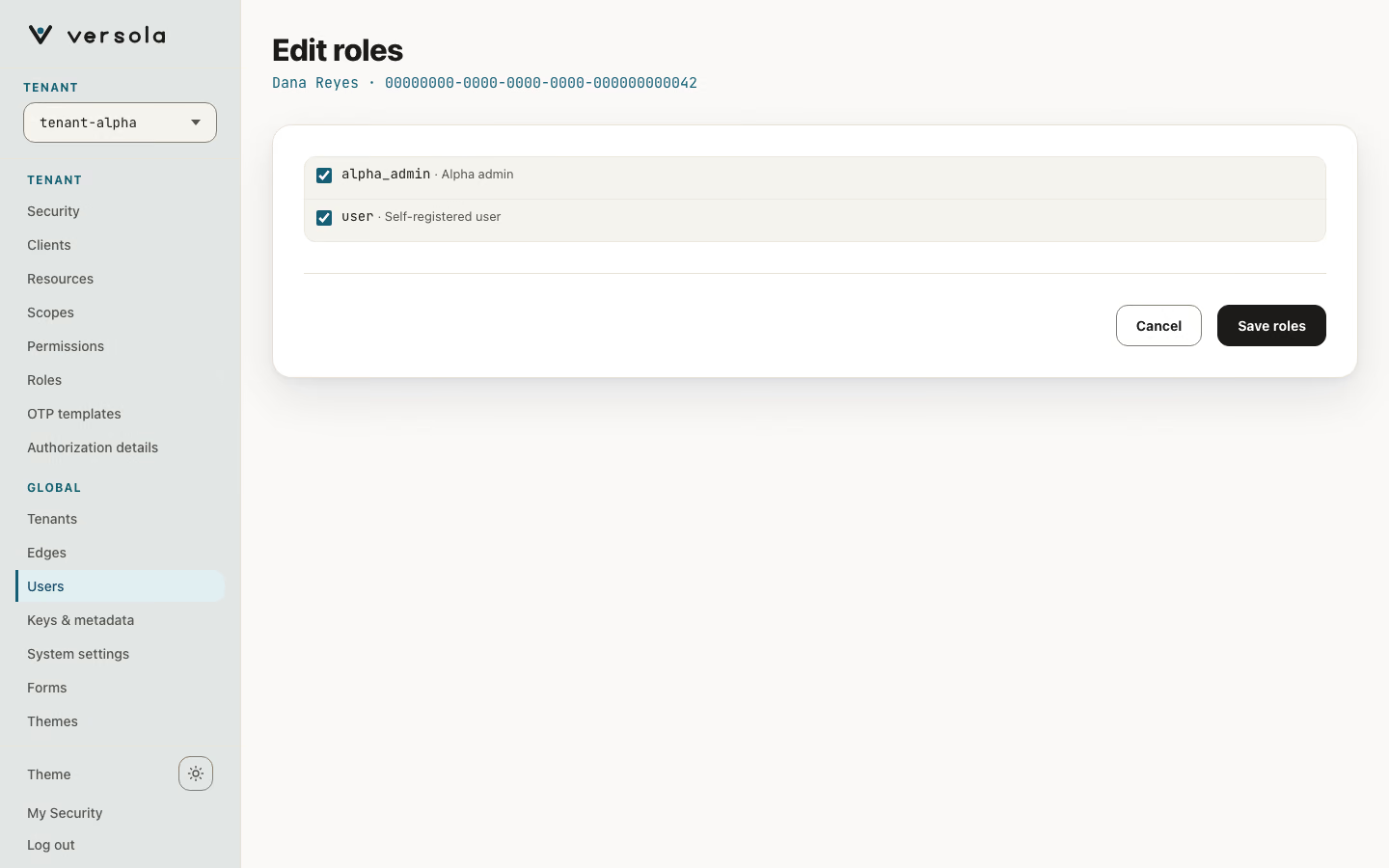
- Check that the right tenant is selected. The card is called Roles in and the tenant.
- Click Edit. Tick the roles the user should have and untick the ones they should lose.
- Click Save roles.
6. Sign a device out or revoke an app’s offline access
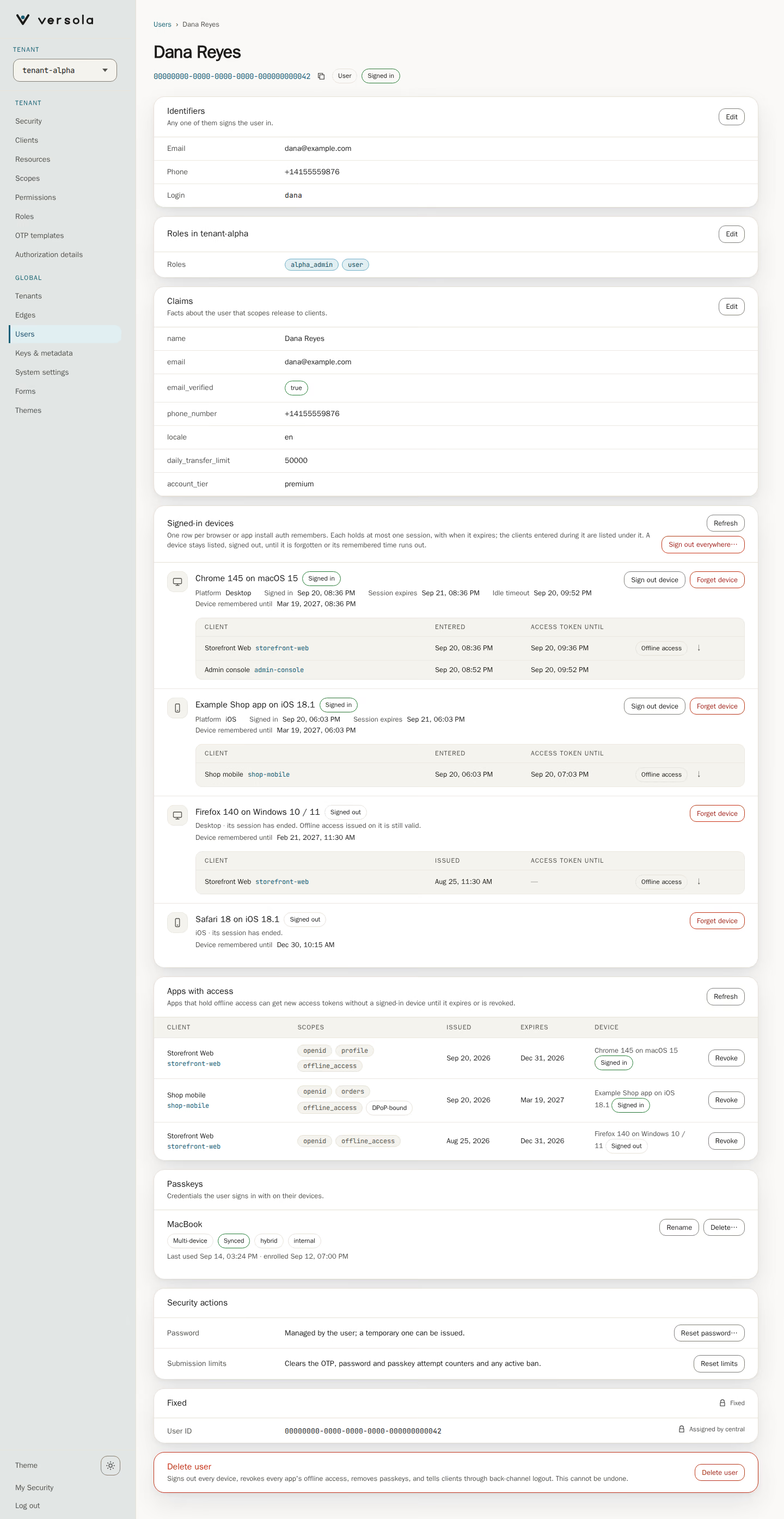
The Signed-in devices card lists one row per browser or app install, with the clients entered on it. Click Sign out device to end that device’s session; the user’s other devices stay signed in. Sign out everywhere… ends every session and revokes the offline access of every app, after a confirmation.
The Apps with access card lists the apps that hold offline access, one row per refresh token. Click Revoke on a row and confirm to stop that app from getting new access tokens for this user. The user stays signed in.
7. Manage passkeys
The Passkeys card lists the registered passkeys. Rename gives one a name you will recognise. Delete… removes it after a confirmation, and the user can no longer sign in with it.
8. Reset limits or set a temporary password
Reset limits clears the user’s rate-limit counters and any temporary ban in the selected tenant. Use it when someone is locked out after repeated failed attempts and sees Access Denied. With the default limits the ban lasts 30 minutes; see User.
Reset password opens a dialog:
- Set Temporary password lifetime (hours). The default is 12.
- Under Deliver via, choose Email or SMS. These appear only when the user has that identifier. In a non-production environment you can also choose Show.
- Click Confirm.
In production the password goes to the user by the chosen channel and is not shown. In a non-production environment nothing is sent, so use Show and copy the password from the dialog: it is displayed once. On the next sign-in the user enters the temporary password, completes the other steps and then must set a new password. After the lifetime ends the temporary password stops working.
9. Delete a user
Click Delete user on the last card and confirm. The user’s sessions end, offline access is revoked, passkeys are removed and clients are told through back-channel logout. This cannot be undone; see User.
Next steps
- User — every card, button and the default sign-in limits
- How to register a role
- How to register a client