A client is an application that asks Versola for tokens. This page walks through the four-step creation wizard in the admin console for each kind of client. Pick the kind carefully: it cannot be changed after the client is created. For what each kind sets, see Client.
Before you start
Have these ready:
- The tenant the application belongs to. Its security profile decides what the wizard offers.
- A Client ID you will keep: it never changes.
- For a web app or a mobile or desktop app: the exact redirect URIs and the scopes it needs (create them first if they do not exist). A mobile or desktop app needs an https App Link or Universal Link.
- For a service app: the permissions it needs, and for a certificate or key credential, the certificate details or the JWK Set.
1. Open the Clients screen
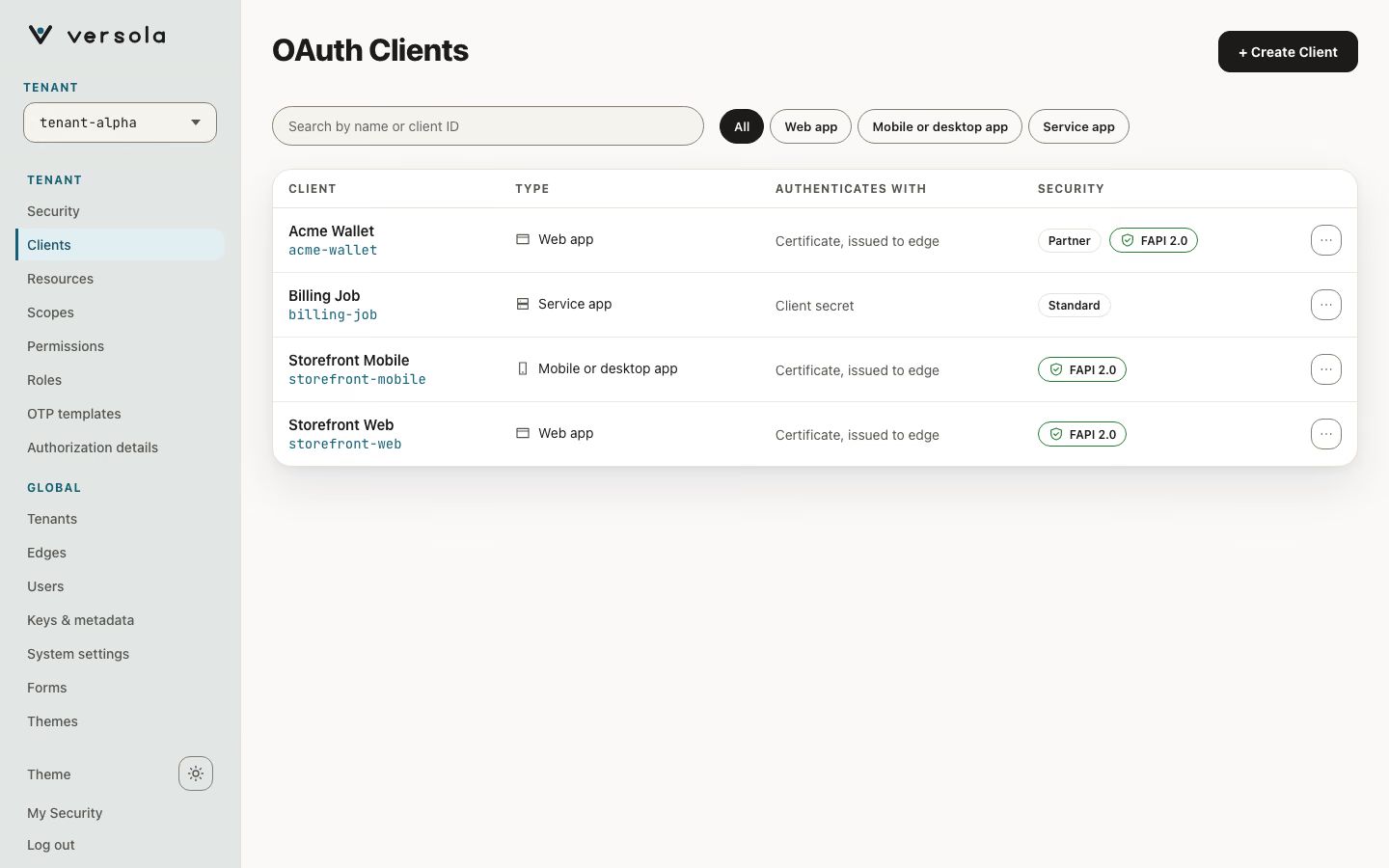
Select the tenant in the sidebar, then open Clients. The table lists each client with its Type, what it Authenticates with and its Security chip (FAPI 2.0 or Standard). The tabs filter by kind. Press a row to open the client page.
2. Step 1: What you are building
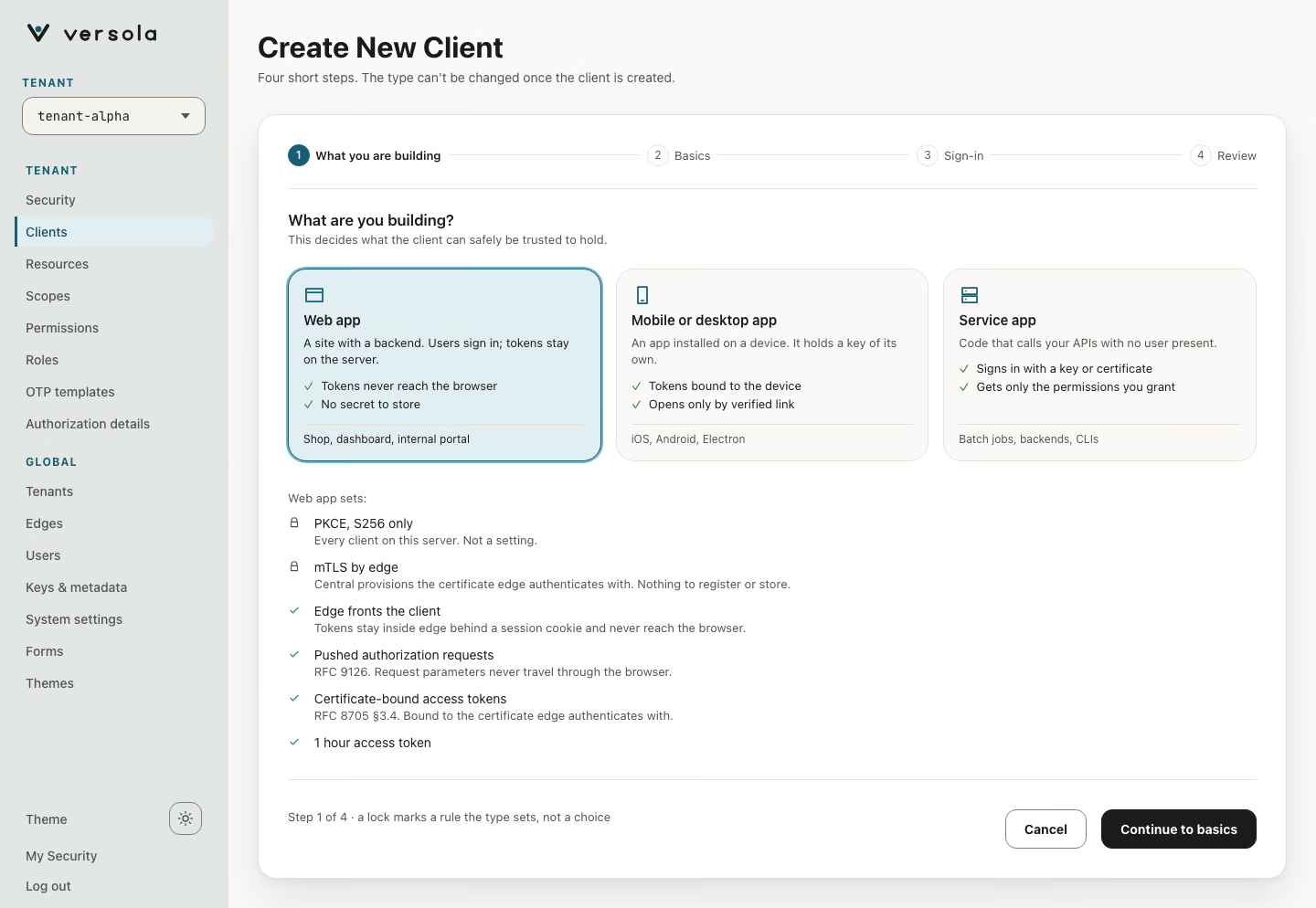
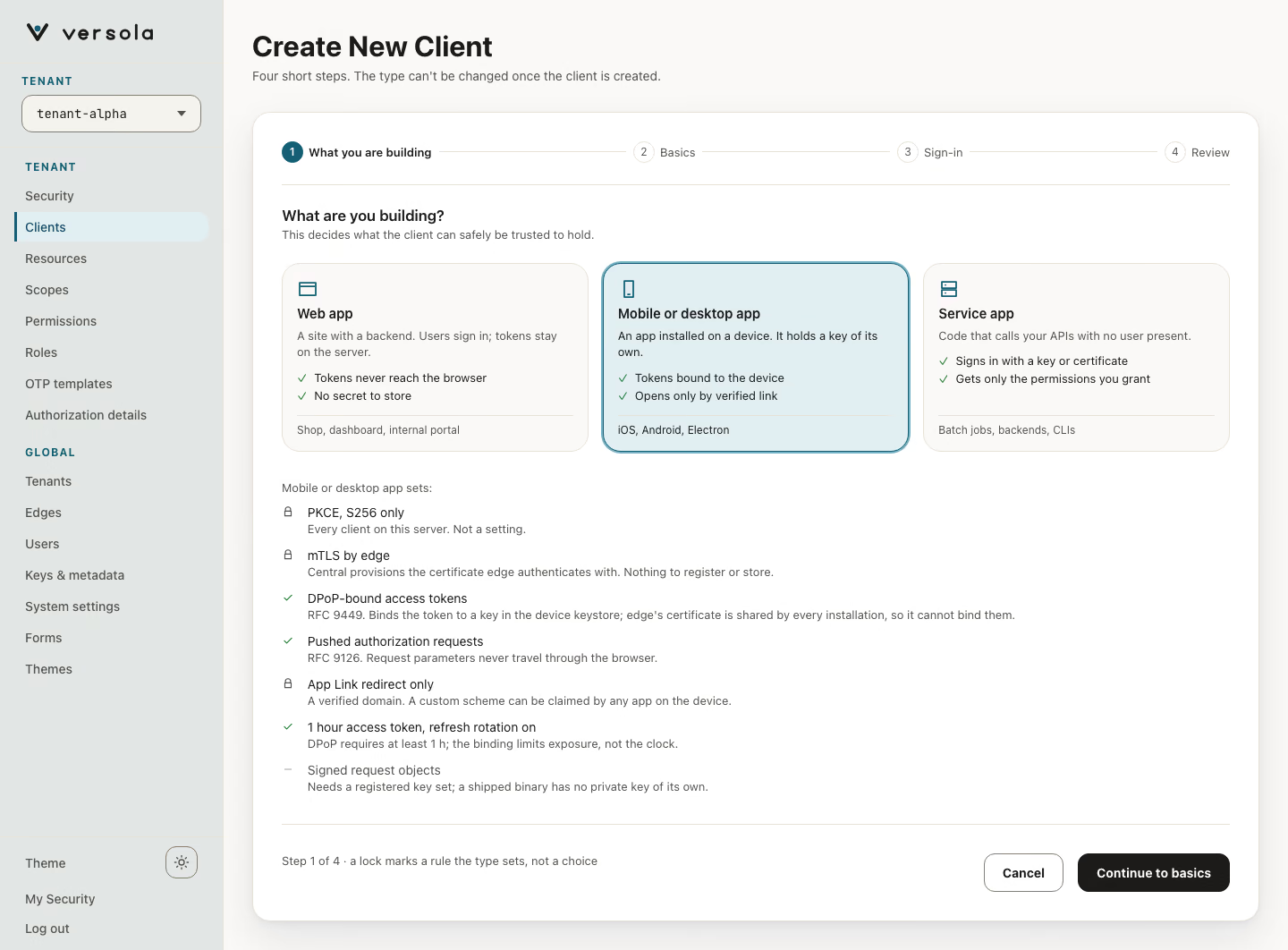
Press + Create Client. Choose Web app, Mobile or desktop app or Service app. Below the cards, the plan panel lists what the kind sets. A lock marks a rule that is not a choice. On a Standard tenant the panel also says that this tenant is not FAPI 2.0.
Press Continue to basics.
3. Step 2: Basics
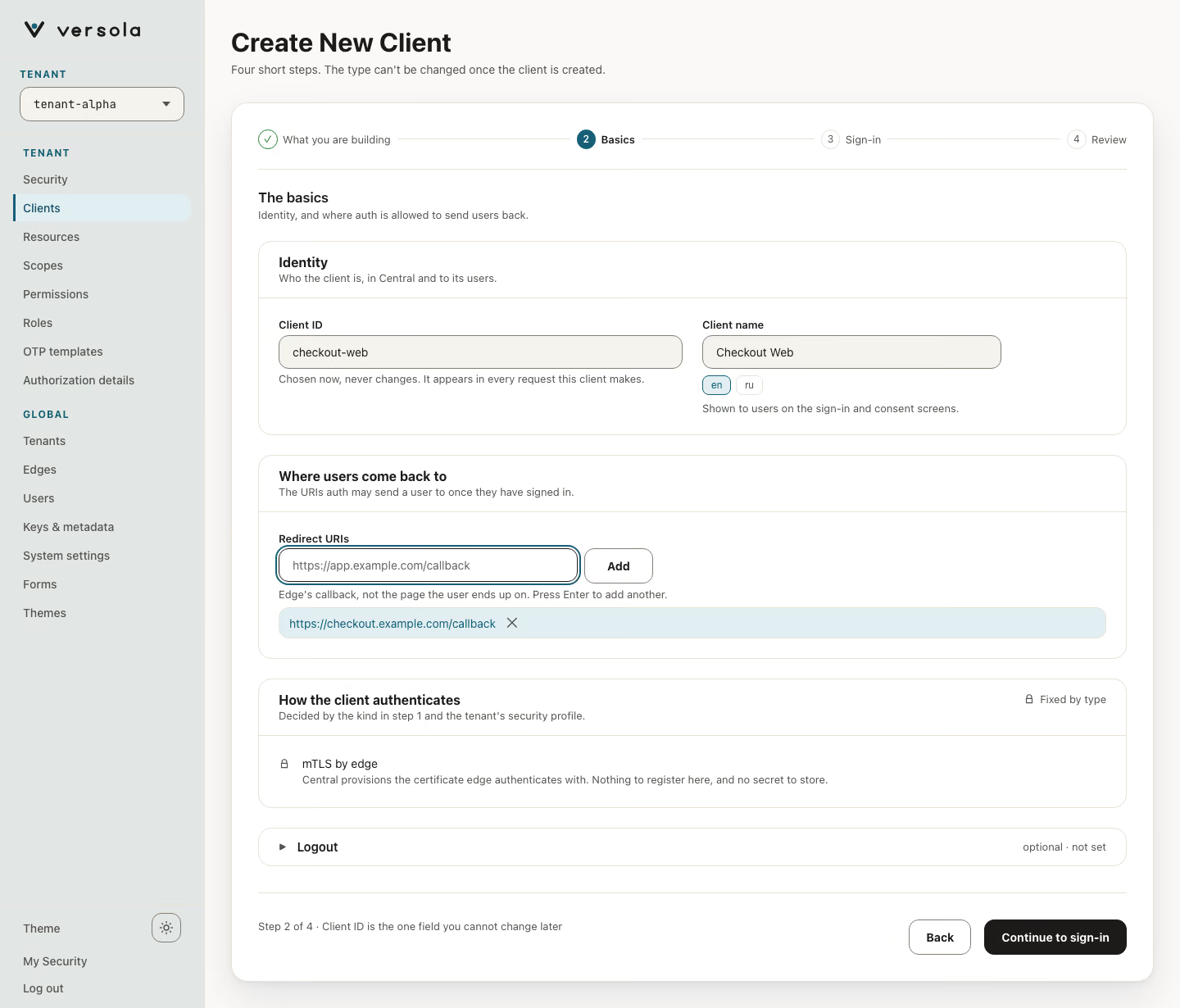
Fill in the identity and, where the kind has users, the redirect URIs.
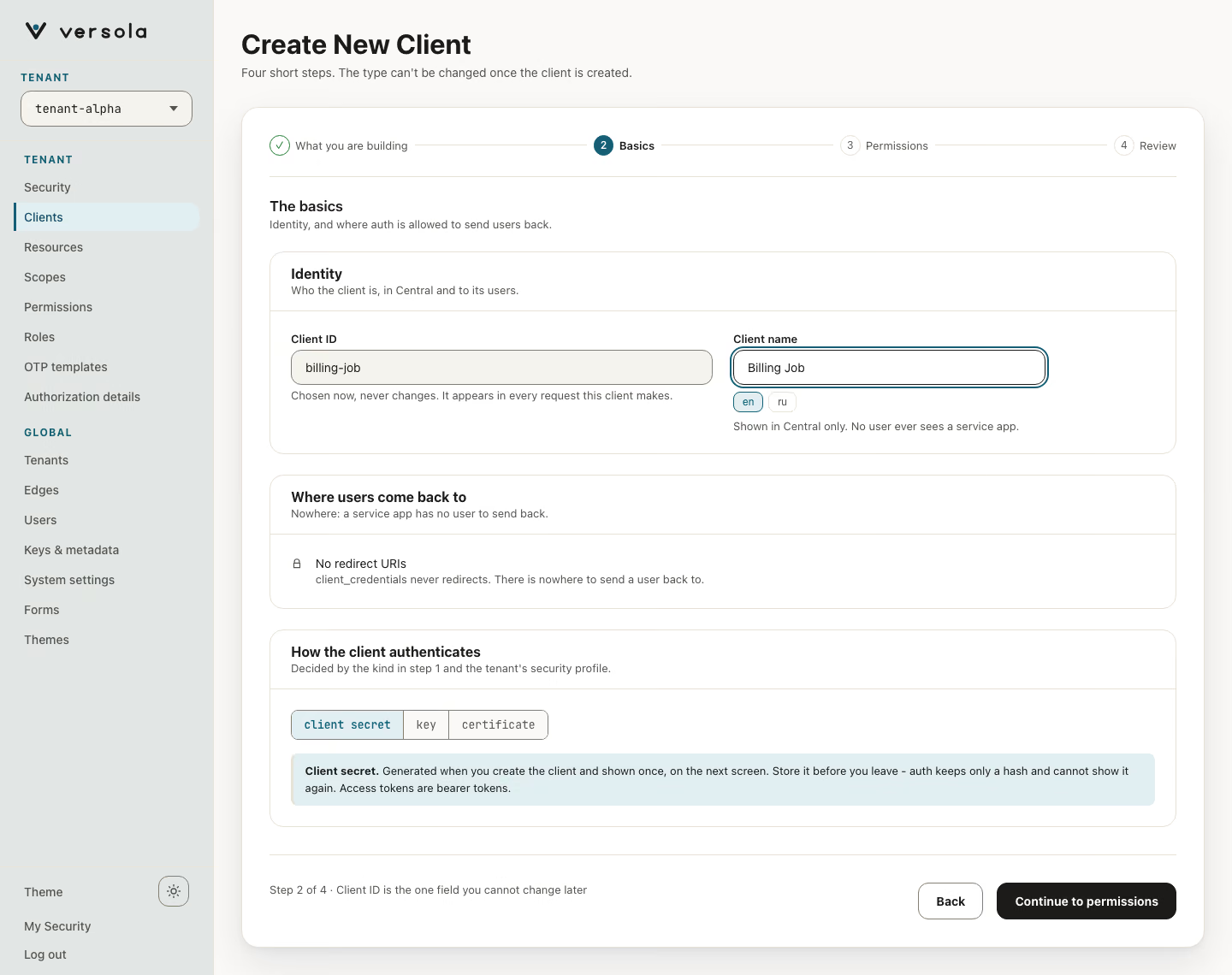
- Client ID — lowercase letters, numbers and hyphens, starting with a letter. Chosen now, never changes.
- Client name — shown to users on the sign-in and consent screens (localised, one value per language). For a service app it is shown in Central only.
- Redirect URIs — type each URI and press Enter or Add. They must match the
redirect_urithe application sends exactly. For a web app the hint reads “Edge’s callback, not the page the user ends up on”. A mobile or desktop app takes an https App Link or Universal Link. - How the client authenticates — for a web app or a mobile or desktop app this is fixed: mTLS by edge, with nothing to register and no secret to store. A mobile or desktop app also shows DPoP proof key, which the device generates in its own keystore.
- Logout (optional) — front-channel or back-channel, with its URI. See Logout.
Press Continue to sign-in.
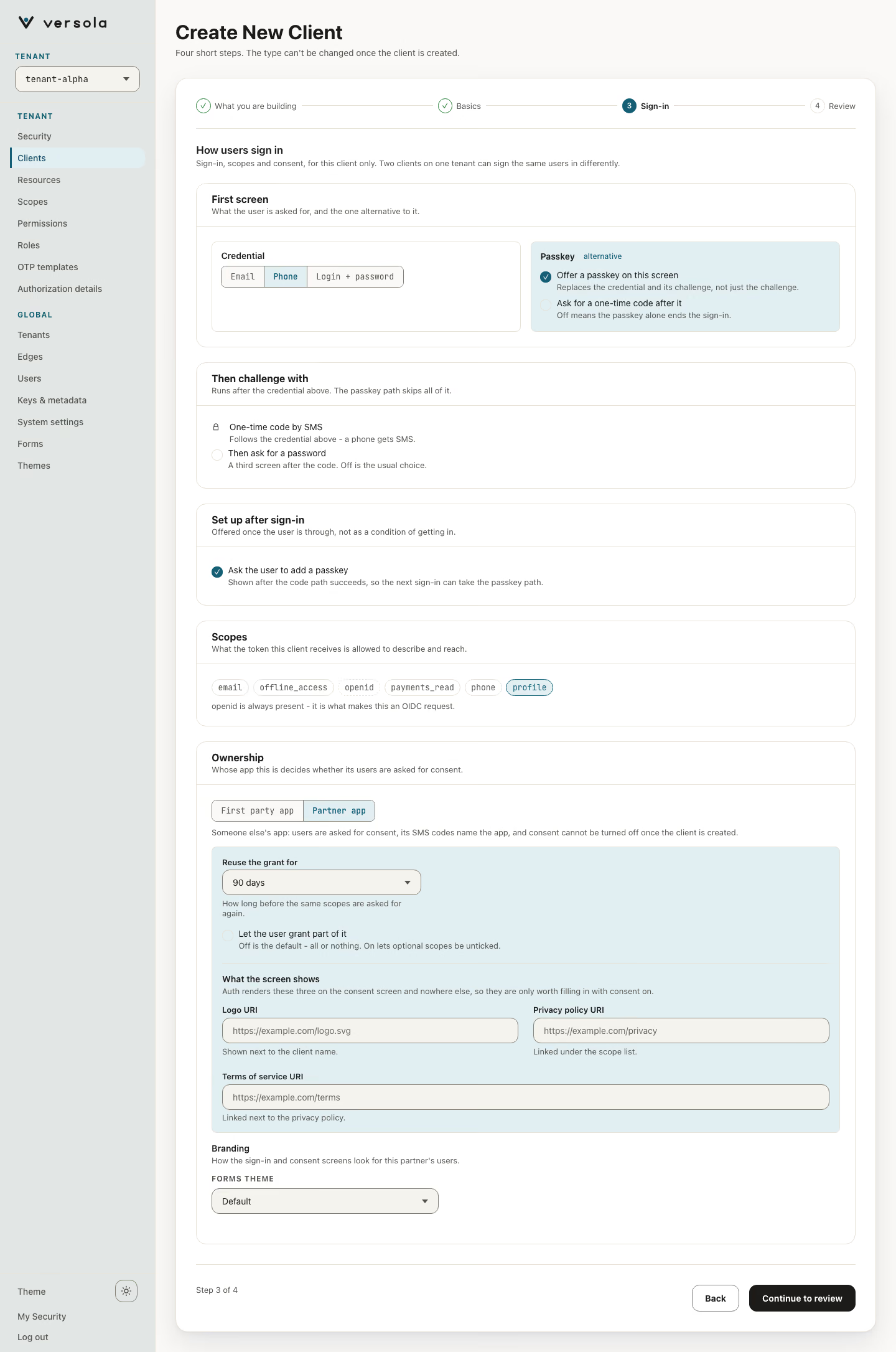
4. Step 3: Sign-in
Choose how users sign in to this client. The setting applies to this client only.
- Credential — Email, Phone or Login + password.
- Sign-up — the step has no switch for it: registration is the tenant’s decision. Under Registration in Security you choose the email mode (Closed, Open, Allowlist), the Sign-up setting of each phone country and the Default roles a new account gets. A client that asks for an email or a phone number offers registration when the tenant lets that credential register. Not offered for Login + password, whose accounts are created in Central.
- Passkey — offer a passkey on the first screen, with or without a one-time code after it. On by default for a new client.
- Then challenge with — a one-time code (fixed to the credential: a phone gets SMS) and, optionally, Then ask for a password.
- Set up after sign-in — Ask the user to add a passkey. On by default; the user can skip it.
- Scopes — pick from the tenant’s scopes.
openidis always present. Addoffline_accessif the client needs refresh tokens. - Consent — First party, no prompt or Ask for consent. Ask for consent makes the client a partner client: its SMS codes name the app and consent cannot be turned off later.
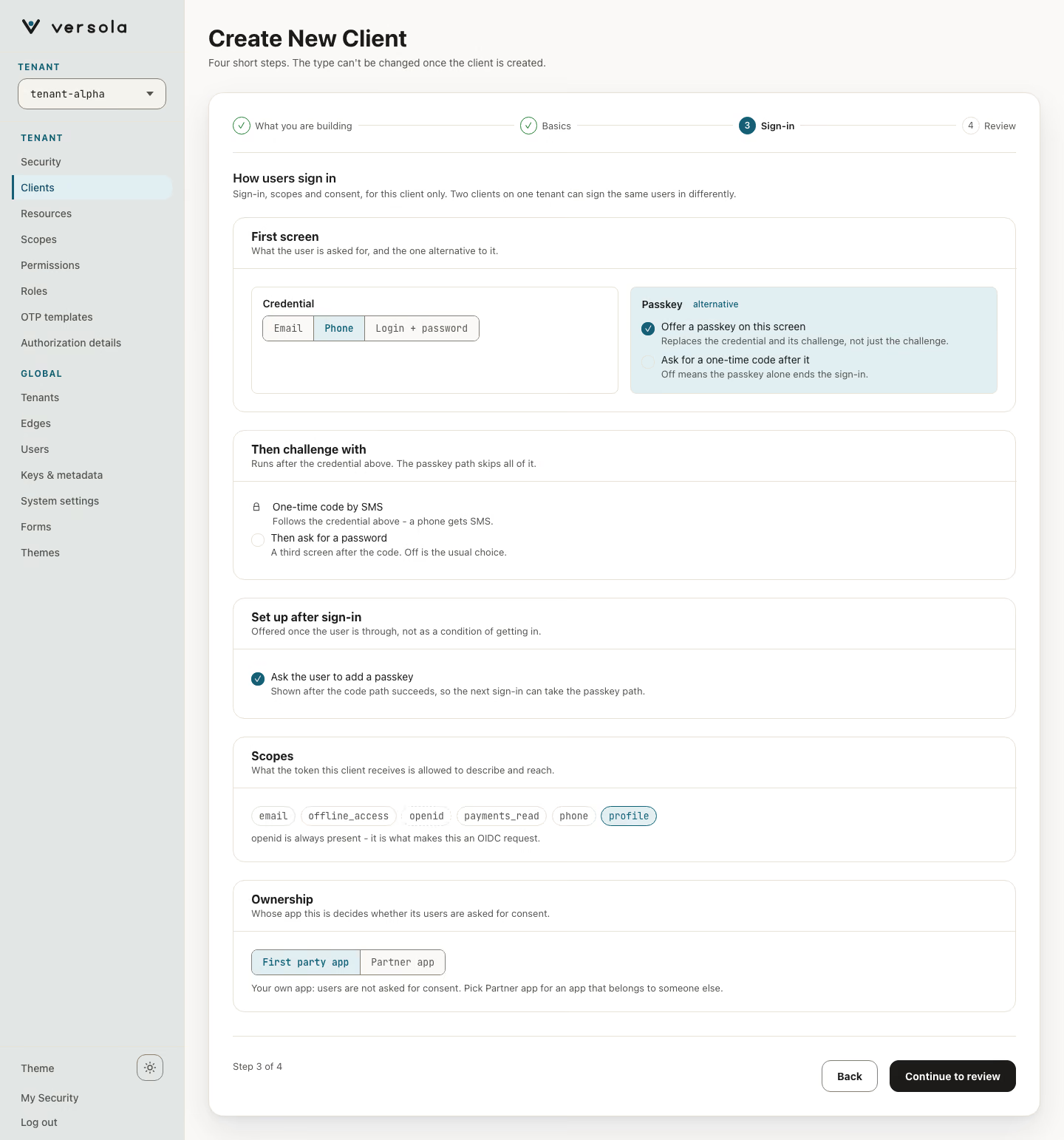
With Ask for consent the step also shows the partner hint and the consent settings.
Press Continue to review.
5. Step 4: Review
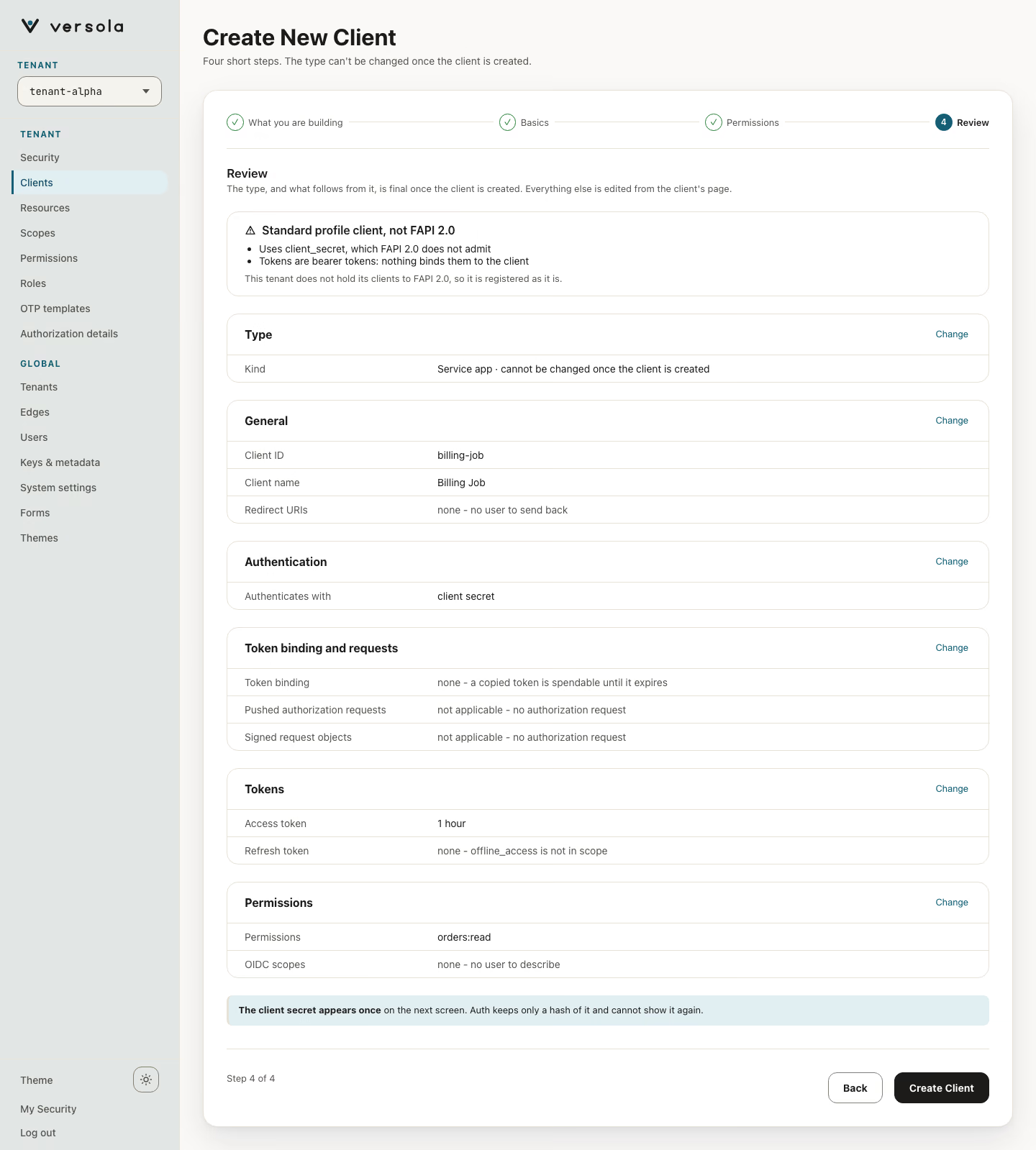
The review lists the choices by group, each with a Change link back to its step. For a client that meets FAPI 2.0 it starts with Meets FAPI 2.0. Check Kind, Authenticates with, Token binding and Refresh token: the refresh token reads “none” unless offline_access is in scope. For a web app or a mobile or desktop app the review states that no secret is issued.
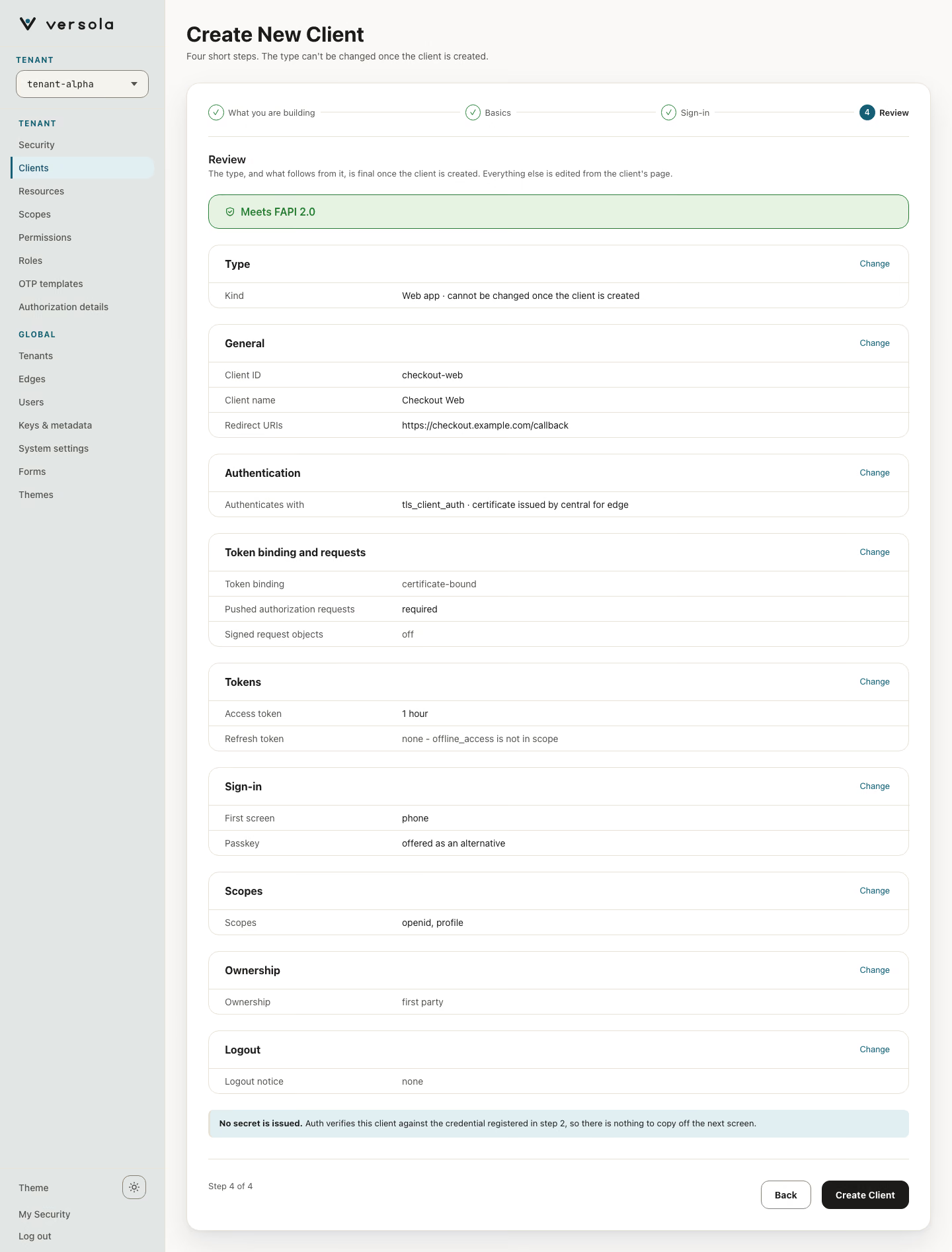
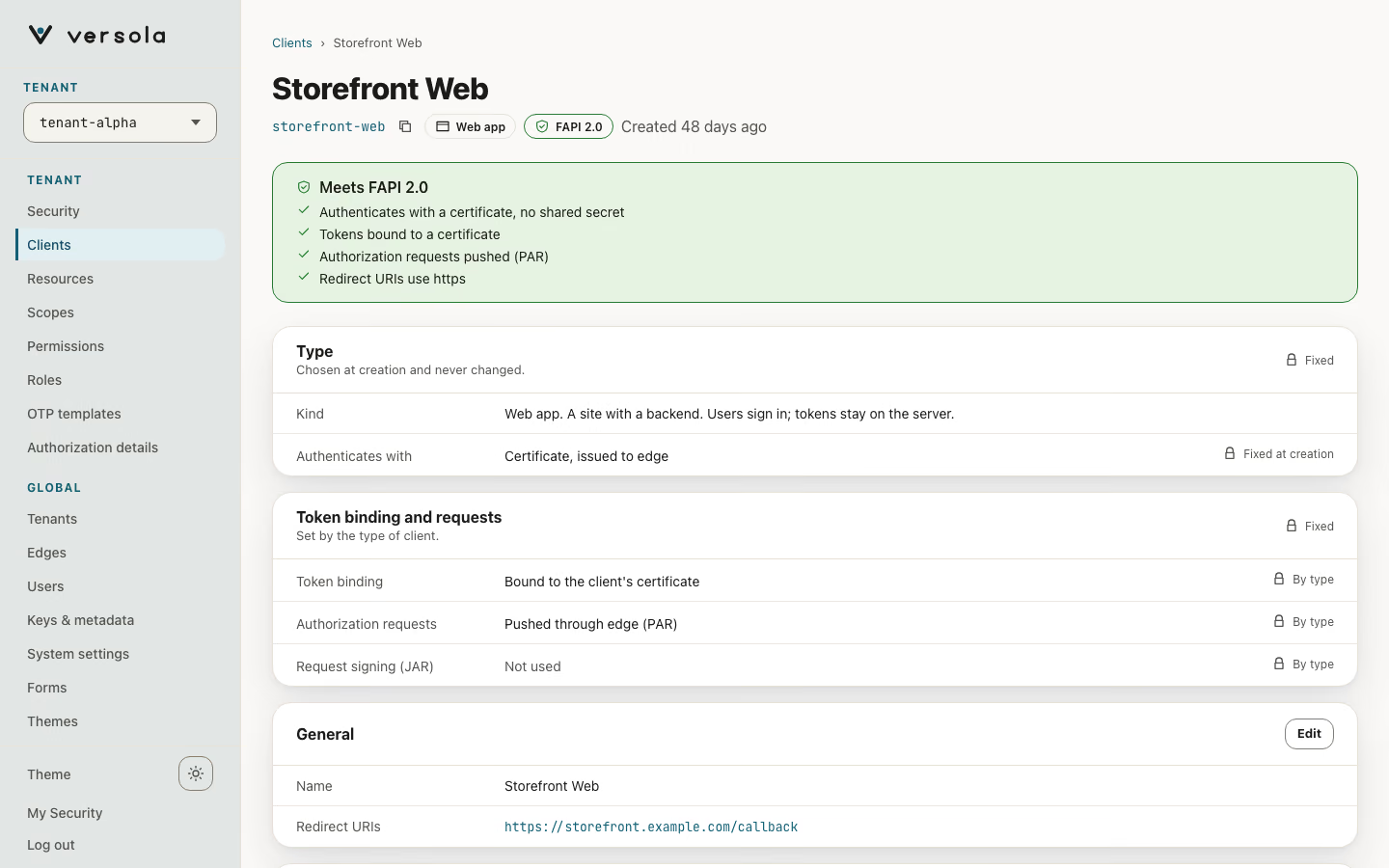
Press Create Client. You land on the client page.
Mobile or desktop apps
Steps 1 to 4 are the same, with these differences:
- Step 1 lists DPoP-bound access tokens, App Link redirect only and 1 hour access token, refresh rotation on.
- In step 2 the redirect URI must be an https App Link or Universal Link.
- Scopes in step 3 include
offline_accessby default. The review then shows a 180-day refresh token.
For the calls the app makes afterwards, see How to build a native mobile app flow.
Service apps
A service app has no user, so the wizard changes:
- Basics has no redirect URIs. Under How the client authenticates you choose client secret, key or certificate. client secret is offered only on a Standard tenant; on a FAPI 2.0 tenant you choose between key and certificate.
- With certificate, the certificate can be renewed by your own PKI with the same subject, or enrolled and renewed automatically through EST (
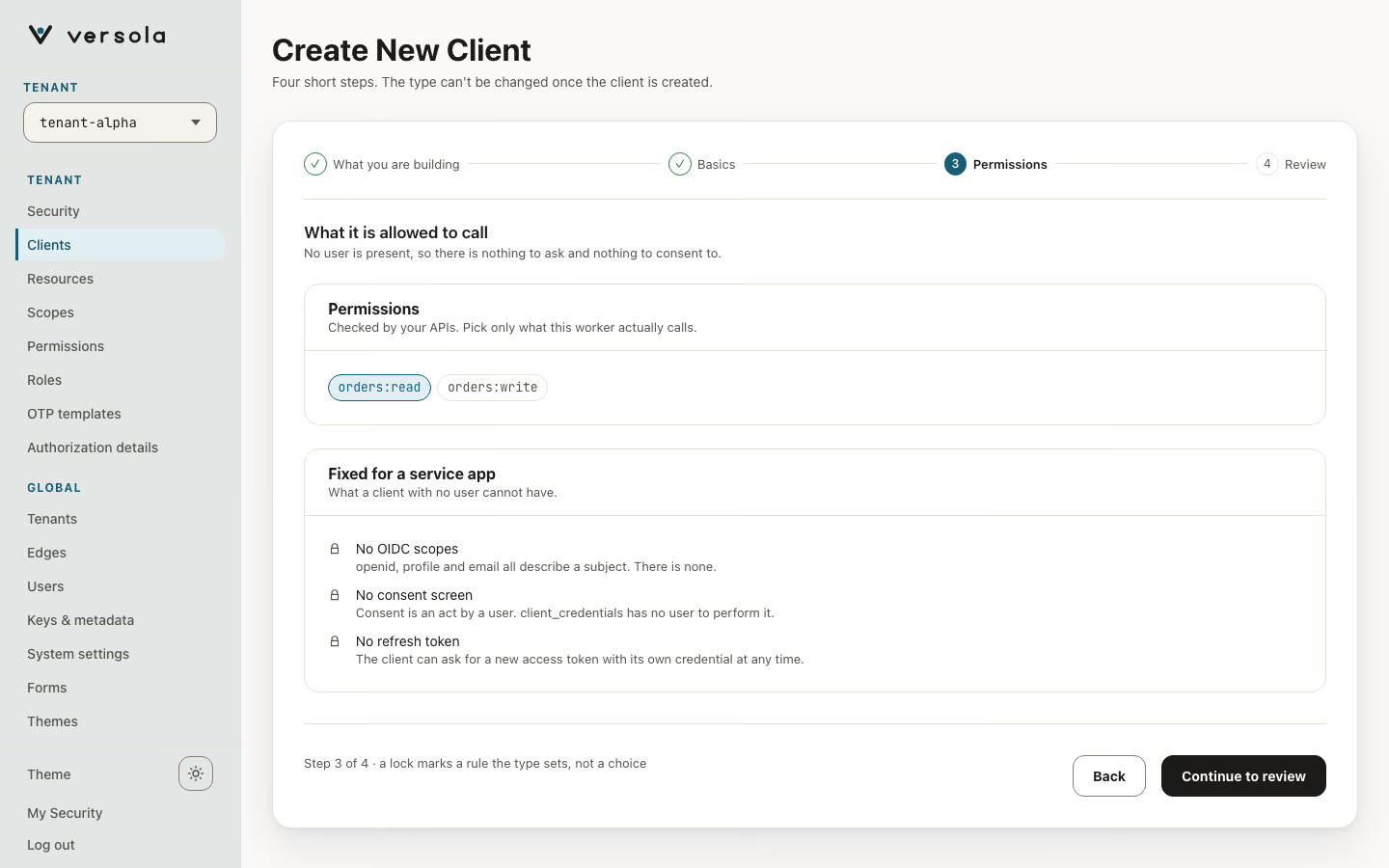
estEnrollment). See Automatic client certificate renewal (EST). - Step 3 is Permissions, not Sign-in: pick the permissions the service may call. No OIDC scopes, no consent screen and no refresh token apply.
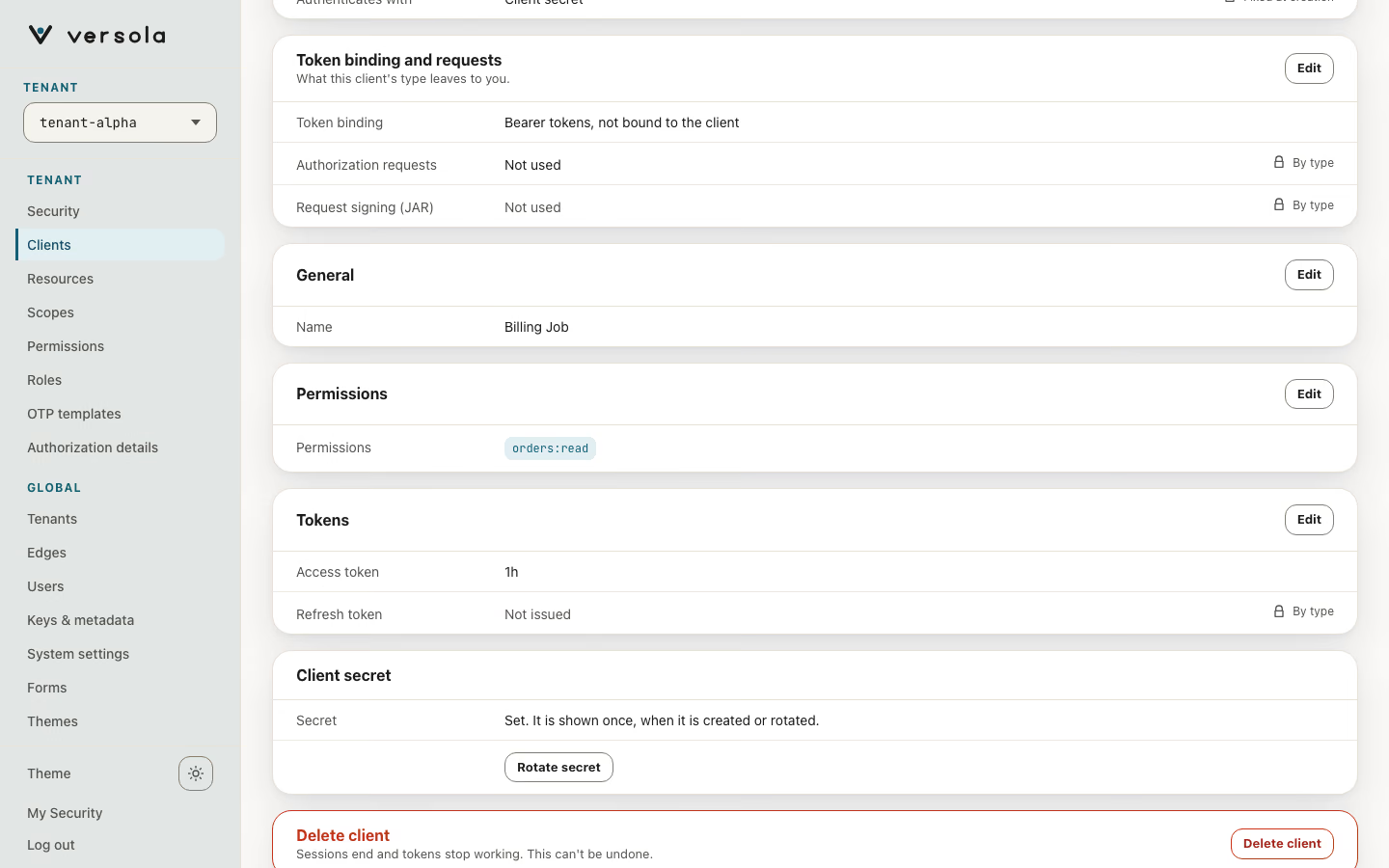
- With client secret, the secret is generated when you press Create Client and shown once on the page you land on. Store it before you leave: auth keeps only a hash and cannot show it again. Access tokens are bearer tokens.
Rotating a secret
On the client page of a client that authenticates with a secret, open Client secret and press Rotate secret. Versola issues a new secret, shows it once and keeps the previous one valid; the client gets a Secret rotation chip. Deploy the new secret, then press Delete old secret.
Next steps
- Register the APIs this client calls: How to register a resource.
- Grant a service app permissions: How to register a permission.
- Put the client behind edge: How to protect an API with edge.