A theme decides how every sign-in screen looks. This page creates one from a built-in base theme and your brand colour, checks it on the real forms and gives it to a client. For the screen itself, see Themes.
Prerequisites
- The
forms:managepermission. - A tenant selected in the console, if the theme should belong to it.
- A brand colour as
#rrggbb.
1. Create the theme
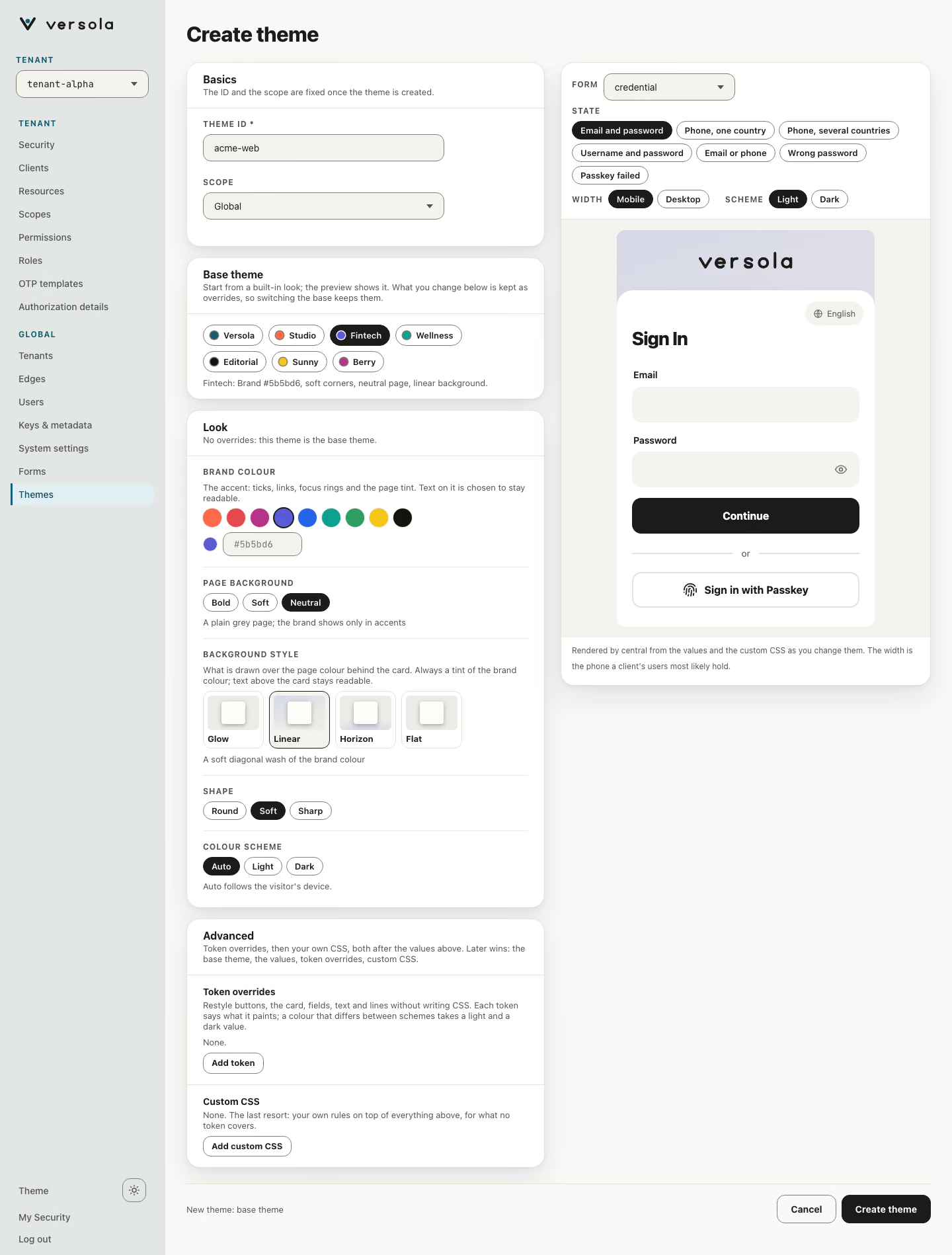
Open Themes and press + Create theme. Enter a Theme ID, for example acme-web, choose the Scope (Global or This tenant) Both the ID and the scope are fixed after creation.
2. Pick a base and a brand colour
In Base theme pick the card nearest to what you want. In Look, choose a brand colour from the swatches or type your own #rrggbb. The value is marked Overridden next to the base’s, with Reset to undo it. Set Page background, Background style, Shape and Colour scheme the same way, or leave them as the base has them.
3. Go further (optional)
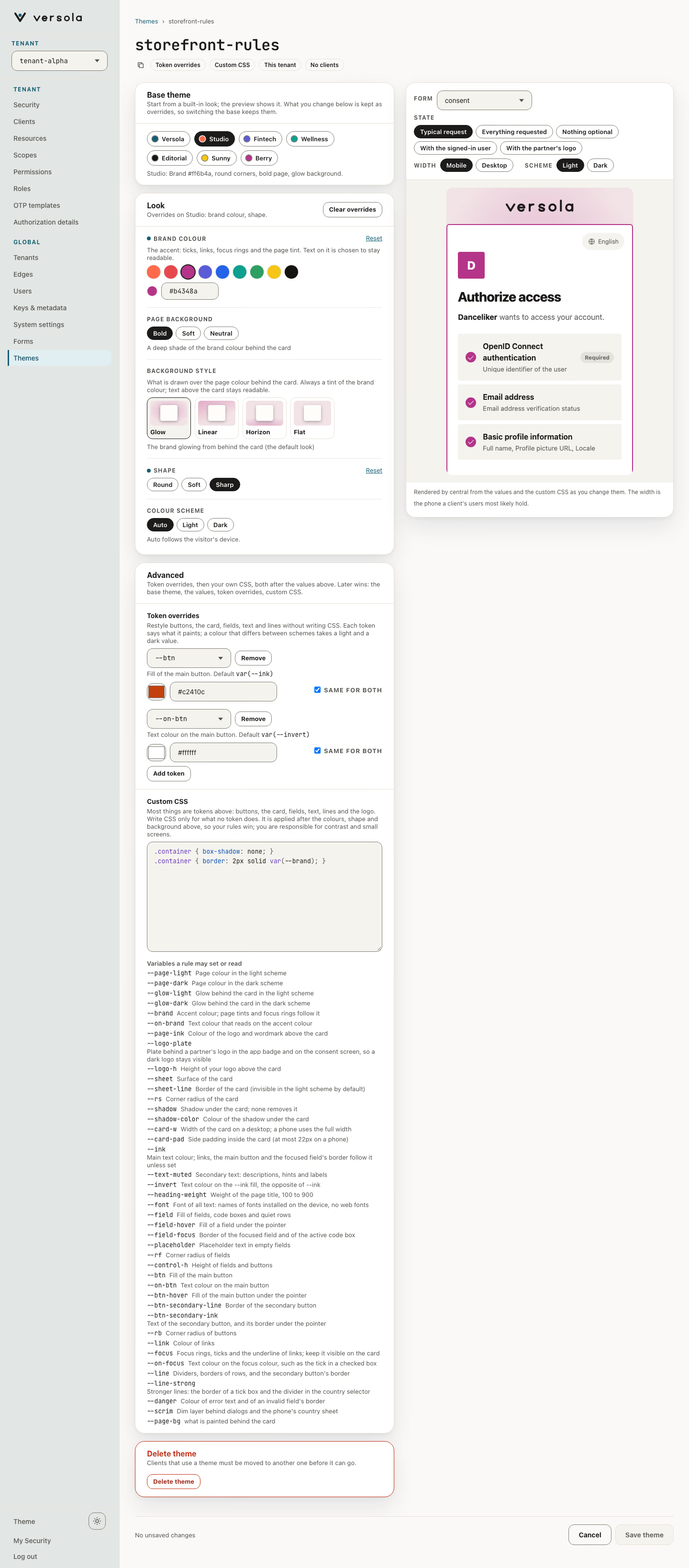
When the values in Look are not enough, use the Advanced card below it. Buttons, the card, fields, text and lines are tokens you can override one by one, each with a one-line description, so you rarely need CSS. For example, to make the main button orange, press Add token twice: set --btn to #c2410c (tick Same for both to use it in the light and the dark scheme) and --on-btn, the text on it, to #ffffff. The preview changes as you type. The full list is in Tokens you can override. Press Add custom CSS only for what no token does. Token overrides and CSS are applied after the colours, shape and background you chose, token overrides first and custom CSS last, so they win. You are responsible for contrast and small screens, so check the next step in both colour schemes and at phone width.
4. Check it on the real forms
The preview on the right is the form auth would serve, with the stylesheet central renders for your values and your CSS. Change Form and State to see the sign-in, one-time code and consent screens, and Scheme to see the dark scheme (it is unavailable when you fix the colour scheme).
5. Save
The bar at the bottom of the page names what is not saved, for example Unsaved: brand colour, token overrides, custom CSS. Press Create theme; the page of the new theme opens.
6. Give it to a client
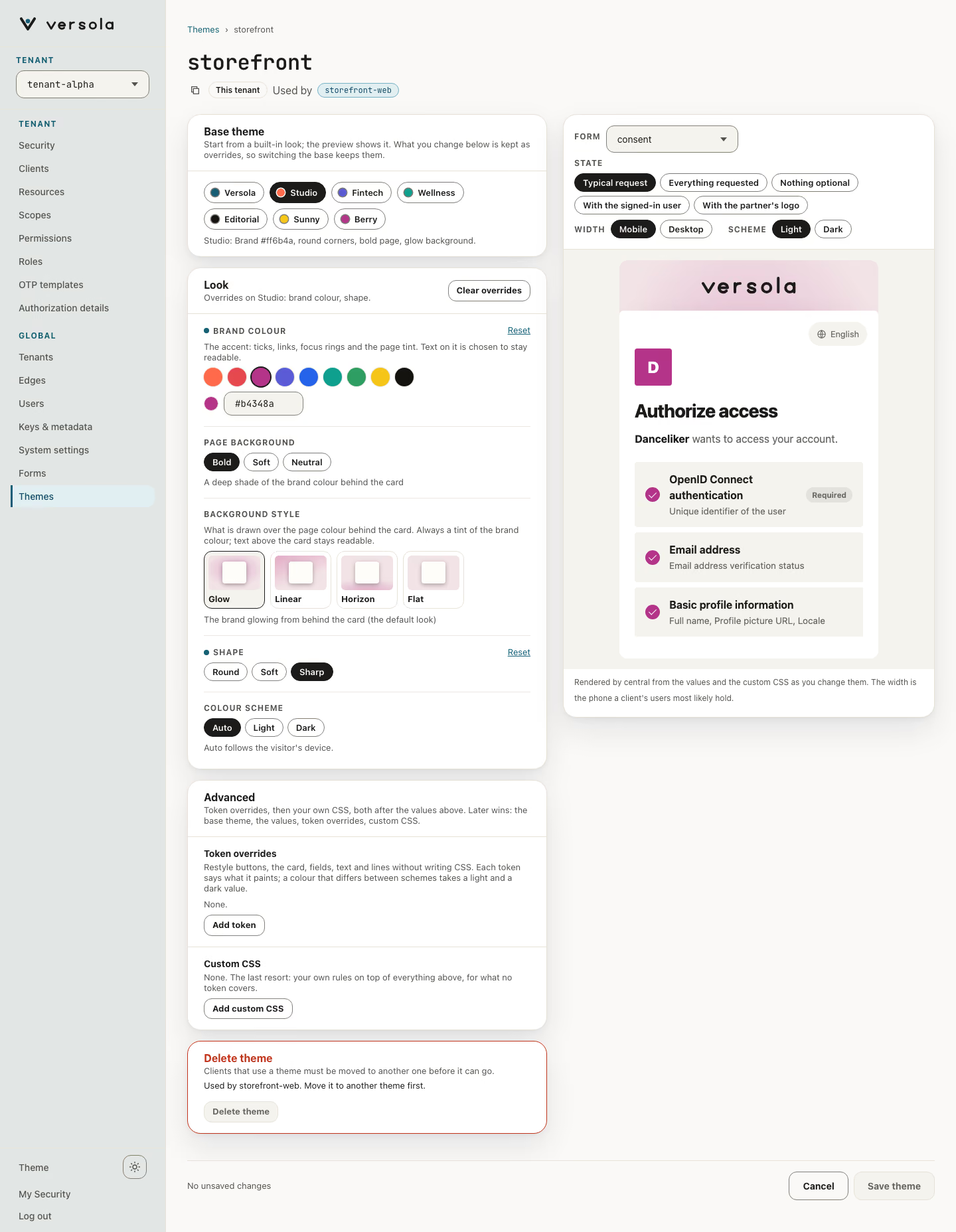
Open the client, press Edit on Branding and logout and choose the theme in Forms Theme (Client). Themes now lists the client under Used by. A theme a client uses cannot be deleted; move the client to another theme first.