A client is an application that asks Versola for tokens. In the admin console you pick one of three kinds when you create it, and the kind fixes how the client authenticates and how its tokens are bound. This page lists what each kind sets and what the client page lets you change afterwards. For the conceptual picture, see Entities.
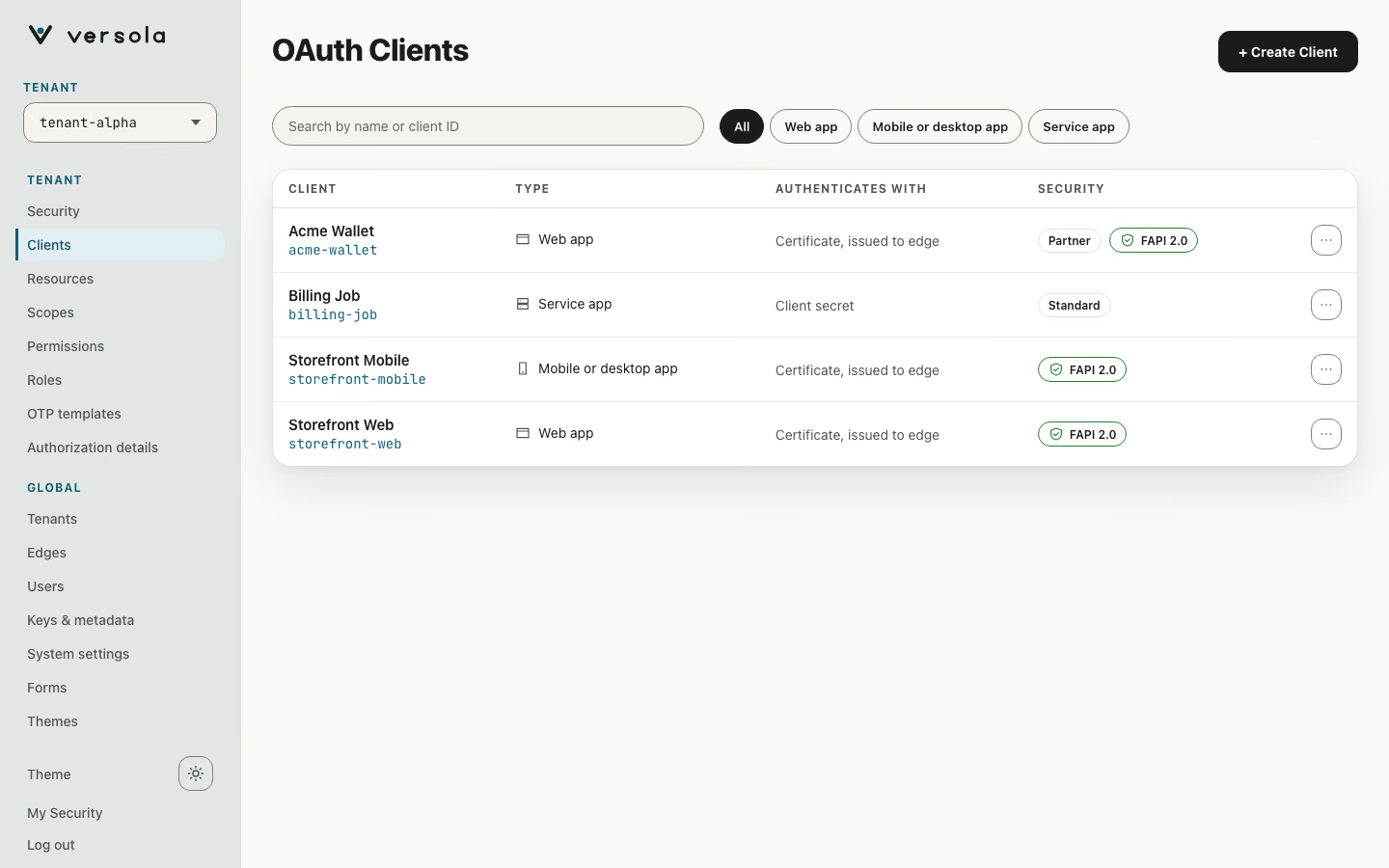
Client kinds
The wizard asks “What are you building?”. Each kind maps to a template in the Central API and sets applicationType.
| Kind | Meaning in the console | applicationType | template |
|---|---|---|---|
| Web app | A site with a backend. Users sign in; tokens stay on the server. | web | web |
| Mobile or desktop app | An app installed on a device. It holds a key of its own. | native | device |
| Service app | Code that calls your APIs with no user present. | web | service |
The kind cannot be changed after the client is created. A client registered through the Central API without a template has none stored; the console infers its kind from applicationType, redirect URIs and sign-in flow.
What each kind fixes
The wizard’s plan panel lists these rules. A lock marks a rule the kind sets, not a choice. On a Standard tenant the panel adds a note that this tenant is not FAPI 2.0.
| Web app | Mobile or desktop app | Service app | |
|---|---|---|---|
| Credential | mTLS by edge: Central provisions the certificate edge authenticates with; no secret to store (tls_client_auth) | Same: mTLS by edge, plus a DPoP proof key that the device generates in its own keystore | A choice: client secret (Standard tenants only), key (private_key_jwt) or certificate (mTLS) |
| Edge fronts the client | Yes. Tokens stay inside edge behind a session cookie and never reach the browser | Yes | No |
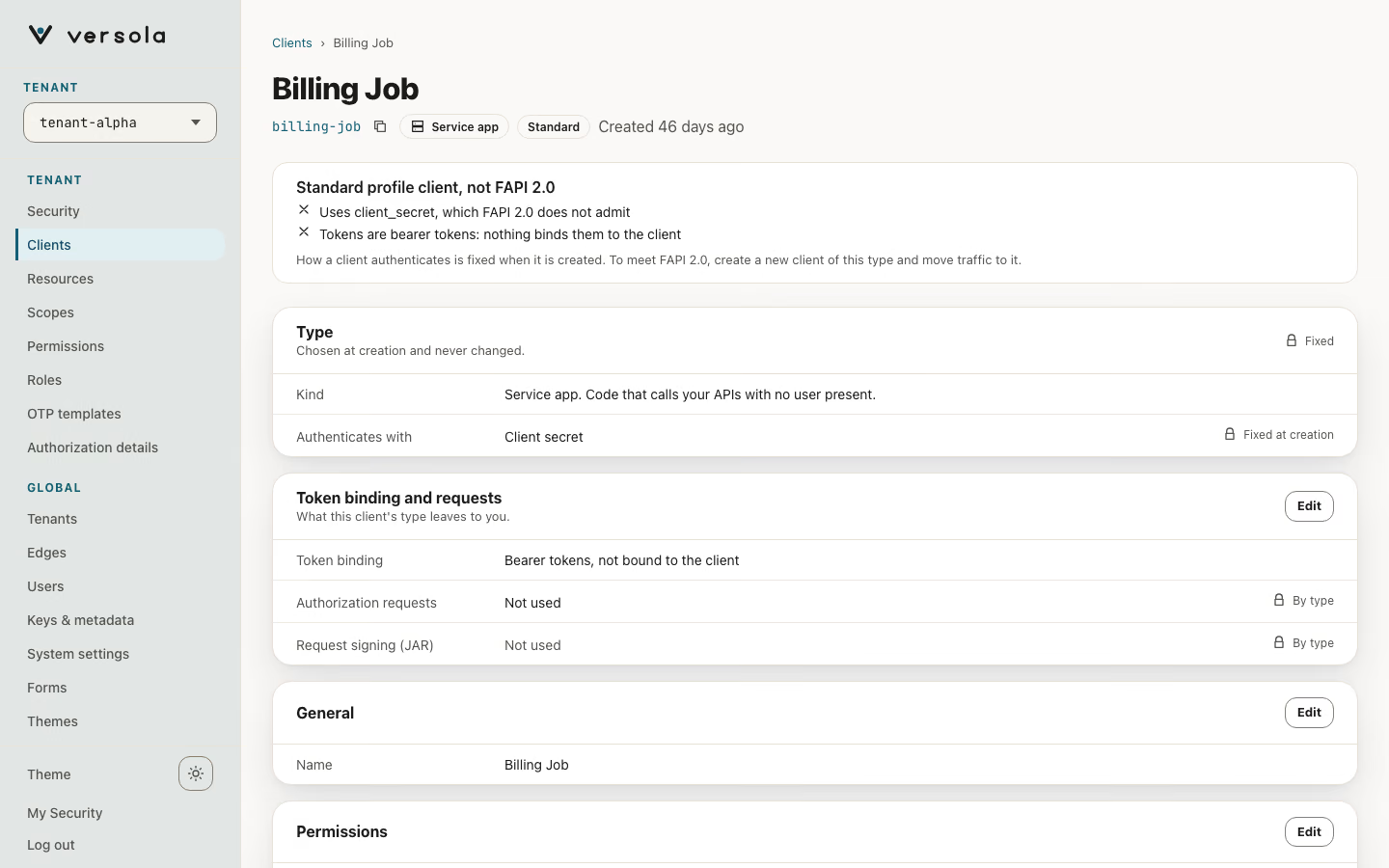
| Token binding | Certificate-bound access tokens (RFC 8705), bound to edge’s certificate | DPoP-bound access tokens (RFC 9449). Edge’s certificate is shared by every installation, so it cannot bind them | DPoP with a key, certificate-bound with a certificate. A client secret gives bearer tokens |
| PKCE | S256 only; not a setting | S256 only; not a setting | Not applicable: no authorization request |
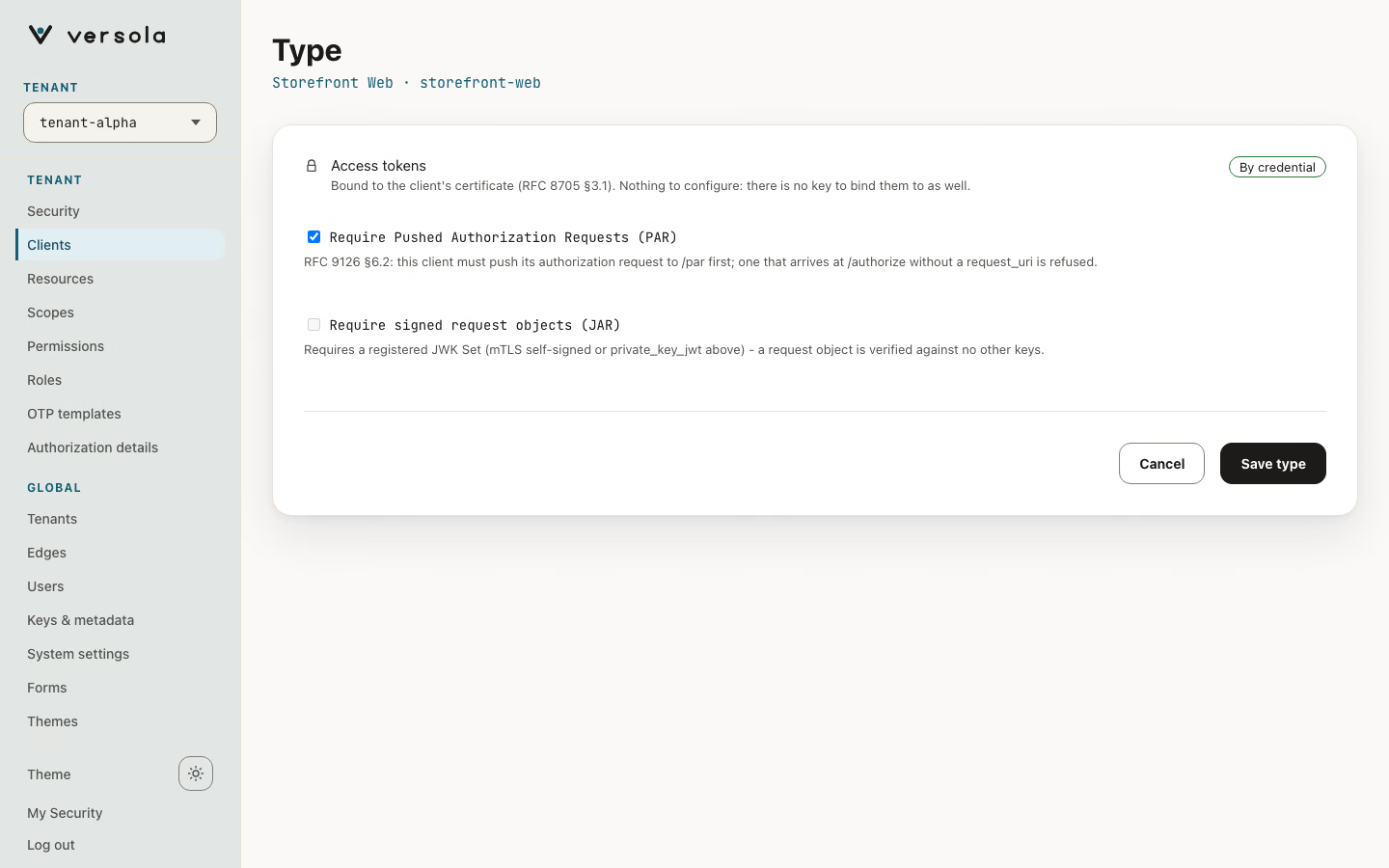
| Pushed authorization requests (PAR) | On | On | Not applicable |
| Signed request objects (JAR) | Off, not required | Not available: a shipped binary has no private key of its own | Not applicable |
| Redirect URIs | Edge’s callback | An https App Link or Universal Link only. A custom scheme can be claimed by any app on the device | None |
| Access token TTL | 1 hour | 1 hour, refresh rotation on. DPoP needs at least 1 hour | 1 hour |
| Sign-in flow, scopes, consent | Yes | Yes | None. The client has permissions, not OIDC scopes, and no consent screen |
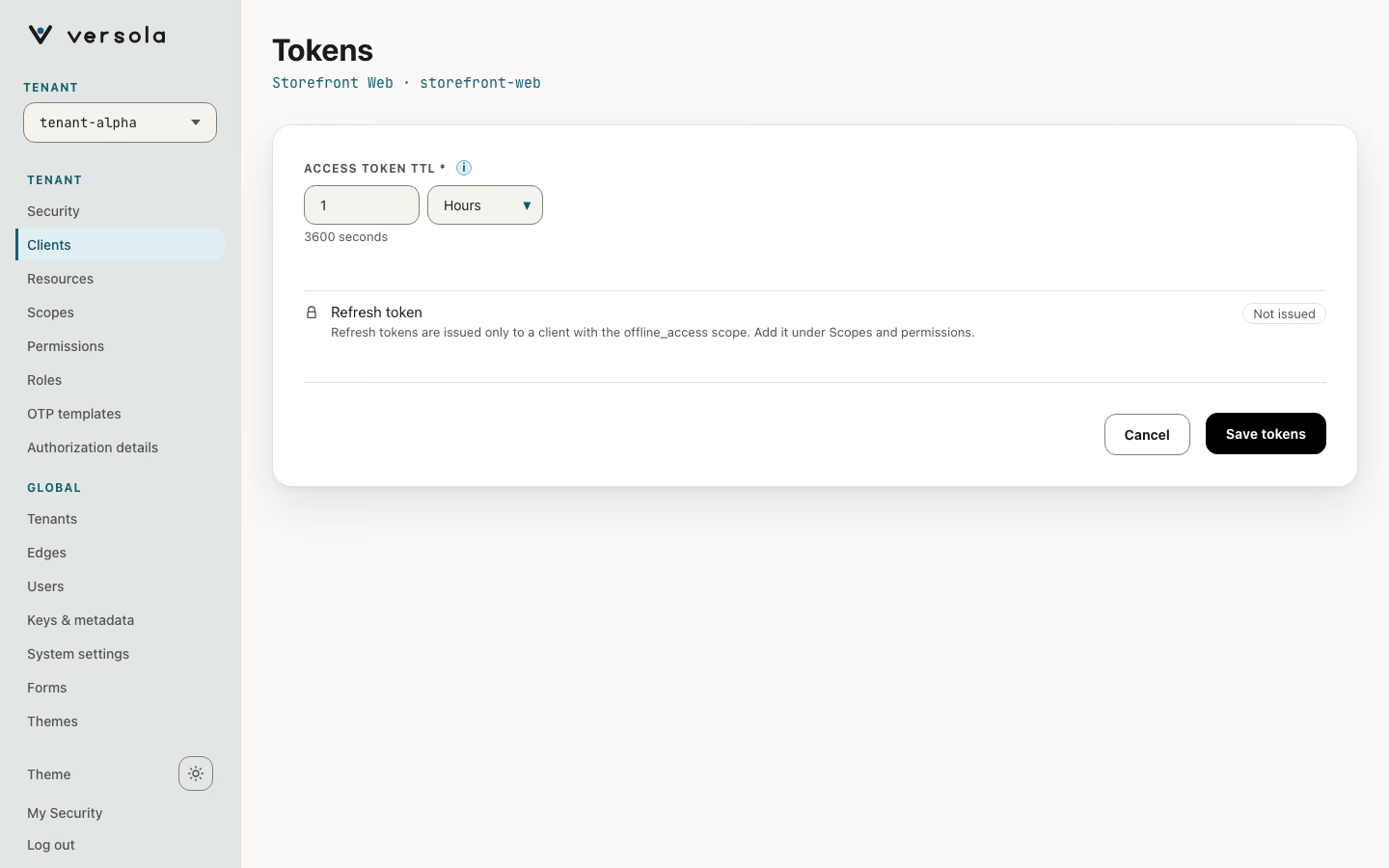
| Refresh token | Only with offline_access | Only with offline_access; offline_access is on by default for a new mobile app | Never issued: the client asks for a new access token with its own credential |
Apps fronted by edge stay FAPI-shaped on both profiles. For the full rule set per profile see Security profiles and Sender-constrained tokens.
The client page
Opening a client from the list shows its page. Each group of settings has its own Edit button with its own Cancel and Save.
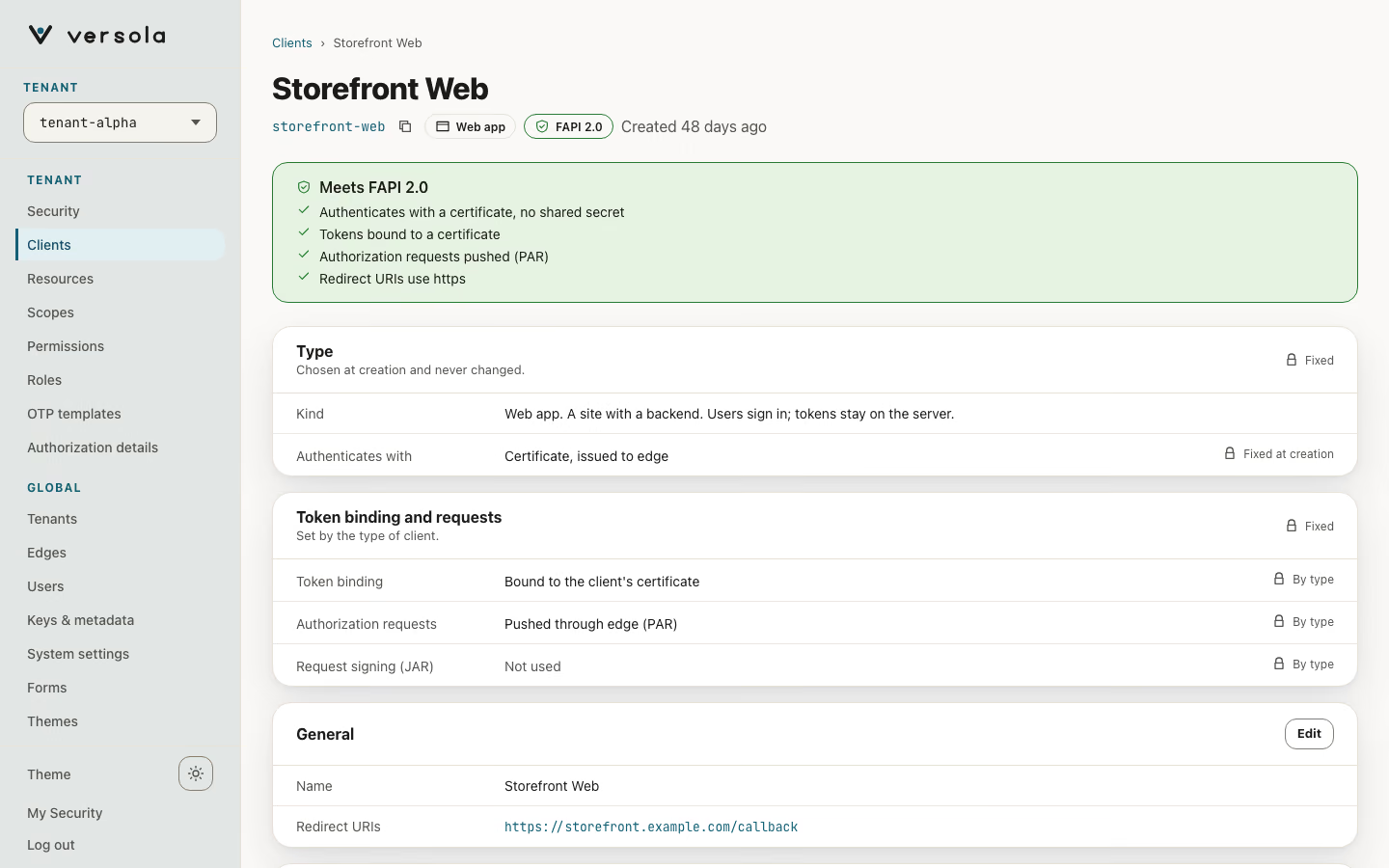
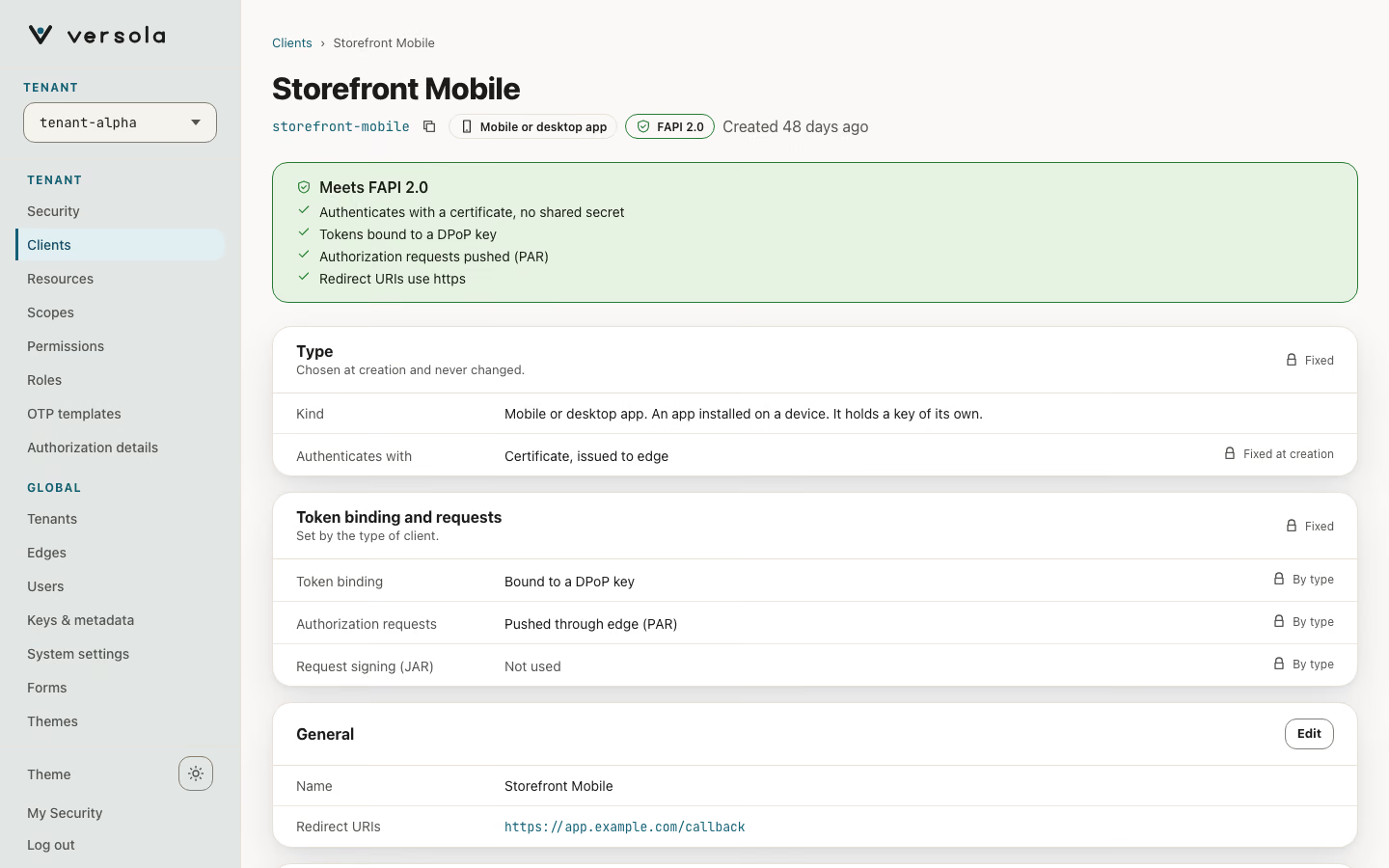
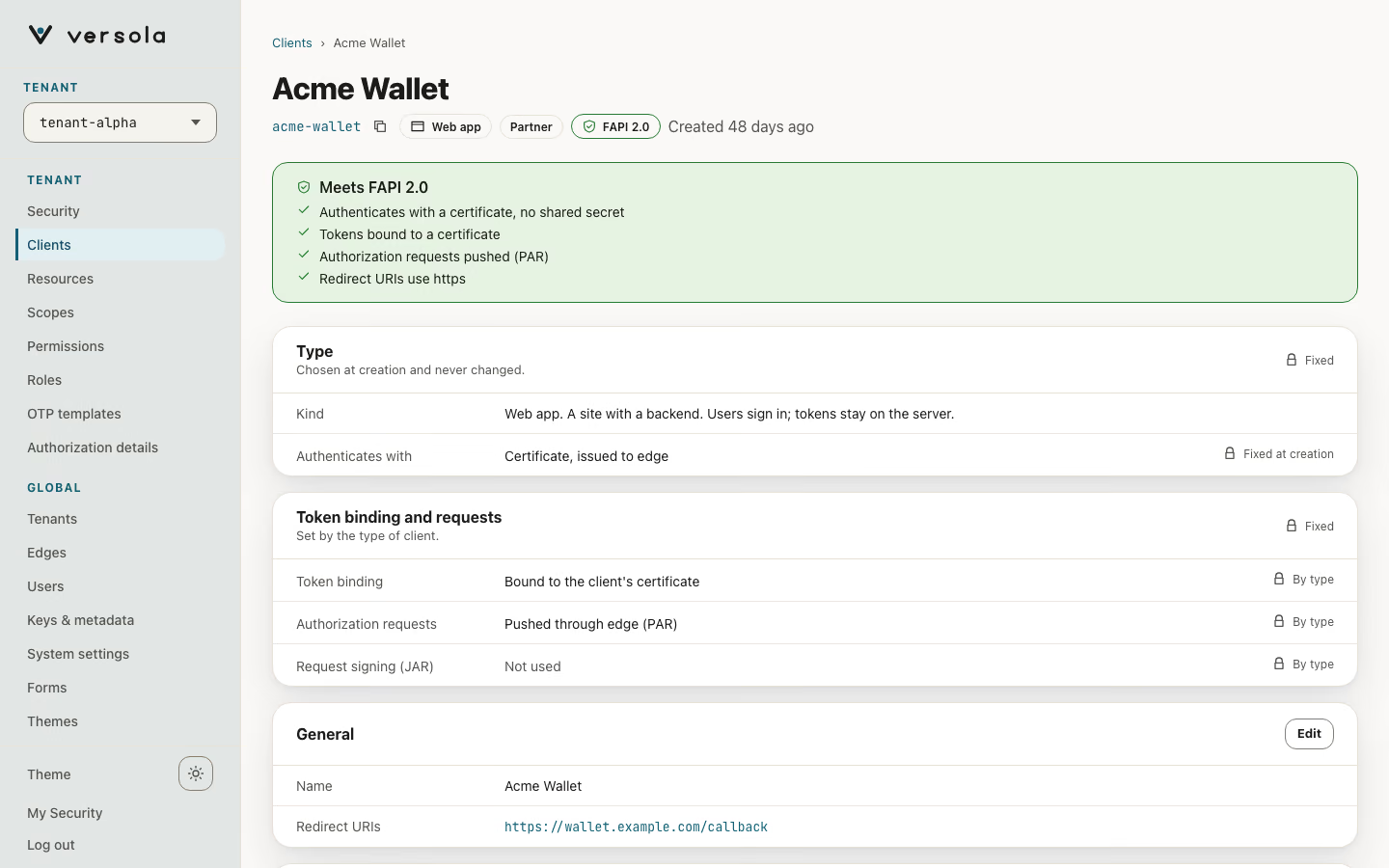
At the top, chips show the client ID, the kind, Standard or FAPI 2.0, and Secret rotation while a previous secret is still valid. A banner reads Meets FAPI 2.0 with the checks that passed (key or certificate authentication, sender-constrained tokens, PAR, https redirect URIs). Under Standard it reads Standard profile client, not FAPI 2.0 and names what falls short. The banner is computed for every client, whatever profile its tenant uses.
| Section | What it holds |
|---|---|
| Type | Kind and Authenticates with. Chosen at creation and never changed. |
| Token binding and requests | Token binding, Authorization requests (PAR) and Request signing (JAR). Locked by the kind where the kind decides them. |
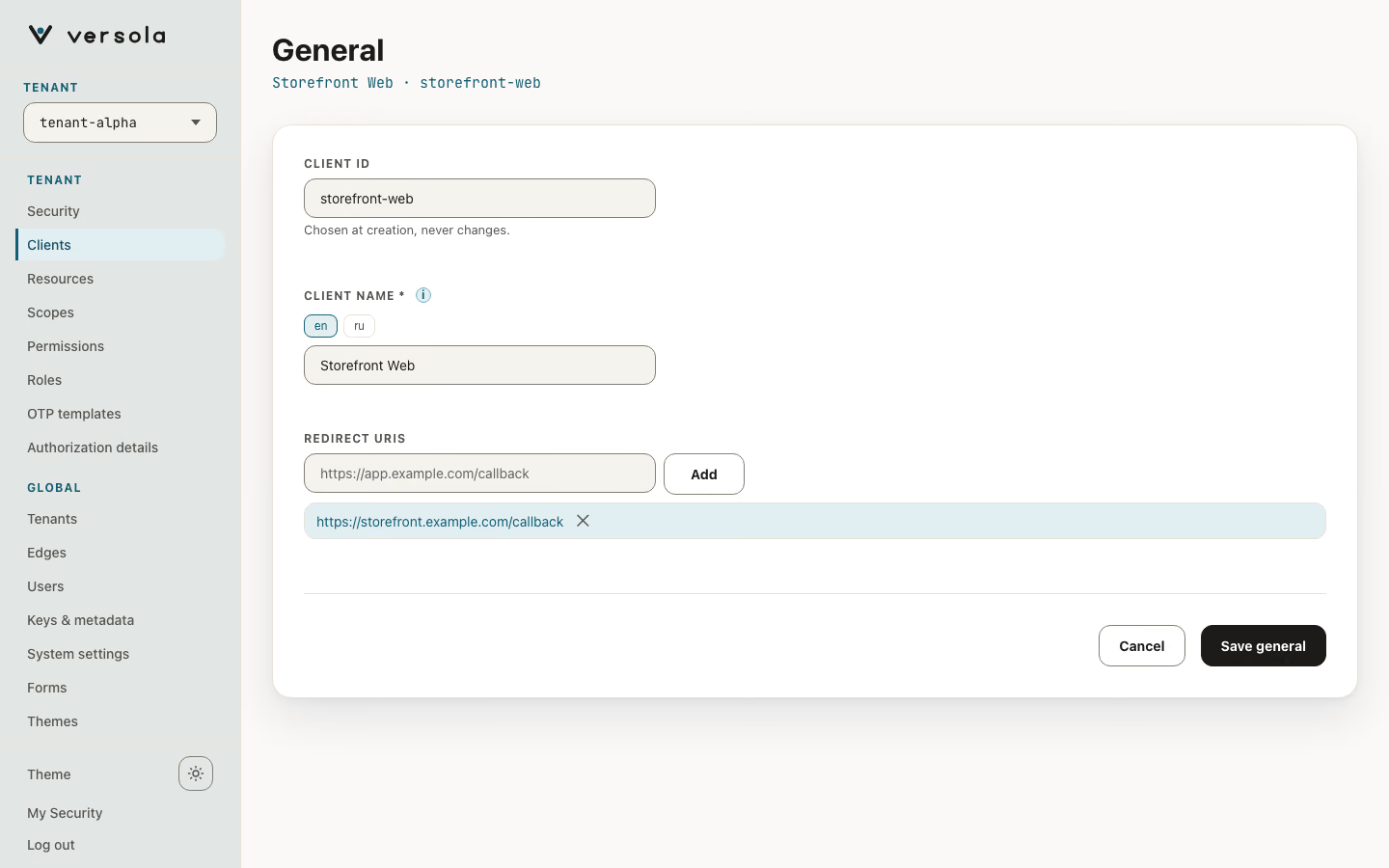
| General | Name (localised) and Redirect URIs. The client ID is shown, not editable. |
| Scopes (Permissions for a service app) | See Scopes and permissions. |
| Sign-in | The credential and the factors that follow it. Not shown for a service app. |
| Tokens | Access token, Refresh token and, for DPoP clients, DPoP proof keys. |
| Keys | The registered public keys of a client that signs with them. |
| Client secret | Only for a client that authenticates with a secret. |
| Ownership | First party app or Partner app, with the consent settings of a partner. |
| Branding and logout | Forms theme and Logout. |
| Authorization Presets | Login presets for edge. Not shown for a service app. |
| Delete client | Sessions end and tokens stop working. This cannot be undone. |
How a client authenticates
Authenticates with is the authMethod and is fixed when the client is created. To change it, delete the client and register it again. The console labels the methods like this:
| Label | authMethod | Notes |
|---|---|---|
| Certificate, issued to edge | tls_client_auth | Web and mobile clients fronted by edge. Nothing to register. |
| Certificate | tls_client_auth | A service app. You give the field of the certificate that identifies the client (Recognised by, one of subject_dn, san_dns, san_uri, san_ip, san_email) and its expected value. |
| Self-signed certificate | self_signed_tls_client_auth | Auth compares the presented certificate against a key set you register. |
| Signing key | private_key_jwt | You register a JWK Set of up to 10 public keys, or ask the Central API to generate the pair. |
| Client secret | client_secret | Standard tenants only. |
| None (public client) | none | Public native client. Standard tenants only. |
The key pair of a private_key_jwt client can be generated by Central at registration with generateJwks (ES256, PS256 or RS256). The private key is returned once as privateKey and is stored nowhere. This option exists in the Central API; the console form asks for a JWK Set you already have.
Automatic certificate renewal (EST)
A web or service client with authMethod: tls_client_auth can obtain and renew its certificate itself through EST (RFC 7030). It holds no certificate at registration.
| Where | Name | Meaning |
|---|---|---|
| Registration (Central API) | estEnrollment | true turns EST on for the client. Defaults to false. Needs tls_client_auth, and the tenant must set mtlsCertificateHeader. Mutually exclusive with issueEdgeClientCertificate, enrollEdgeClientCertificate and a certificate you supply. The certificate’s subject is mtlsAuth, or CN=<client>,OU=<tenant>,O=Versola where it names none |
GET /configuration/clients, field est | pending, certificateExpiresAt, chainEndsAt | Whether the client has not enrolled yet, when its latest certificate expires, and when its chain of renewals ends (null with auto-extend, or before enrolment) |
POST /configuration/clients/est/enrollment-tokens?clientId=&validityHours= | A one-time enrolment token, 24 hours by default, 168 at most. Shown once, with the subject the request must say | |
POST /configuration/clients/est/extend?clientId= | Starts the chain over after it reached client-identity.max-age | |
POST /configuration/clients/est/revoke?clientId= | Ends the right of every certificate issued so far to renew, and withdraws an open token |
See Client certificates and their renewal and Automatic client certificate renewal (EST).
Client secret
A client secret is generated when the client is created and shown once. After Create Client you land on the client page with a Client created banner that holds the secret and a Copy secret button. Auth keeps only a hash and cannot show it again.
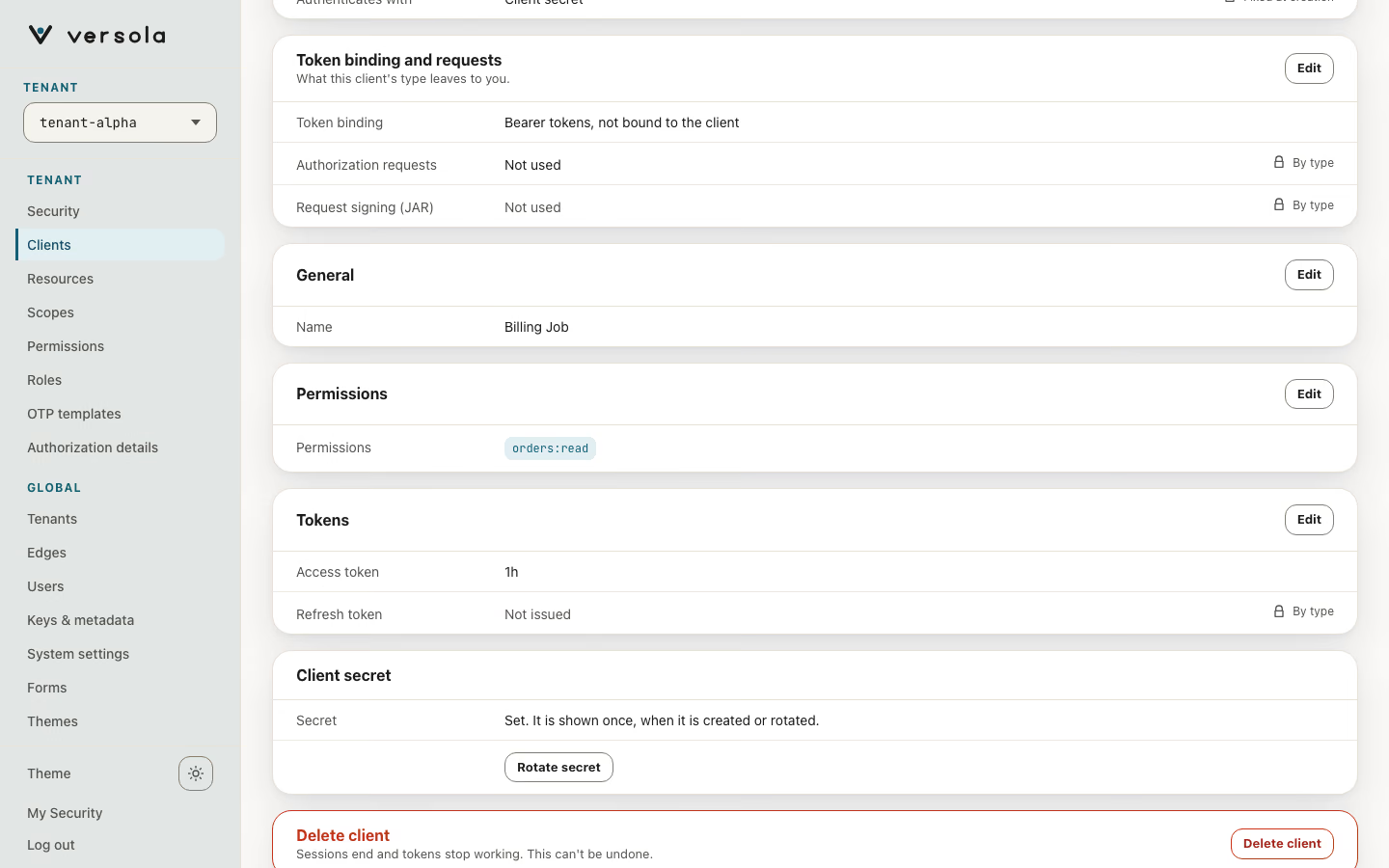
The Client secret section reads “Set. It is shown once, when it is created or rotated.” Rotate secret issues a new secret, shows it once in the same kind of banner and keeps the previous one valid; the client gets a Secret rotation chip and the button becomes Delete old secret. Deploy the new secret, then press Delete old secret.
Tokens
| Setting | Default | Notes |
|---|---|---|
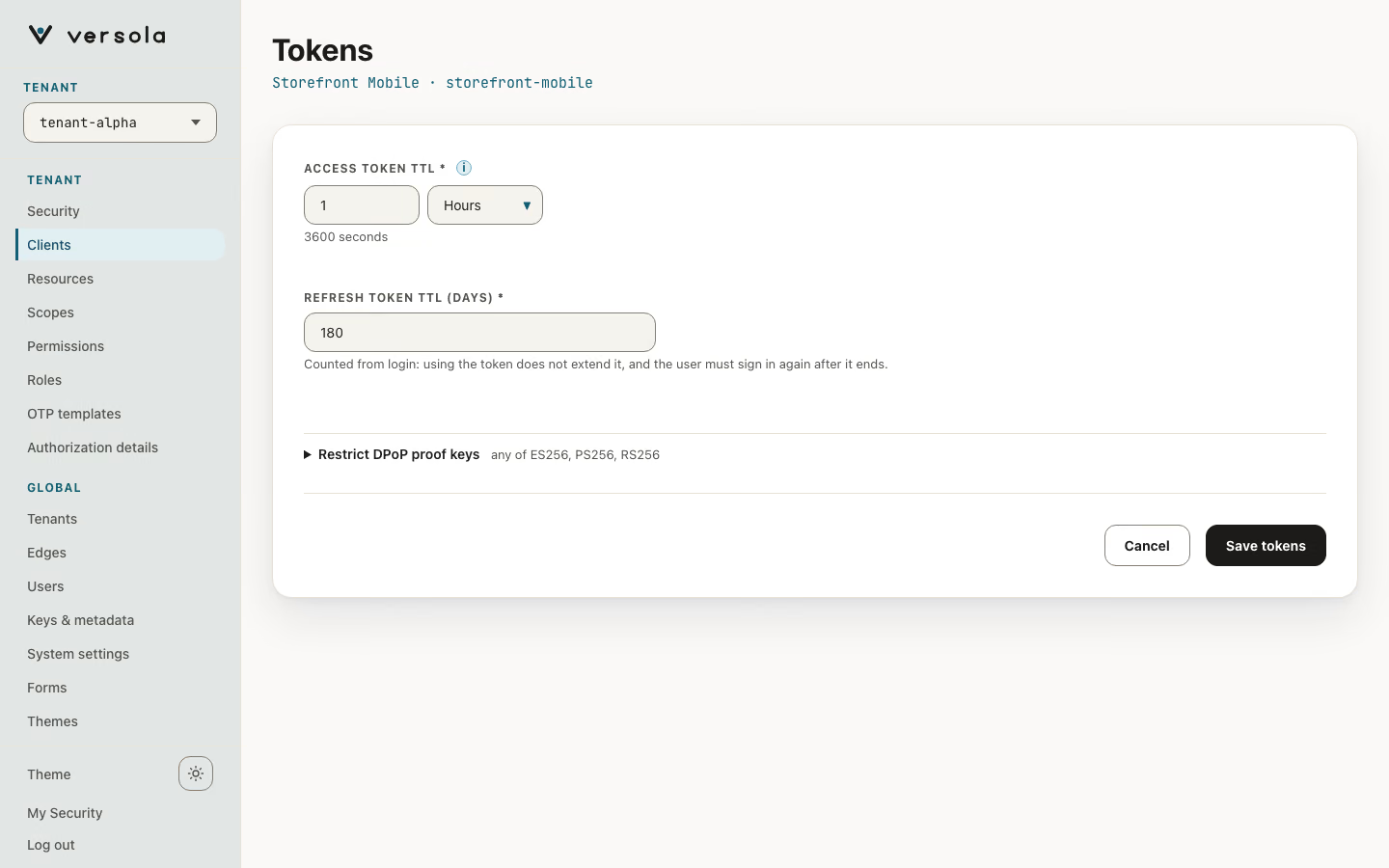
| Access token | 1h | Up to 24 hours (86400 s). At least 1 hour when the client requires DPoP-bound tokens. Edited in minutes or hours. |
Refresh token (refreshTokenTtl) | 180 days (15552000 s) | Shown in days. Issued only when the client has the offline_access scope. Fixed at issuance and counted from login: using a refresh token does not extend it, and the user signs in again when it ends. |
| DPoP proof keys | Any the server accepts | Per client dpopSigningAlgs (ES256, PS256, RS256, limited to what the server advertises) and a minimum RSA key size. |
A client authenticating with a certificate has its tokens bound to that certificate by itself, so there is no DPoP setting beside it. A mobile or desktop app is bound to a DPoP key. Where the kind leaves the choice open, the page offers Require DPoP-bound access tokens, Require Pushed Authorization Requests (PAR) and Require signed request objects (JAR).
Scopes and permissions
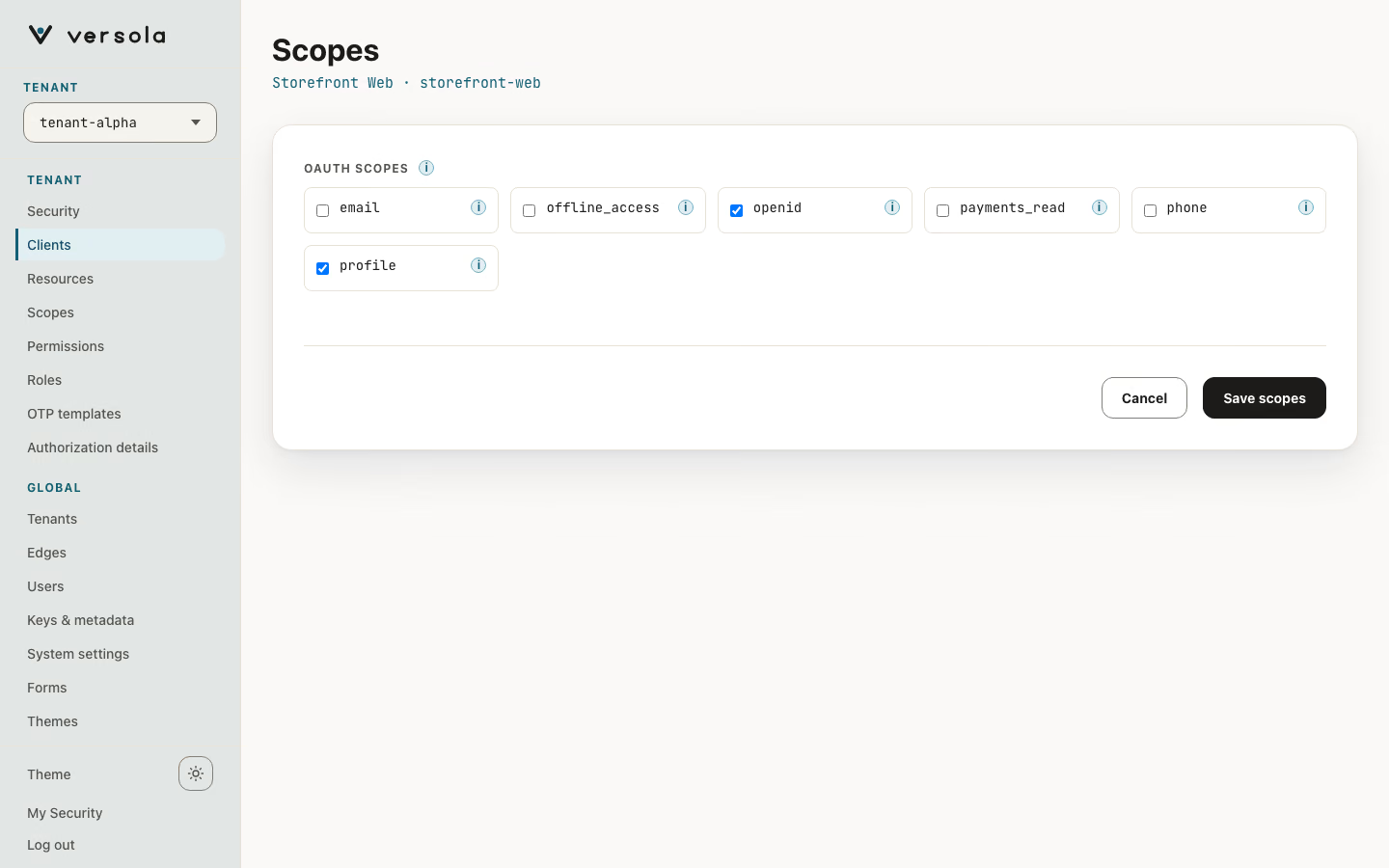
For a web app or a mobile or desktop app, Scopes lists the scopes the client may request, which govern the claims it receives. openid is always present. Such a client does not get permissions of its own: what its users may call comes from their roles.
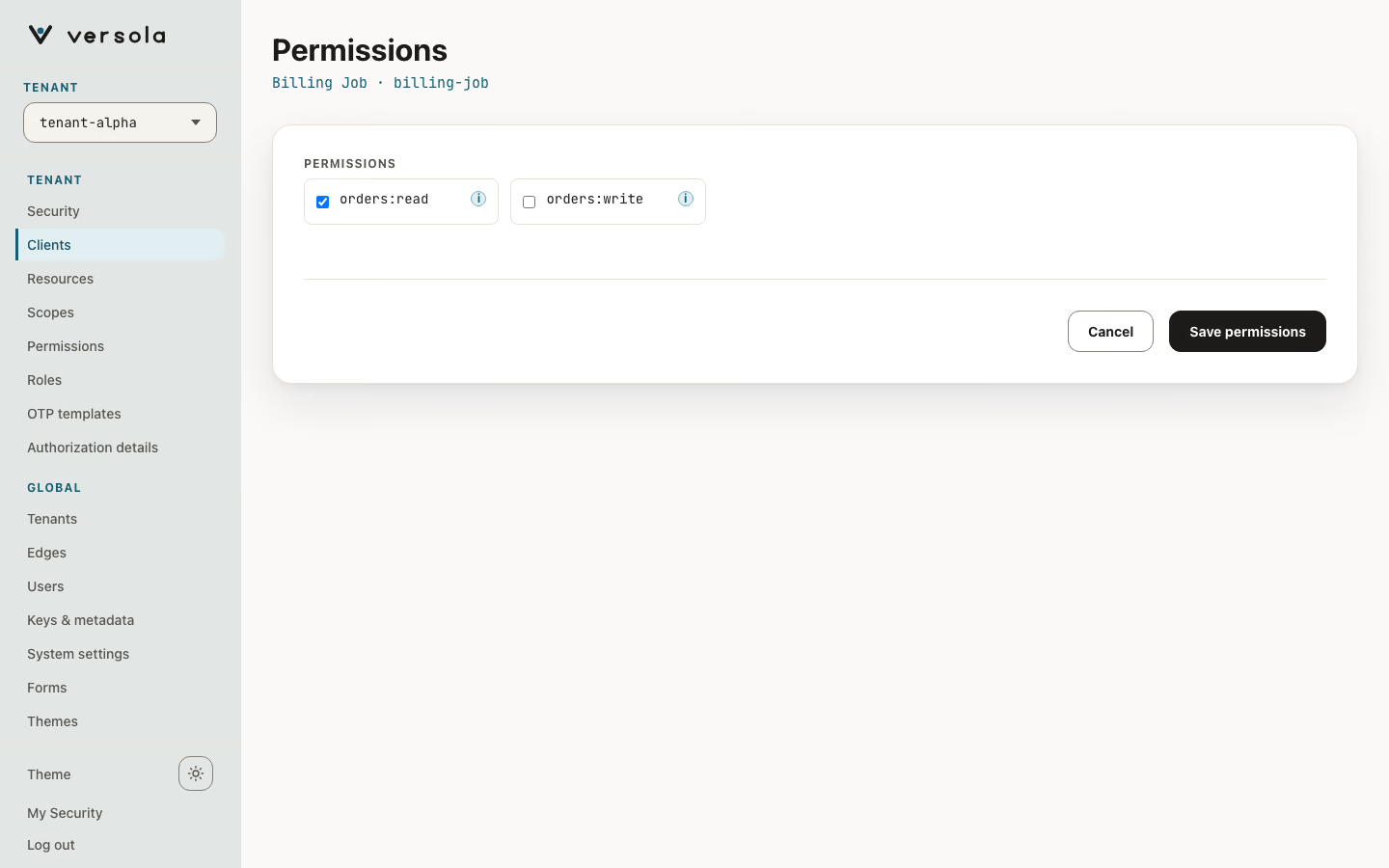
For a service app the section is Permissions: the endpoints the client may call in its own name with the client_credentials grant. Edge reads a client’s permissions only for a service token. A service app has no OIDC scopes, because there is no subject to describe.
Sign-in, registration and consent
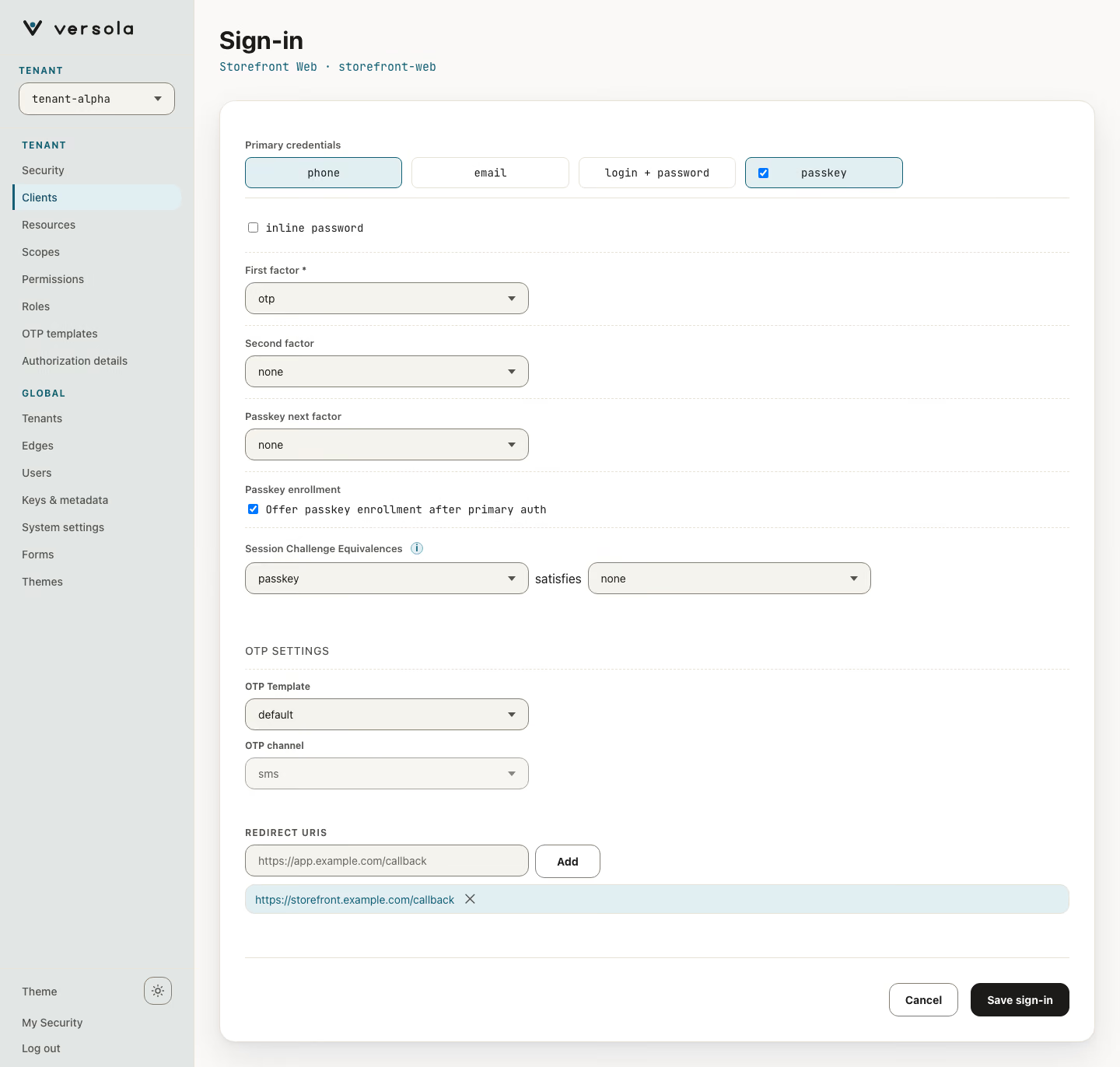
Sign-in describes what the user sees on this client’s first screen and after it. Two clients in the same tenant can sign the same users in differently.
- Credential — Email, Phone or Login + password. On the client page’s Sign-in editor the same settings carry other labels: Primary credentials (
phone,email,login + password,passkey,inline password), First factor, Second factor, Session Challenge Equivalences (a challenge already passed in the session satisfies another one) and OTP Settings (OTP Template, OTP channel). - Sign-up — the client has no setting for it. A client whose first screen asks for an email or a phone number, with no login and no inline password, offers registration when the tenant lets that credential register: email by the mode under Email registration, a phone number by the Sign-up setting of its region, both on Security. The new user proves the address with a one-time code and, when the client’s sign-in requires a password, sets one. The account gets the tenant’s Default roles. An address the tenant does not let register, or one that is already registered, silently falls back to an ordinary sign-in and never reveals which. Not offered for Login + password or for a card that asks for the password inline.
- Passkey — offer a passkey on the first screen as an alternative. It replaces the credential and its challenge. On by default for a new client.
- Then challenge with — a one-time code (SMS for a phone, email for an email address) and an optional password after it. For Login + password, an optional one-time code after the password, with its delivery channel.
- Set up after sign-in — ask the user to add a passkey after the code path. On by default; the user can skip it.
Consent and partner clients
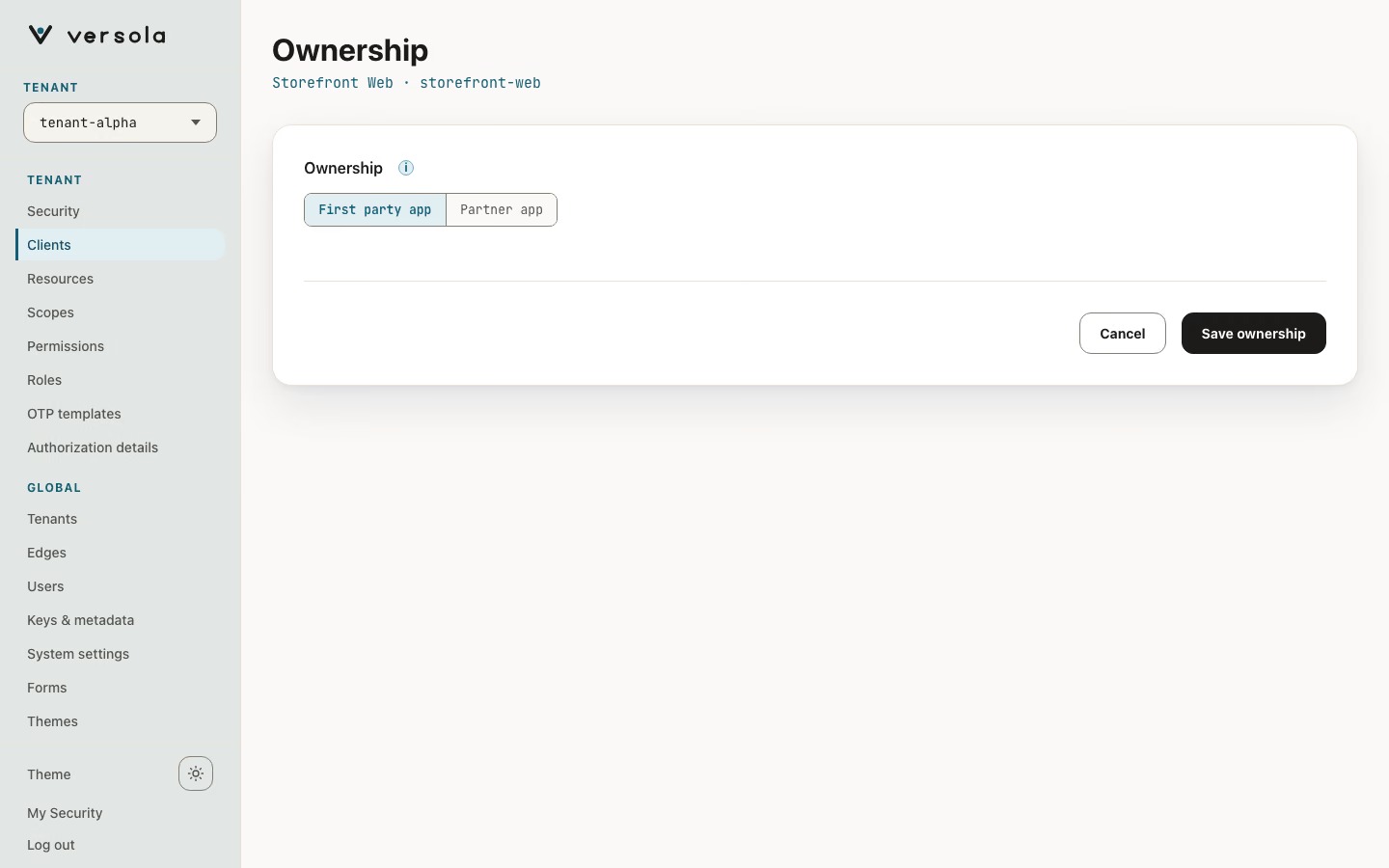
Ownership has two choices: First party app (your own app: users are not asked for consent, the normal choice) and Partner app (someone else’s app: users are asked for consent). In the wizard a partner app has Reuse the grant for (30 days, 90 days by default, Until the user revokes it or Ask every time) and, below it, Let the user grant part of it, with Logo URI, Privacy policy URI and Terms of service URI. On the client page they are Partial grants (Let the user deselect optional scopes; openid cannot be deselected, and offline_access only if you allow it, see below), Required scopes, Long-lived access, Remember (until revoked or for a period, 90 days by default; the value of a client created earlier is kept), Logo URI, Privacy policy and Terms of service. A widened scope always asks again. Logo URI and the client’s name are what the user sees of an app that asks for consent: its icon (the first letter of its name when there is no logo, or the logo does not load) sits inside the card of the consent screen, and the card names the signed-in user, with their picture when the user has an https picture claim. The sign-in, code, password and passkey screens of such an app name it inside the card too. A first-party app is not announced on them; the brand above the card is always the tenant’s logo, or the Versola wordmark when it has none.
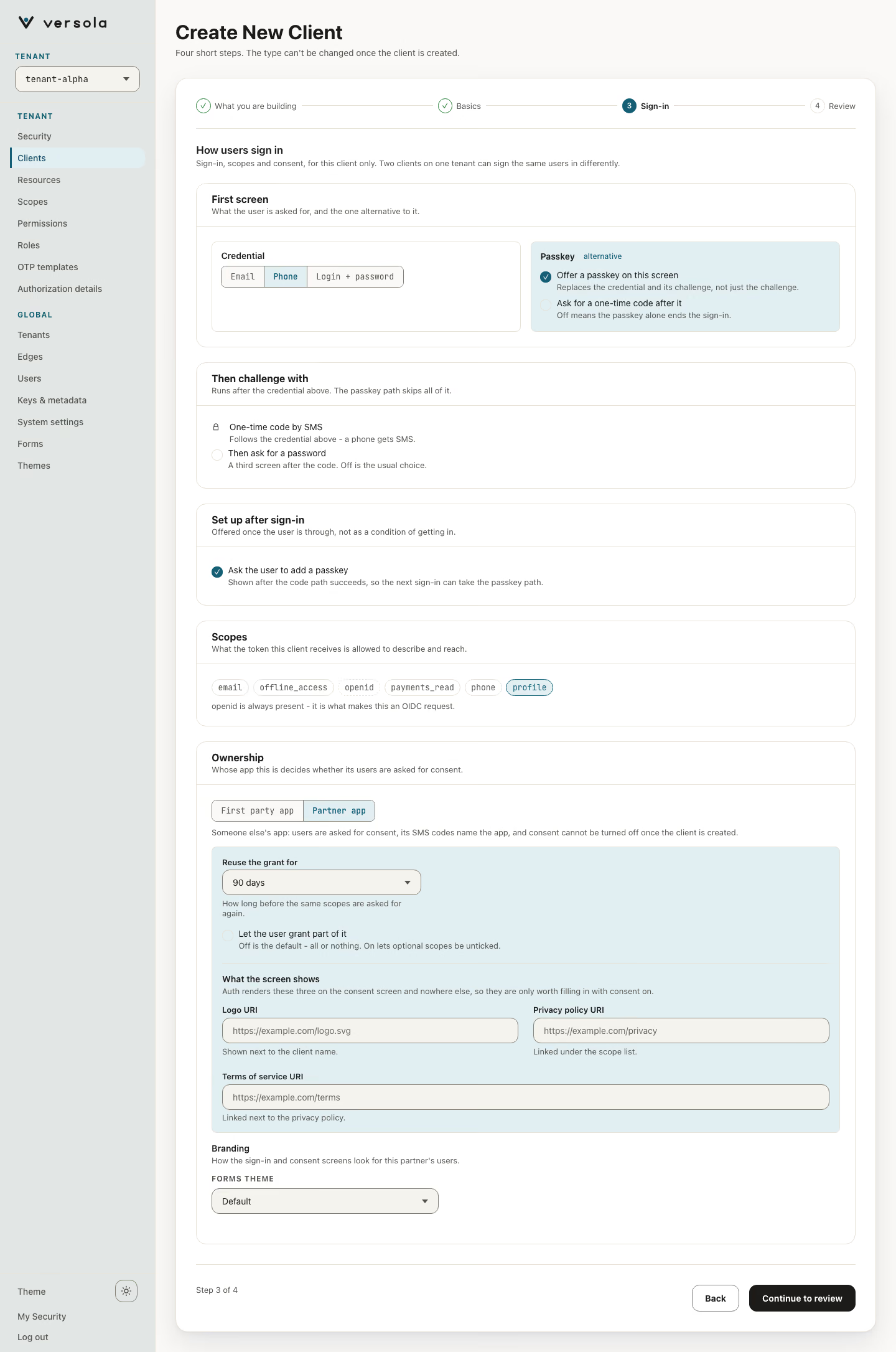
A Partner app is a client that asks for consent. In the wizard it also offers its branding: the Forms Theme and Appearance for this app (see Appearance of a partner app) under Branding, so the partner looks right from the first sign-in. A first-party app has no branding in the wizard. The console marks it with a Partner chip. Two things follow:
- Its SMS codes name the app. The console switches the OTP template to the seeded
partnertemplate, whose text names the client (the{{appName}}placeholder is replaced with the client name), unless you chose a template by hand. - Consent cannot be turned off after the client exists. On the client page the Ownership row reads Partner app (users are asked for consent, cannot be turned off), and in the editor First party app is disabled with the note “A partner app asks users for consent for good: it cannot be made a first party app.” To make the client first party again, delete it and register it again.
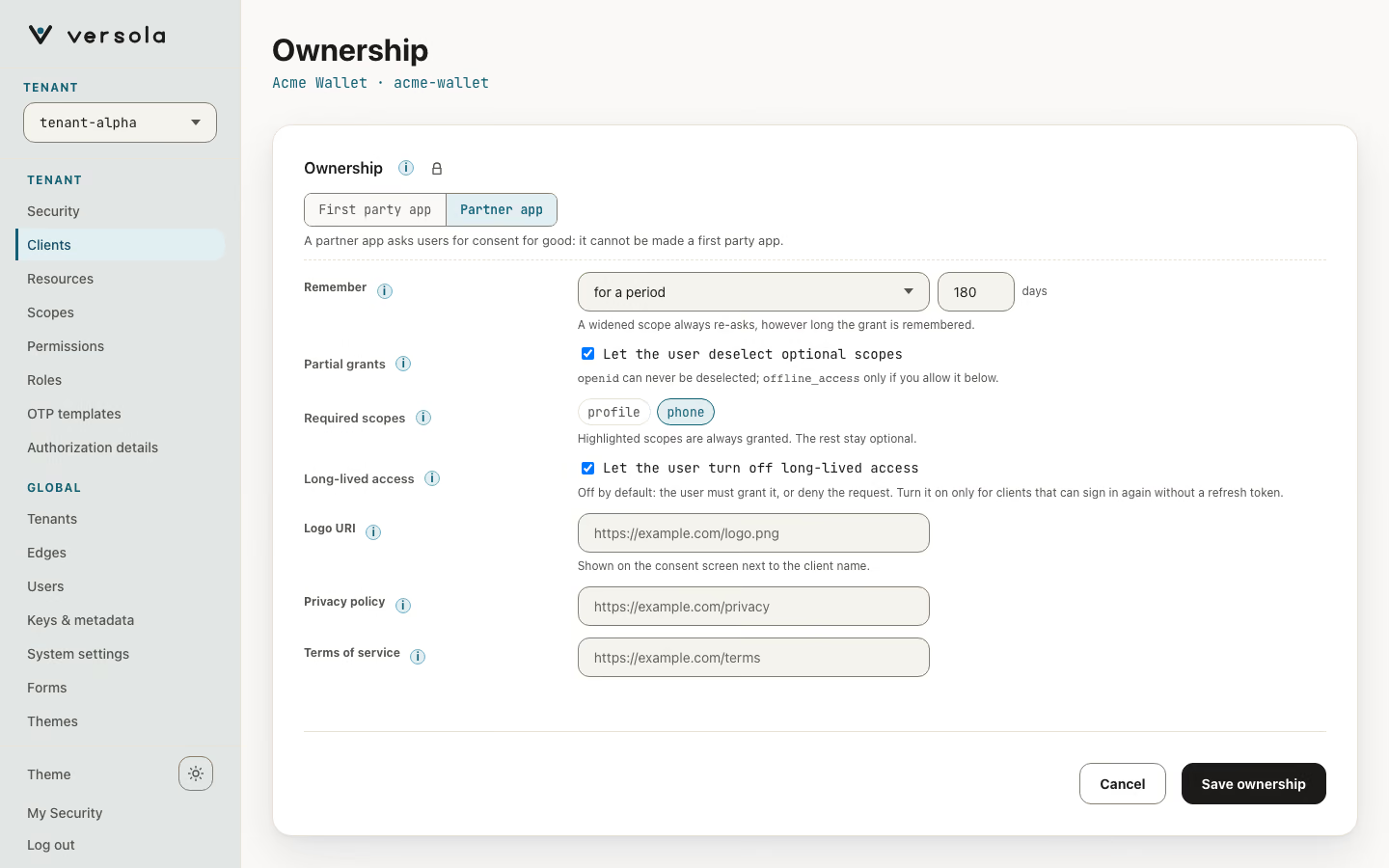
Required scopes appears while Partial grants is on. Click a scope to require it: the consent screen keeps it ticked and the authorization server refuses a grant that leaves it out. The user can still deny the whole request. A required scope the client did not request is ignored. openid is always required and is not listed.
Long-lived access is how users see the offline_access scope. By default the user must grant it, or deny the request. Tick Let the user turn off long-lived access and the user can untick it; the client then receives no refresh token and has to send the user through sign-in again when the access token expires. Turn it on only for clients that can do that. Listing offline_access in the API field requiredScopes keeps it required.
New installations describe offline_access as Long-lived access (Длительный доступ in Russian) on the consent screen. An existing installation keeps its old description until you edit the scope on the Scopes page. The consent screen shows the client name in bold.
partner is not a separate field: the Central API treats a client with a consentFlow as a partner and refuses to remove the flow (400). You can still change the flow. Added in 0.7.1.
Appearance of a partner app
A partner app can look different from the rest of the tenant: its own brand colour, corners, page background or colour scheme on top of the theme it uses. Choose them while creating the app (Partner app on the wizard’s sign-in step) or open Edit branding and logout on the client page; for a client with a consent screen, Appearance for this app sits under Forms theme. Other clients do not get it: only an app that asks users for consent has an appearance of its own, and a first-party client looks like the product it belongs to.
The block has the same five values as a theme: Brand colour, Page background, Background style, Shape and Colour scheme. Each shows the value of the theme the client uses until you change it. A value you set is marked Overridden with the theme’s value, and Reset puts it back; Clear overrides resets all of them. A value equal to the theme’s is not stored as an override. Above the values is a real preview of the Consent form: the theme the client uses with this client’s own values laid on top, drawn with the client’s name and its Logo URI, exactly as users will see it. It shows one fixed sample request; Light and Dark switch the colour scheme (unavailable when the app’s colour scheme is fixed), and Mobile and Desktop change its width. The preview is built by Central, so it matches the real screen. If Central has no active Consent form, or your role cannot read forms, a one-line note takes its place and the values still work. The client page lists what the app changes in Appearance for this app.
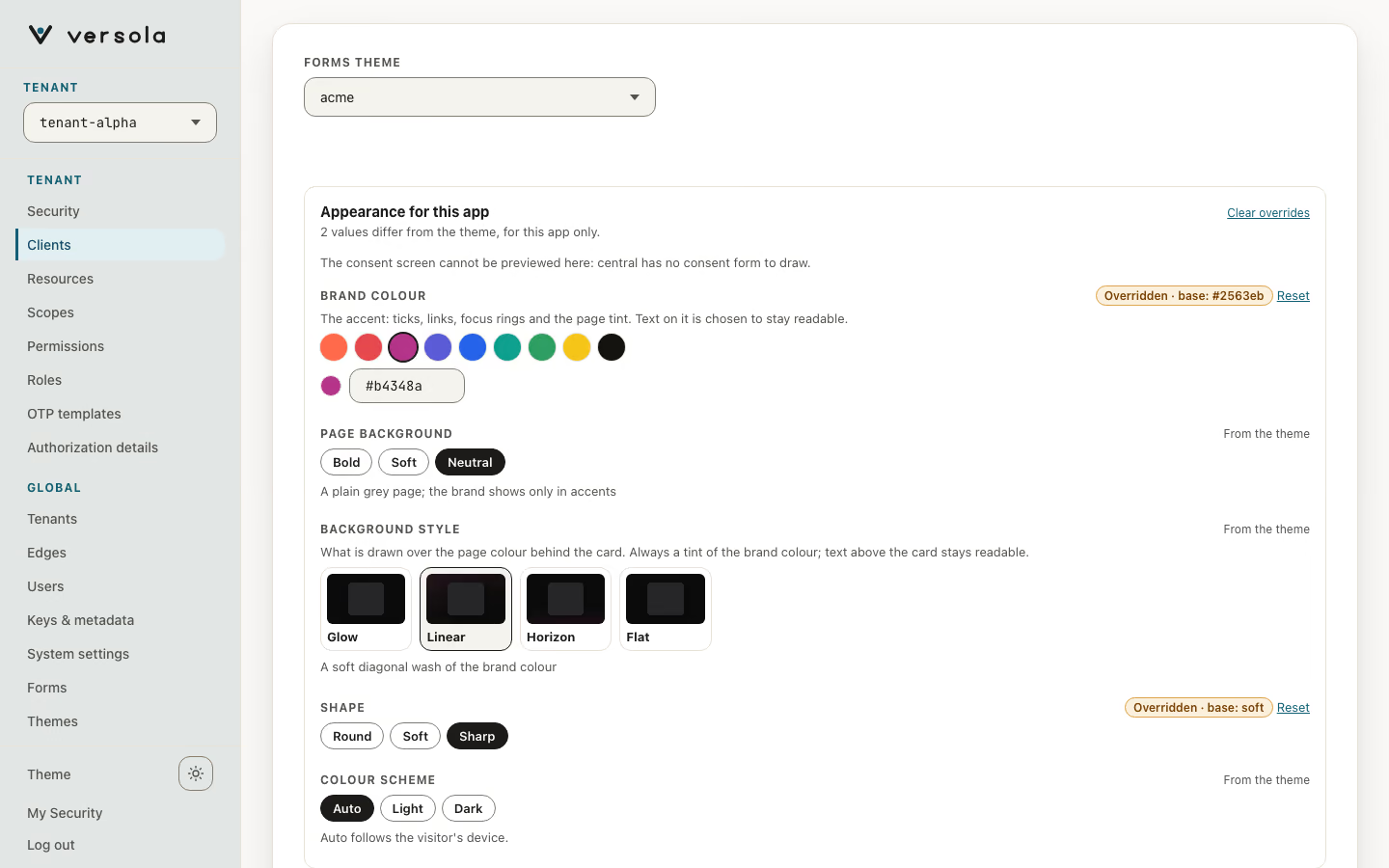
auth appends one rule with only the values you changed after the theme’s stylesheet, so they win over the theme, and the theme’s own changes keep applying to everything else. The theme’s custom CSS stays under the client’s values. When the theme is stored with CSS only, the console does not know its values: each one reads Set by the theme’s CSS until you choose one, and a choice is always saved as an override, even if it matches a built-in theme. The overrides apply on top of that CSS, but only where it is built on the variables listed in Themes. CSS written against other names, such as --accent, does not follow them. A client has no token override or CSS field of its own: those belong to the theme.
In the Central API the overrides are themeOverrides on the web and native client requests, with the same members as a theme’s overrides (brand, shape, surface, mode, background; the last is glow, linear, horizon or flat). On an update, an absent value leaves them unchanged and an empty object clears them. Central refuses non-empty themeOverrides with 400 for a client that has no consentFlow (after the update, if the request sets one); an empty object is always accepted, so overrides left from before can be cleared. Taking the consent flow away in the console clears them too. A service app has no sign-in screens, so it has none.
Logout
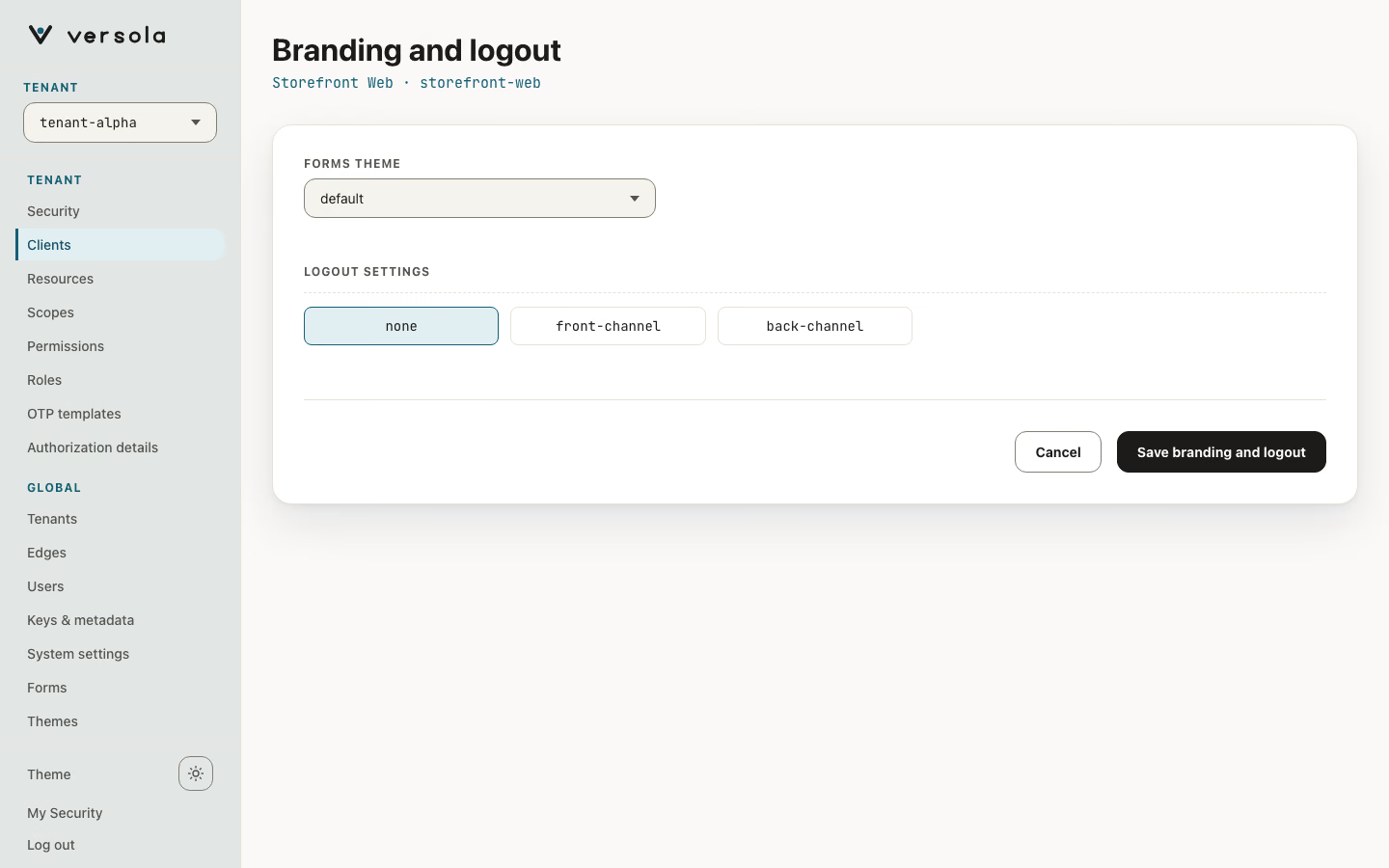
Logout is one channel or neither: Not notified, Front-channel (a hidden iframe; needs an open browser) or Back-channel (server to server) in the wizard; none, front-channel or back-channel under Logout Settings on the client page. Give the logout URI for the channel you pick. If the client sits behind edge, point it at edge’s own endpoints, /logout/frontchannel and /logout/backchannel; edge clears the session for every client it routes.
Authorization presets
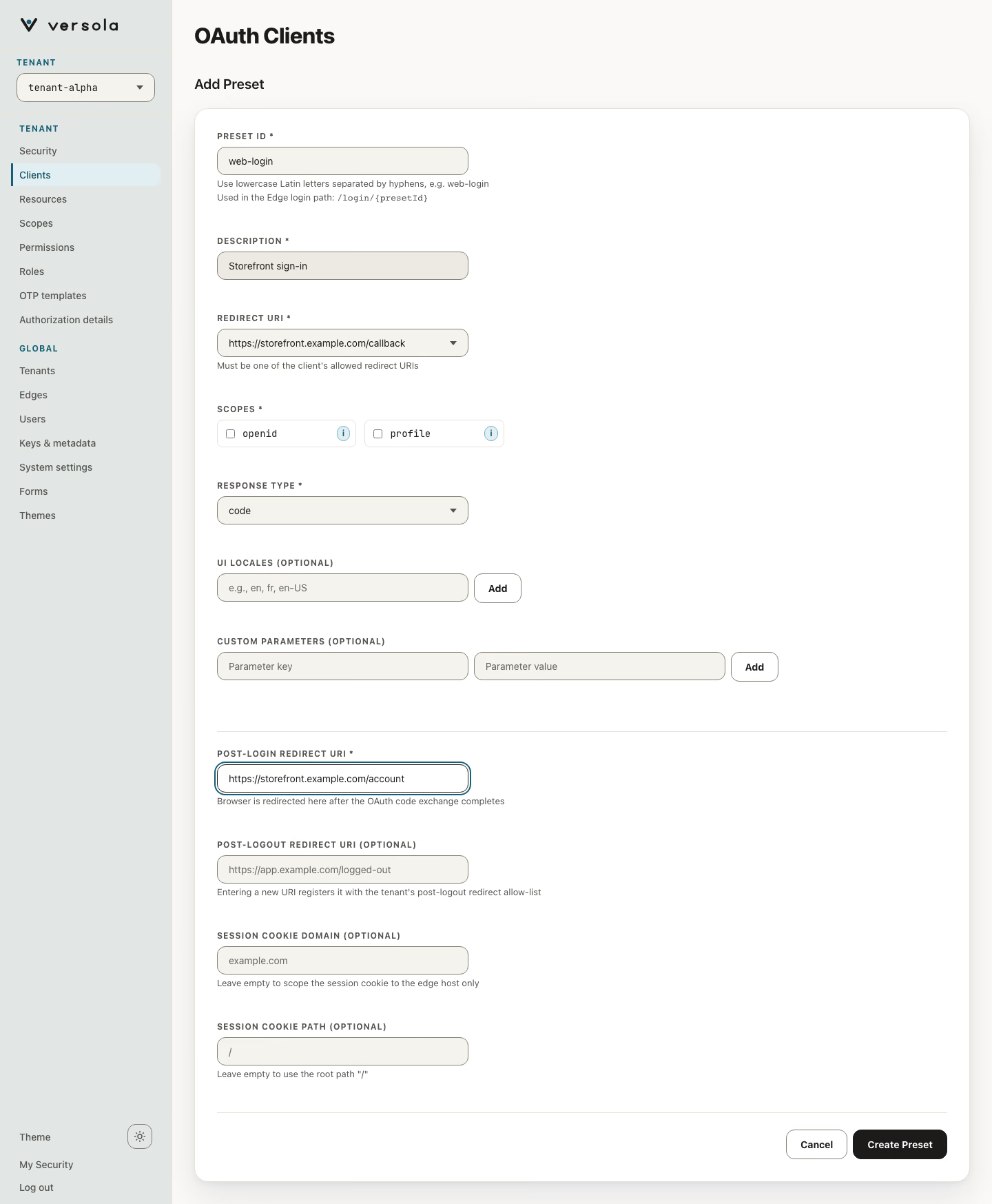
Authorization Presets configure the /login/{presetId} and /logout/{presetId} paths of edge for a client. A preset has a Preset ID, a Description, one of the client’s Redirect URIs, Scopes, a Response Type, optional UI Locales and Custom Parameters, a Post-login redirect URI, an optional Post-logout redirect URI, and an optional session cookie domain and path. On the client page, the ✎ icon next to Authorization Presets opens Edit Authorization Presets; + Add Preset opens the form below. See How to protect an API with edge.