A resource is an upstream API protected by edge. This page registers one in the admin console, from its identity to its endpoint policies, and ends with making the endpoints reachable. For the fields and rules, see Resource.
Prerequisites
- A tenant linked to an edge, selected in the console.
- The absolute URI of the upstream API.
- The clients that will request tokens for it. You can add them to the audience later.
- The methods and paths of the endpoints to expose.
1. Open Resources
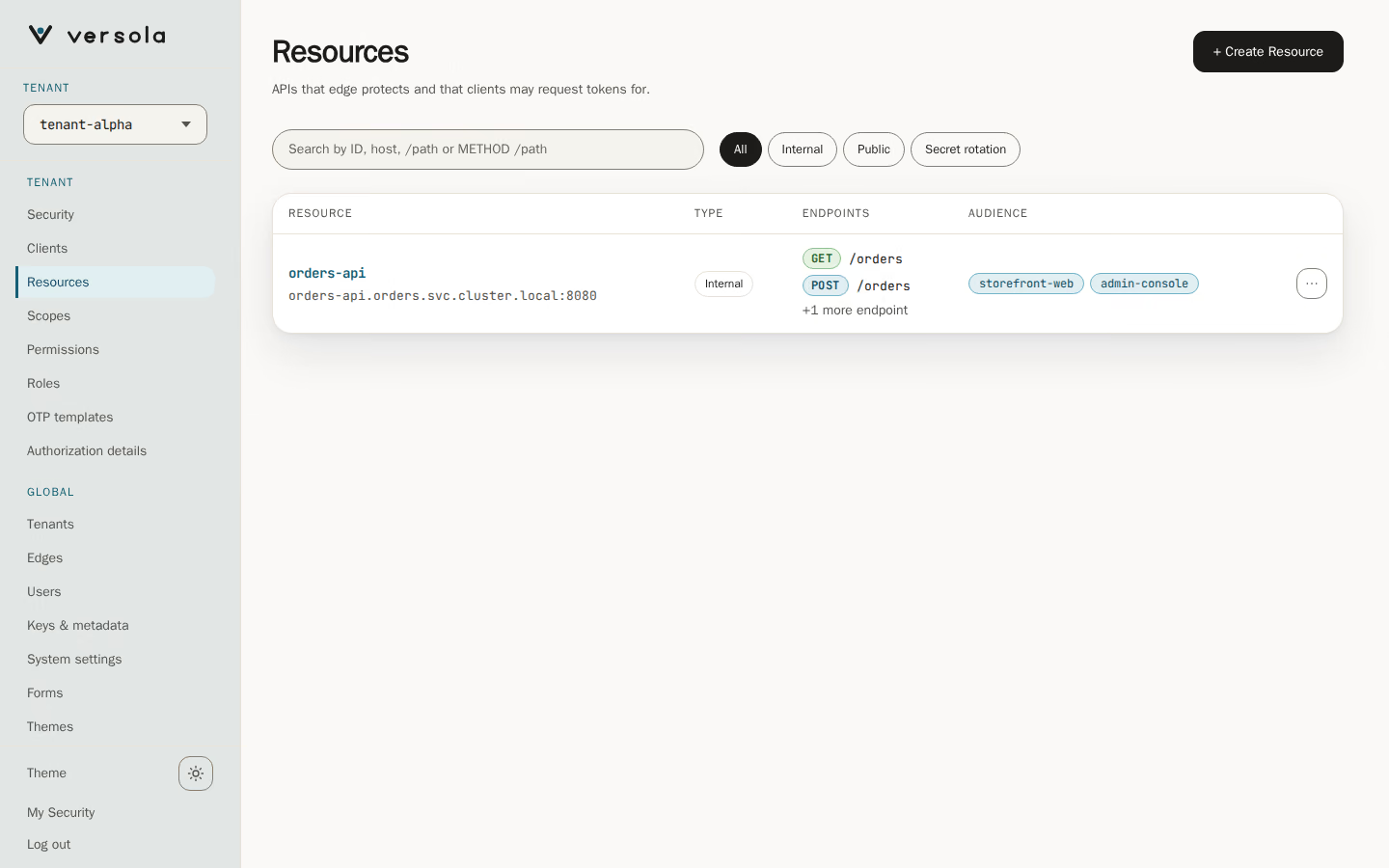
Open Resources under the tenant. Each row shows the resource ID with its host under it, the type (Internal or Public, and Secret rotation while a rotation is open), the first two endpoints and the first two clients of the audience.
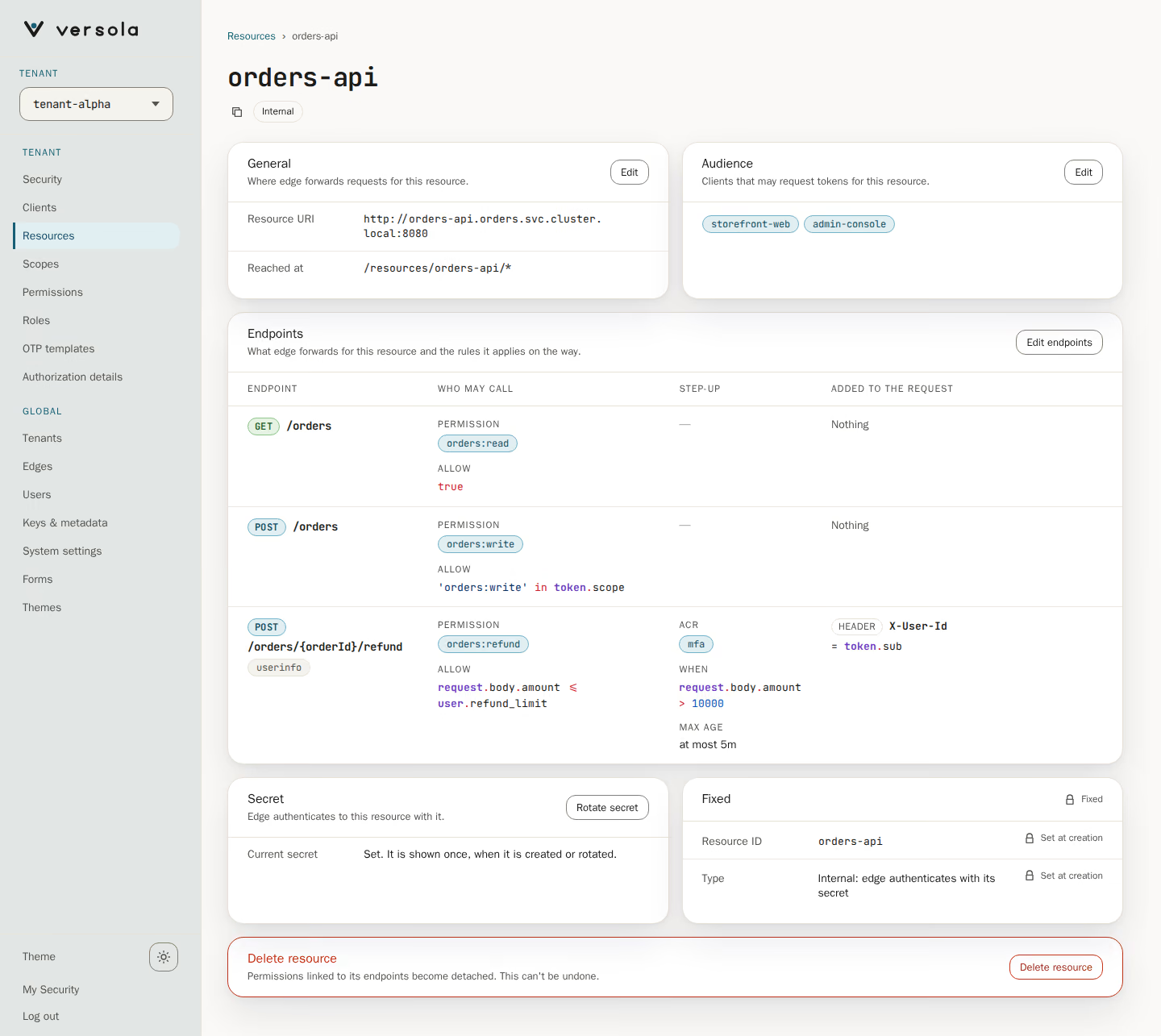
Open a row to see the resource’s page: its URI, audience, endpoints with their rules, and the secret of an internal resource.
2. Start a new resource
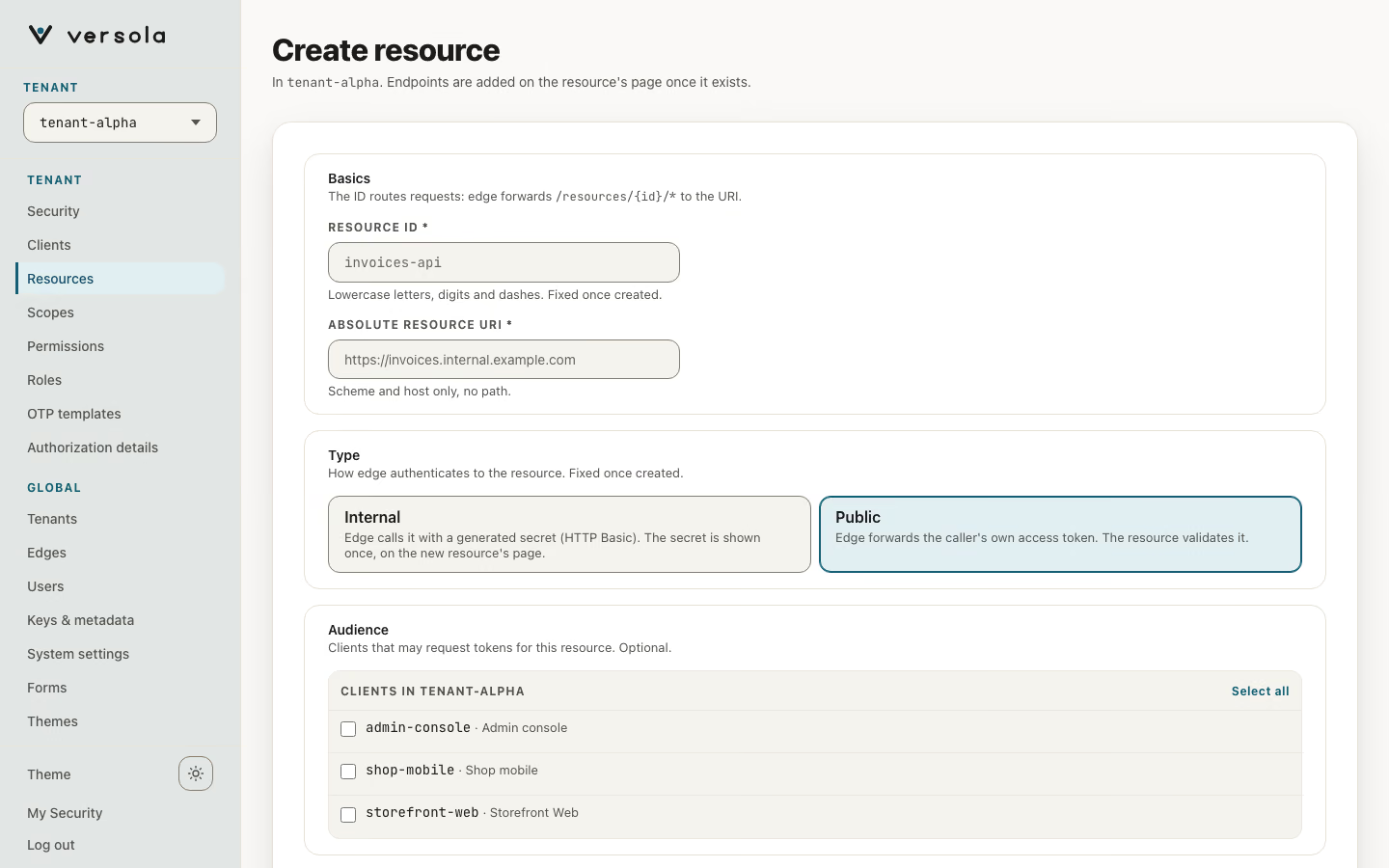
Press + Create Resource. The form has three groups, and no endpoints: you add those on the resource’s page.
3. Fill in identity, type and audience
- Resource ID: lowercase letters, digits and hyphens, starting with a letter, for example
orders-api.edgeforwards/resources/{resourceId}/*to the resource.edgeis reserved. The ID must be unique in the installation, and you cannot change it later. - Absolute resource URI: scheme and host with no path, query or fragment, for example
https://orders.acme.example. A trailing/counts as a path. Theresource://scheme is reserved. - Type: choose Internal or Public. You cannot change it later.
- Internal: Versola generates a secret.
edgecalls the upstream with HTTP Basic, the resource ID as user and the secret as password, and does not forward the caller’s token. Tokens for it carryresource://{resourceId}inaud. Keep the upstream reachable only fromedge. - Public: no secret.
edgeforwards the caller’s access token asBearer, and the upstream validates it. Tokens for it carry the resource URI inaud.
- Internal: Versola generates a secret.
- Audience: tick the clients that may request tokens for this resource. Use the filter when the list is long. Only ticked clients can get a token for it. The audience is optional and can be changed later.
Each field shows its error under it as you type.
4. Create the resource and keep the secret
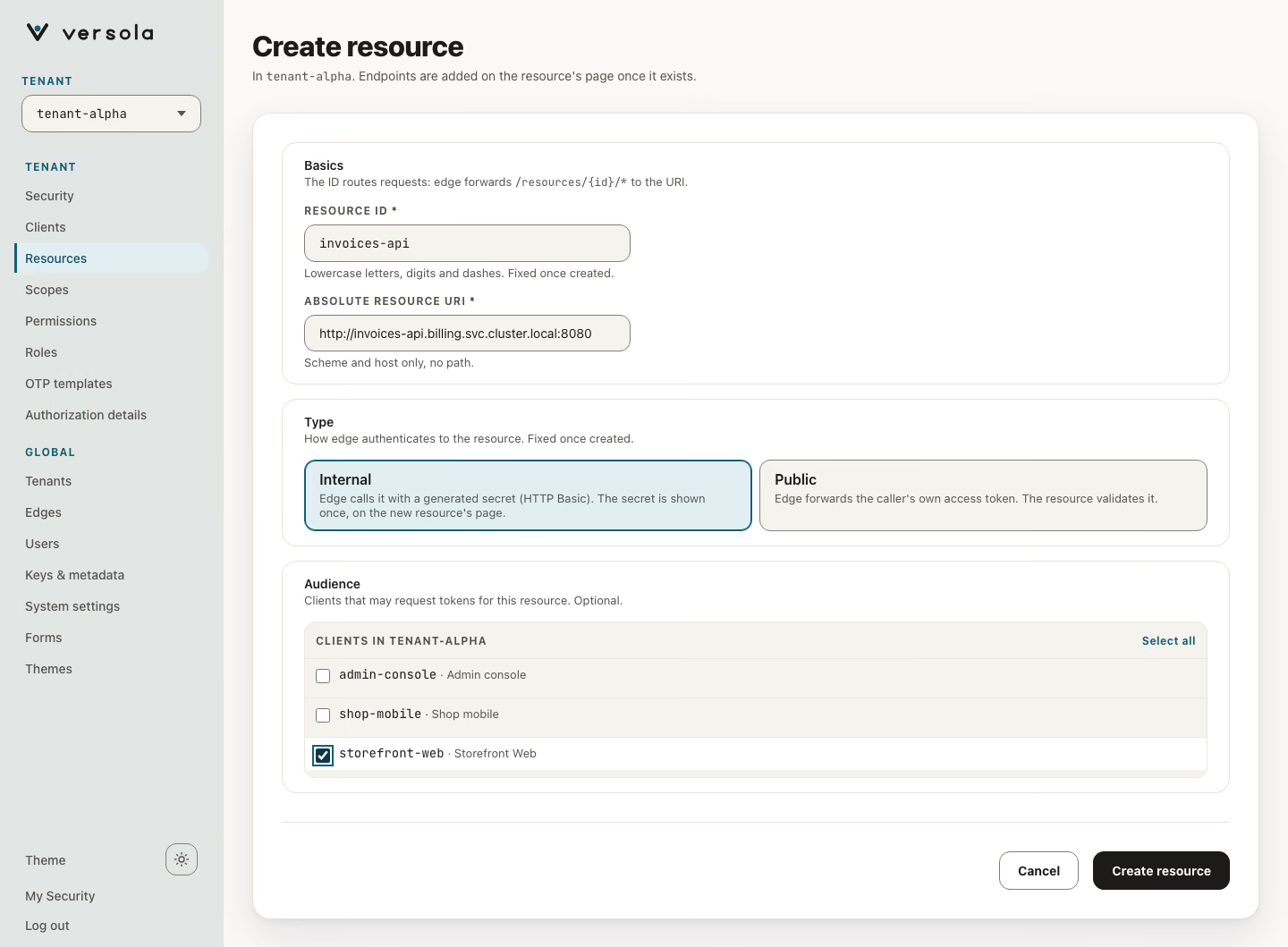
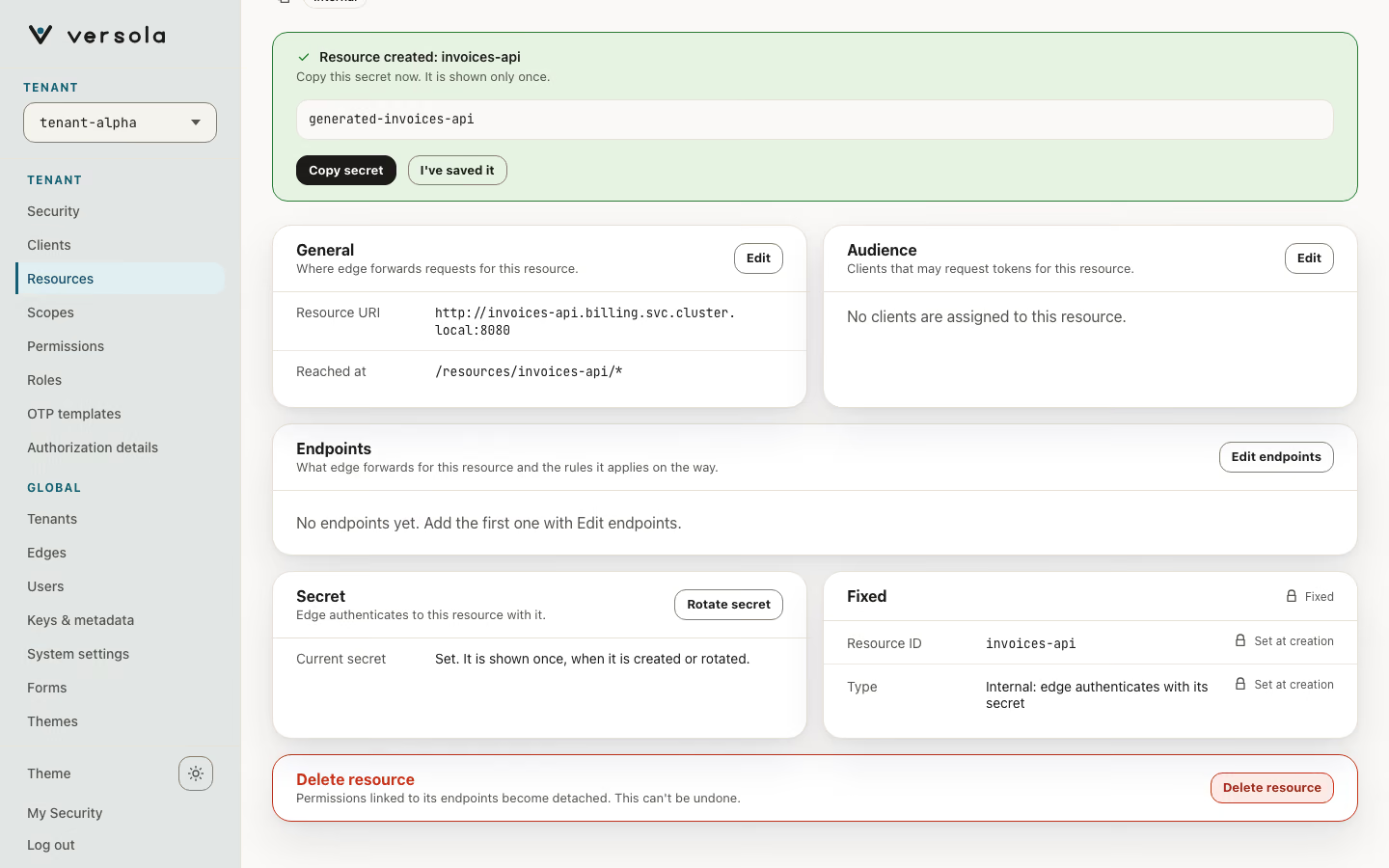
Press Create resource. The new resource’s page opens. For an internal resource a banner shows the secret once. Press Copy secret, store it, and configure the upstream to accept HTTP Basic with the resource ID as user and this secret as password. Press I’ve saved it to dismiss the banner; leaving the page first asks you to confirm, because the secret cannot be shown again.
5. Add endpoints
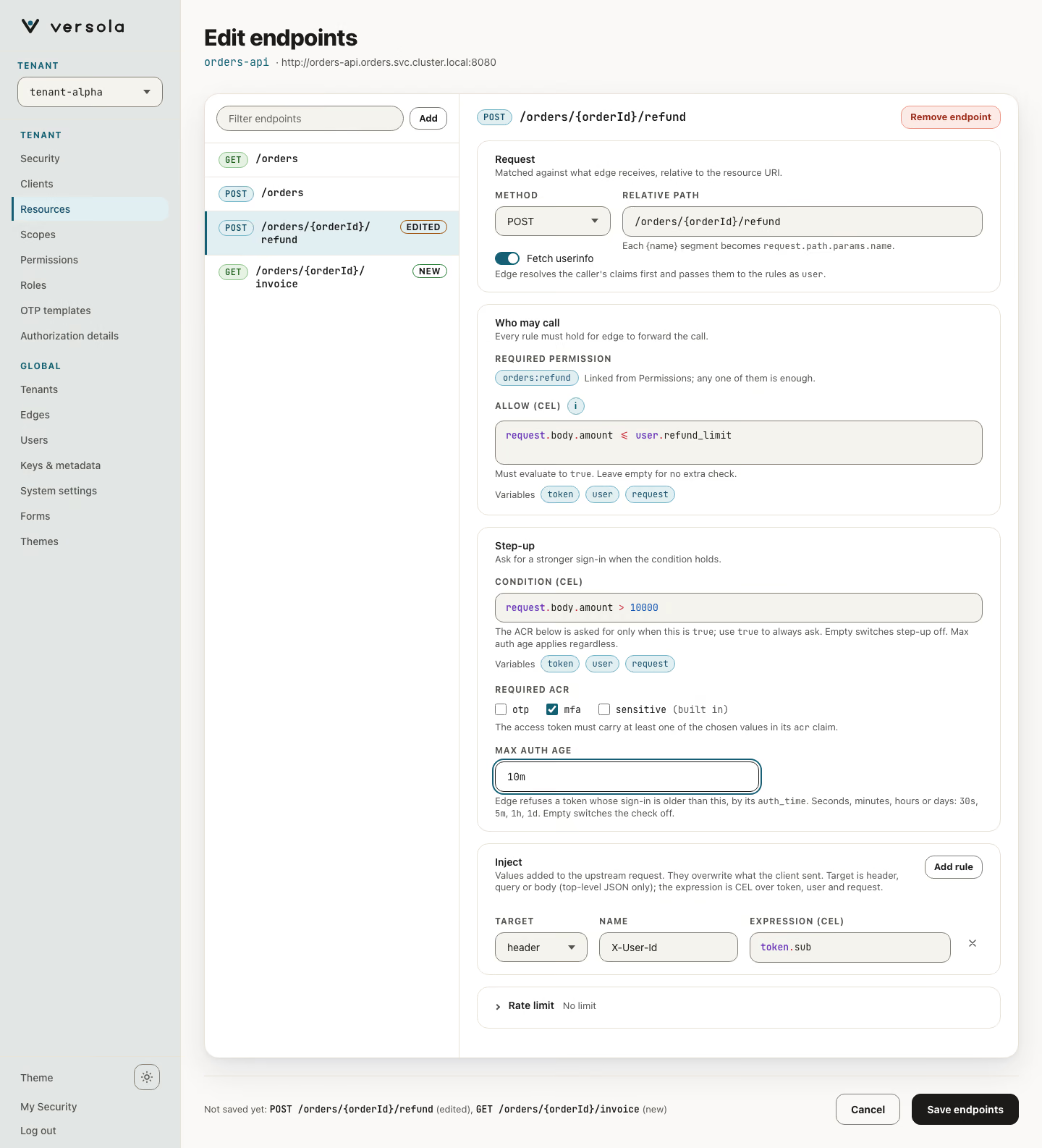
On the Endpoints card press Edit endpoints, then Add for each method and path. The right side of the page edits the selected endpoint in four panels.
- Request: Method and Relative path. The path is matched after
/resources/{resourceId}. It starts with/. A segment is a literal of letters, digits and hyphens, or a{name}parameter such as/orders/{id}/cancel. Parameter names must be unique in the path, and two endpoints of one method cannot differ only in parameter names. Turn Fetch userinfo on only if a rule readsuser; it adds a call toauthper request. - Who may call: Allow (CEL) is a boolean rule that must return
true. Empty means no extra check. Required permission is read-only: you link endpoints to permissions in step 6. - Step-up: when the Condition (CEL) is true, the caller must hold one of the ticked Required ACR values. The list comes from Step-up (ACR) on Security. If nothing is listed, register ACR values there first. Max auth age (seconds) refuses callers who authenticated longer ago; empty means no limit.
- Inject: press Add rule, choose a Target (
header,queryorbody), a Name and an Expression (CEL), for exampletoken.subinto the headerX-Account-Id. Injected values replace what the client sent.
The fields use CEL. The variables they can read, the order of evaluation and the status code for each failure are on Endpoint policies. The console validates expressions as you type, so a syntax error blocks the save.
Press Save endpoints. The page returns to the resource, where the Endpoints card shows the rules of each endpoint in the table.
6. Make the endpoints reachable
Saving a resource grants nobody access. An endpoint answers 403 until a permission covers it and the caller holds that permission.
- Create a permission and attach the endpoints.
- Add it to a role and assign the role to users in the tenant. For a service app that uses
client_credentials, add the permission to the client instead.
The Who may call column of the endpoints table shows which permissions cover each endpoint.
Rotate the secret
- Open the resource and press Rotate secret on the Secret card. A banner shows the new secret once.
- Make the upstream accept both the old and the new secret.
edgekeeps using the old one during rotation. - Press Activate new secret and confirm.
edgeswitches to the new secret after its next sync, and the old one is dropped.
Only one rotation can be open at a time. A public resource has no secret to rotate.
Edit or delete a resource
You can change the URI, the audience and the endpoints, each from its own card. The ID and the type are fixed. Removing an endpoint that permissions cover asks for confirmation and names them. To delete the resource, use the last card, Delete resource; the dialog lists the permissions that will show the removed endpoints as Detached endpoints.
Next steps
- Endpoint policies: CEL variables, inject, step-up and failure codes.
- How to register a permission: map the endpoints to permissions.
- How to protect an API with edge: a complete example with curl.