The Security page, titled Sign-in and security, holds the per-tenant settings that auth reads while it signs a user in and issues tokens. Pick the tenant in the sidebar first; every setting on this page belongs to that tenant. The message texts of one-time codes are on OTP templates, the authorization_details types are on Authorization details, and the password policy, which applies to the whole deployment, is on System settings.
Before you start
| Need | Permission |
|---|---|
| See the page | security:read |
| Edit a card | security:manage |
Without security:manage the page is read-only: the Edit buttons are not shown.
Central stores the settings and auth loads them through its configuration sync, so a saved change reaches auth after the next refresh, not instantly. Everything on this page takes effect in auth; edge does not read these settings. A tenant created in the console starts with the defaults listed below.
How the page is laid out
The page is one column of cards. Each card shows one group of settings and has its own Edit button. A rail on the left, headed On this page, jumps to a card; below 1200 px it becomes a select. The title carries two chips: the tenant ID and its security profile (FAPI 2.0 or Standard).
| Rail heading | Cards |
|---|---|
| Sign-in | Sign-in methods, One-time codes, Passkeys (WebAuthn), Registration, Step-up (ACR vocabulary), Branding |
| Sessions & tokens | Sessions, Tokens & keys, Logout |
| Protection | Submission limits, and the read-only Security profile card |
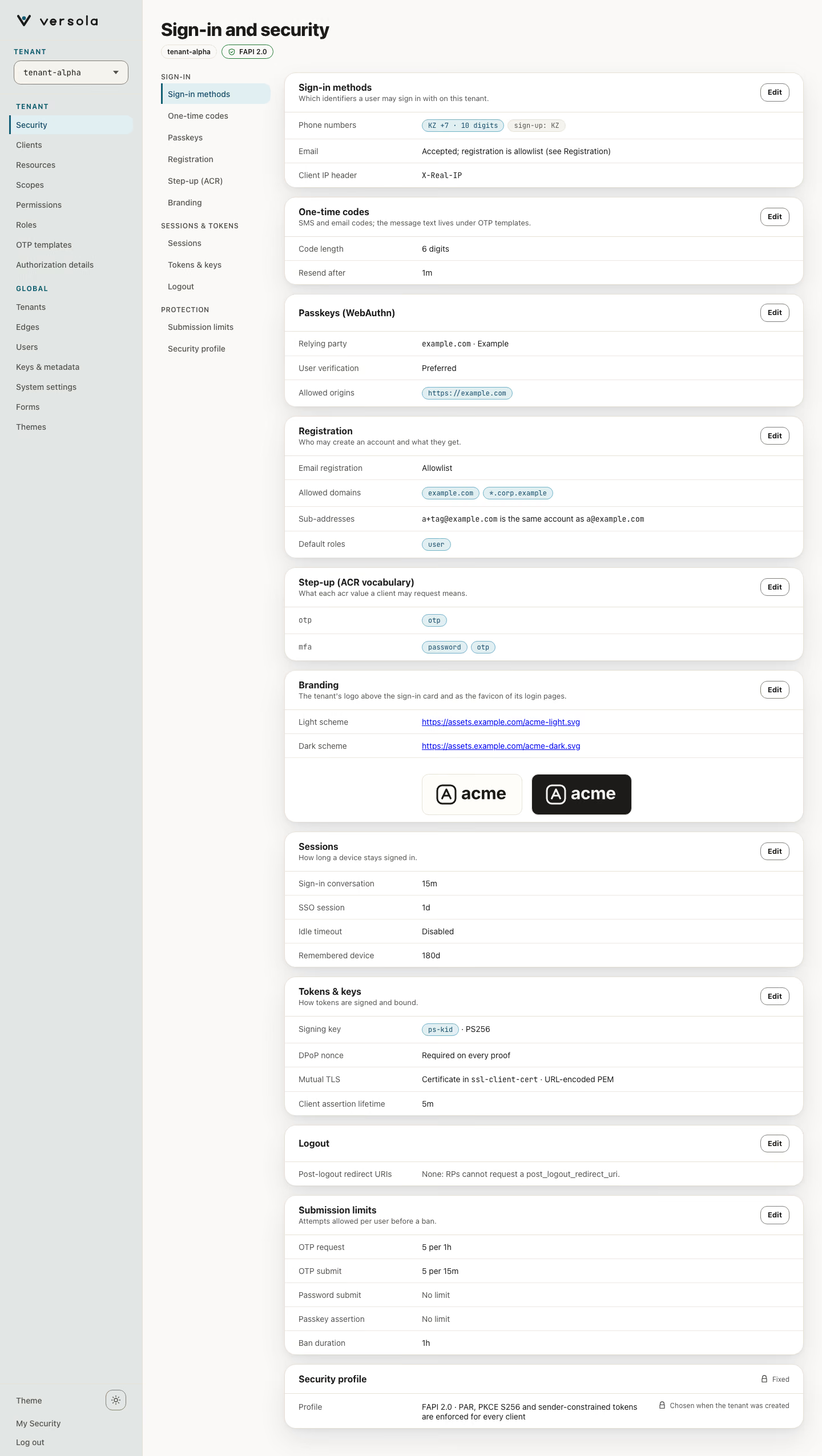
Edit opens that group on its own page, titled for example Edit sessions, with Cancel and Save sessions at the bottom. A save sends only the settings of that group, so it does not overwrite what another admin changed in a different group in the meantime. Two admins editing the same group still overwrite each other: the last save wins. The first save for a tenant that has no settings yet creates the whole record with its defaults. Leaving an edit page with unsaved changes asks for confirmation.
A tenant with no settings yet shows No security settings yet and a Set up settings button, which opens Passkeys (WebAuthn). Passkey settings are required before any other card can be saved, so set them up first.
Sign-in methods
The card lists the identifiers a user may sign in with, and the client IP header.
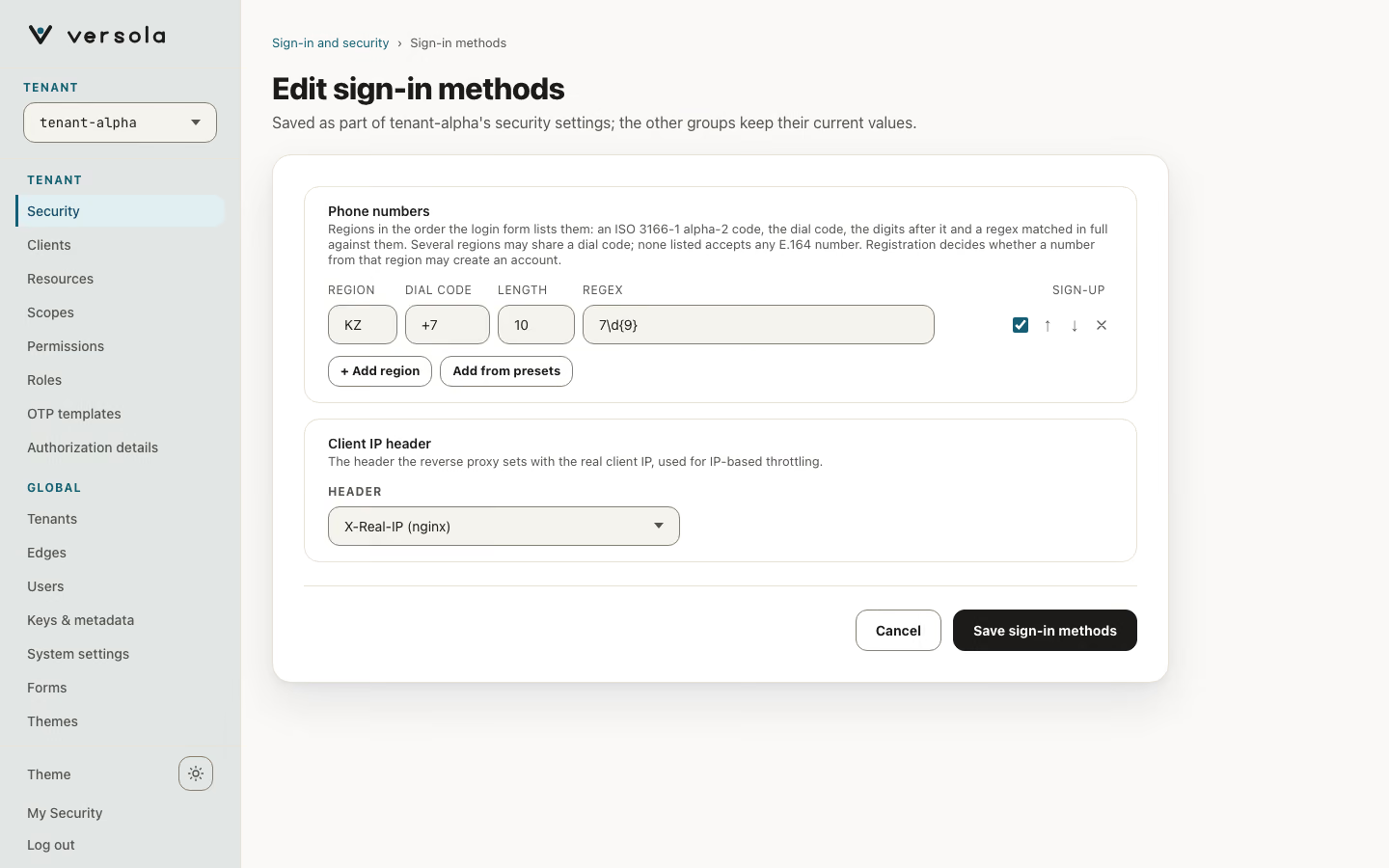
Phone numbers
Each row is one country:
| Column | Meaning | Rule |
|---|---|---|
| Region | ISO 3166-1 alpha-2 code, for example KZ. | Two capital letters, unique in the list. |
| Dial code | The country calling code, for example +7. | + and one to four digits. |
| Length | How many digits follow the dial code. | 4 to 14; the dial code and the number together take at most 15 digits. |
| Regex | A Java regular expression the digits after the dial code must match in full. | Must compile. Example: 7\d{9}. |
| Sign-up | Whether a number of this country may create an account on its own. | A checkbox. Off for a region you add by hand, on for a region you add from a preset. |
The list is empty by default: any E.164 number may sign in and nobody registers by phone. Regions may share a dial code: KZ and RU both use +7, with the regexes 7\d{9} and 9\d{9}. A number is accepted when its length and regex fit at least one region, so a tenant listing both takes numbers starting +77 and +79, a tenant listing only RU takes +79, and one listing only KZ takes +77. The ↑ and ↓ buttons move a row; the order is the order the sign-in form lists the dial codes. The read-only card shows each region as a tag such as KZ +7 · 10 digits and one sign-up: tag listing the regions that allow registration.
+ Add region appends an empty row. Add from presets opens Add countries, a list of ready-made countries (code, dial code, number length and pattern). Tick the ones you need, search by name, code or dial code, and confirm with Add selected: they are appended with Sign-up on, and a country that is already listed is skipped. Untick Sign-up on a row to close registration for that country. The preset patterns are deliberately loose, apart from KZ and RU; tighten one by editing its row. auth also checks that the number is a real one for its country.
Phone numbers are stored and compared in canonical E.164 form, and the list is checked against that canonical form: +787011234567 (with the national trunk prefix) becomes +77011234567 before the check. The same list applies to a login_hint that carries a phone number. Central refuses a save whose list breaks a rule above with a 400.
On the sign-in form the list decides what the user sees:
- No regions: a plain phone field that takes a number with its
+. - One dial code (one region, or several sharing it): the dial code is shown locked in front of the number field.
- Several dial codes: a selector of the distinct dial codes, in list order. From six dial codes on, the selector has a search box that matches the country name, the ISO code or the dial code. Pasting a number that starts with
+picks its dial code.
The form checks the number before it sends it, and auth checks it again, so a request that bypasses the form is refused as well.
Email addresses are accepted for sign-in on every tenant; the card only states the registration mode, which you set under Registration.
Client IP header
Header names the HTTP header your reverse proxy sets with the real client IP. auth uses it for IP-based throttling and takes the first value if the header carries a comma-separated list. Default: X-Real-IP. The list offers X-Real-IP (nginx), X-Forwarded-For (other proxies) and Custom…. A custom value must not be empty. If the header is missing on a request, auth has no IP to throttle on.
One-time codes
The card shows the length of a generated code and how long a user waits before asking for a new one. The message text lives on OTP templates.
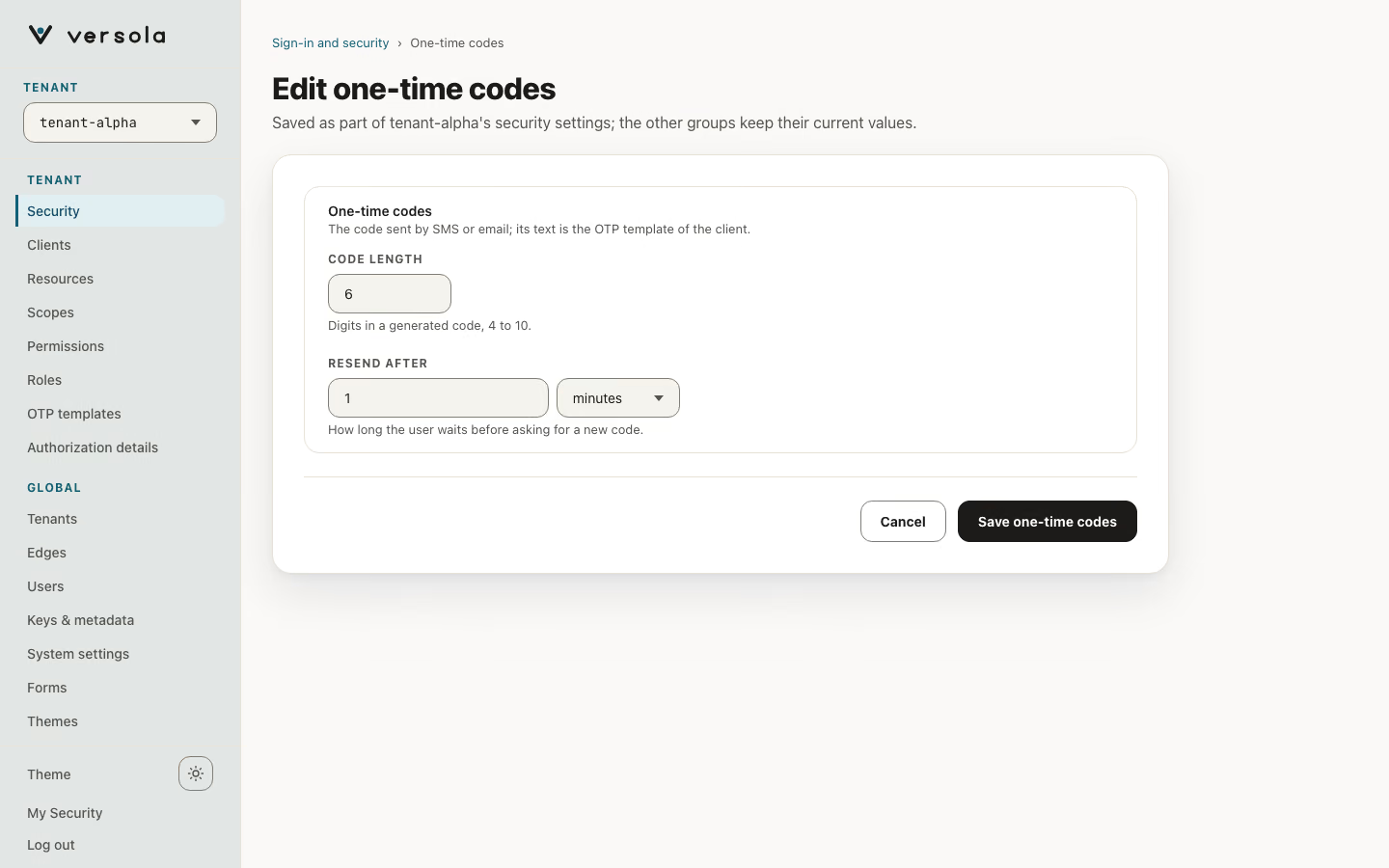
| Field | Controls | Default | Range |
|---|---|---|---|
| Code length | Digits in a generated one-time code. | 6 | 4 to 10. |
| Resend after | How long the user waits before asking for a new code. | 1 min (60 s) | At least one second. |
Durations on this page are entered as a number and a unit: seconds, minutes, hours or days. The read-only card shows them in short form such as 15m or 1d; the full value in seconds is in the tooltip.
Passkeys (WebAuthn)
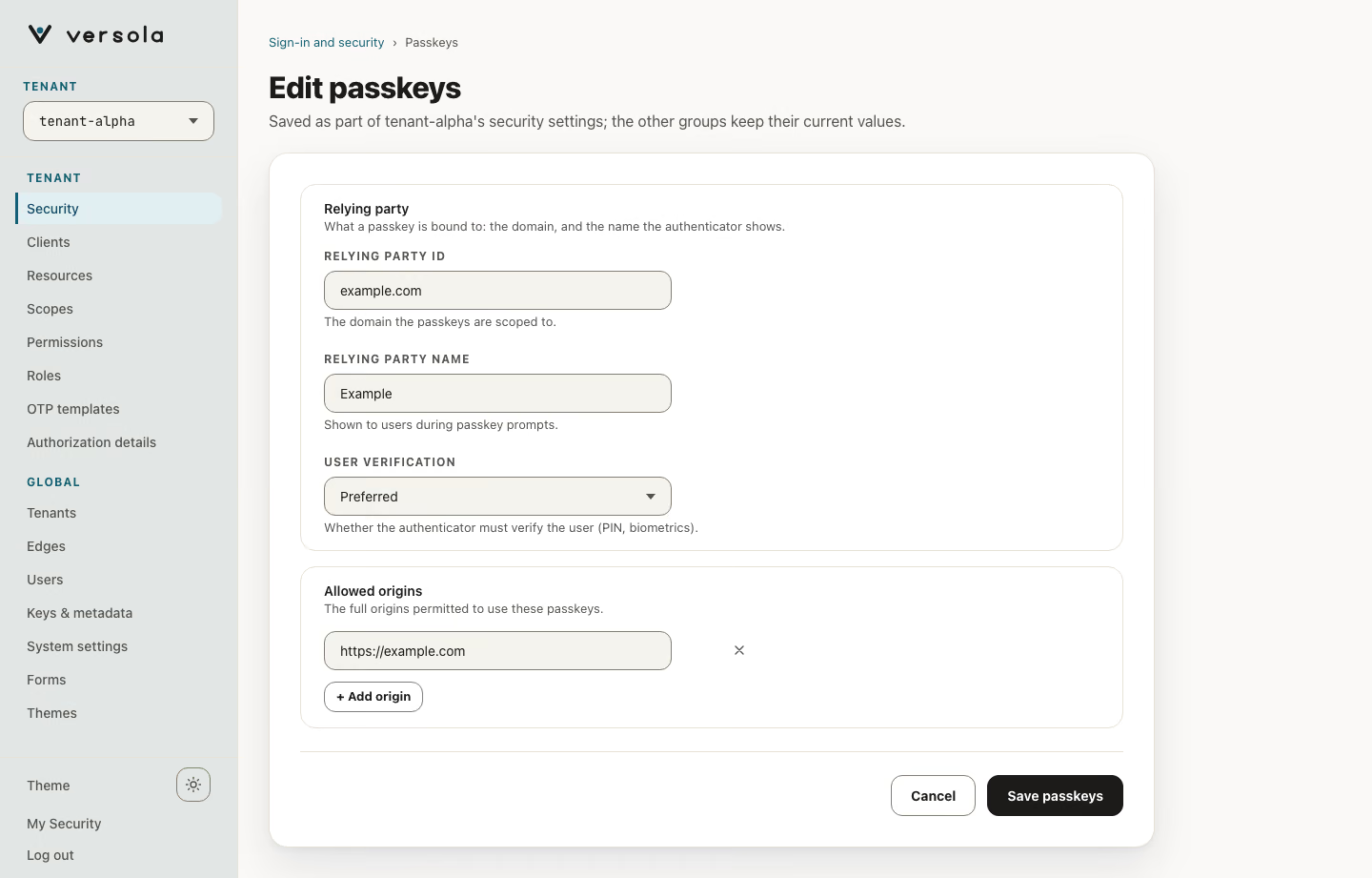
| Field | Controls | Default |
|---|---|---|
| Relying party ID | The domain passkeys are scoped to, for example example.com. Required. | The identity domain seeded at bootstrap, empty if none was seeded. |
| Relying party name | Name shown to users in passkey prompts. Required. | Versola |
| User verification | Whether the authenticator must verify the user (PIN, biometrics): Required, Preferred or Discouraged. | Preferred |
| Allowed origins | Full origins permitted to use these passkeys, for example https://example.com. At least one is required, each an absolute http or https URL. | The origins seeded at bootstrap, empty if none were seeded. |
The console refuses to save the group while the relying party ID, the name or the origin list is empty. A passkey registered for one relying party ID does not work under another, so change Relying party ID on a running system with care.
Registration
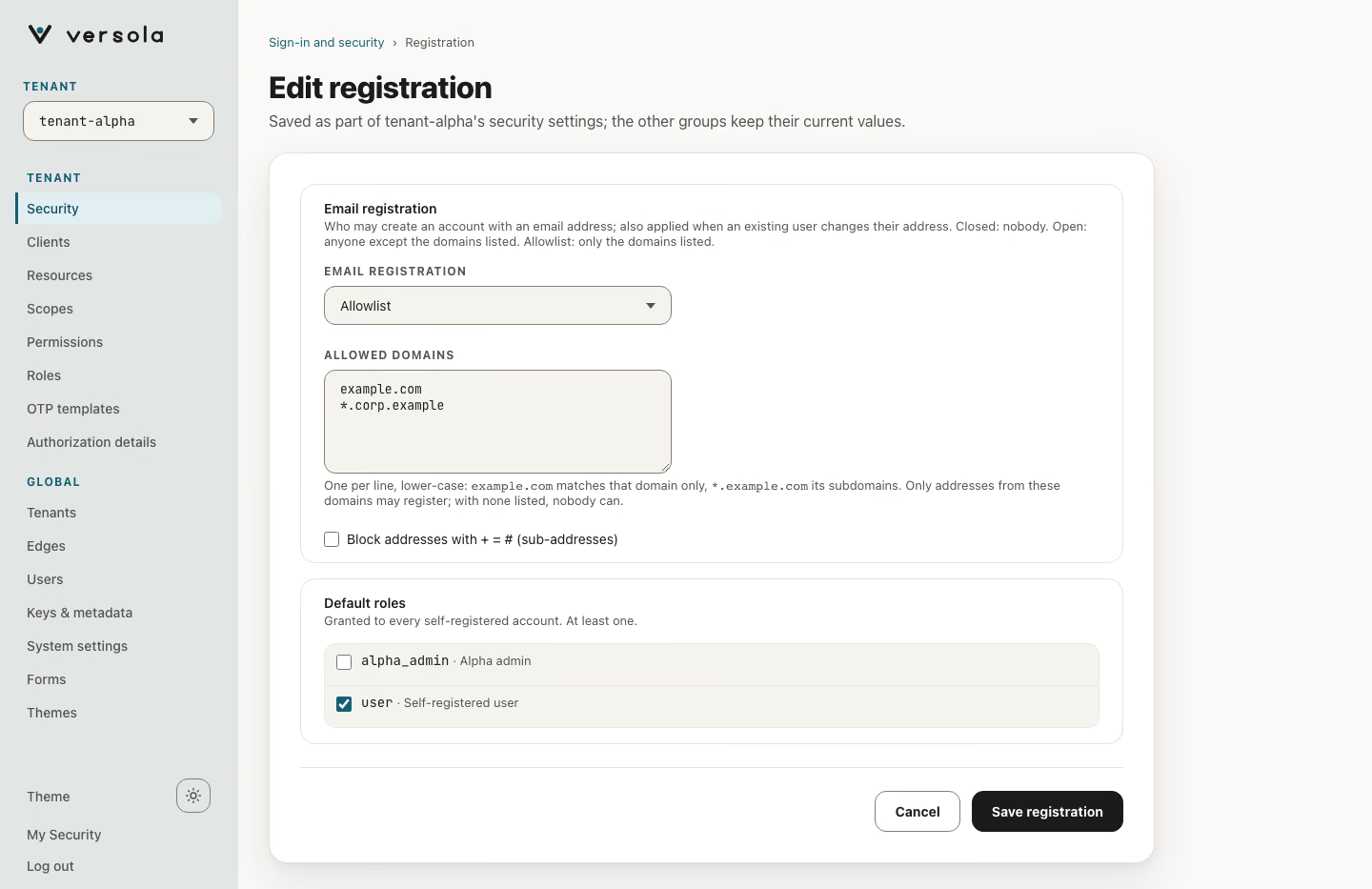
The card holds the email policy and the roles a new account gets. A new tenant starts with email registration Closed and the user role. Registration is decided for the whole tenant; a client has no switch for it. A phone number registers when its region has Sign-up on, and an email address registers according to the mode below, whichever client the user came through. A tenant that lists no regions lets any number sign in but registers no phone number.
| Field | Controls | Default | Rule |
|---|---|---|---|
| Email registration | Who may create an account with an email address. Closed: nobody, existing accounts still sign in. Open: any address, except the domains you list. Allowlist: only the domains you list. | Closed | One of the three. |
| Blocked domains (Open) or Allowed domains (Allowlist) | The domain list, one per line. example.com matches that domain only; *.example.com matches its subdomains, not example.com. Unicode names are stored as punycode. | empty | Up to 500 entries, no duplicates. With Allowlist and no entries, nobody registers. In Closed the list is ignored. |
| Block addresses with + = # (sub-addresses) | Refuse a local part such as user+tag@, the cheap way to mint many addresses for one mailbox. With it off, a+tag@example.com is the same account as a@example.com. | off | |
| Default roles | The roles every self-registered account gets, whichever credential it registers with. | user | At least one, ticked from the tenant’s roles. Central refuses a role that does not exist in the tenant while any registration is open. |
Which clients offer registration follows from their sign-in. A client whose first screen asks for an email or a phone number, and not for a login or a password alongside it, offers it when the tenant lets that credential register. A new user proves the address with a one-time code and, when the client’s sign-in requires a password, sets one. An address the tenant does not let register, or one that is already registered, takes the ordinary sign-in path and learns nothing about the account.
A role that is listed under Default roles cannot be deleted. Central answers 409, and the console greys out the role’s delete action until you remove the role from this list. The read-only card shows the default roles as links to the role.
Warning: The regions replace the earlier list of phone prefixes (
allowedPrefixes), and stored prefixes are not converted: a prefix names neither a length nor a pattern. A tenant that had prefixes accepts any number to sign in and registers no phone number until you add regions with Sign-up on. The switch that turned self-registration on for a client is gone as well, and what it held moved here when the settings were migrated: a tenant with a client that registered by email starts with Open (nothing blocked), any other tenant starts Closed, and Default roles are the roles those clients granted. Registration is now per tenant, so every client of such a tenant that signs in by email now lets anyone register. Check the mode before you upgrade.
Step-up (ACR vocabulary)
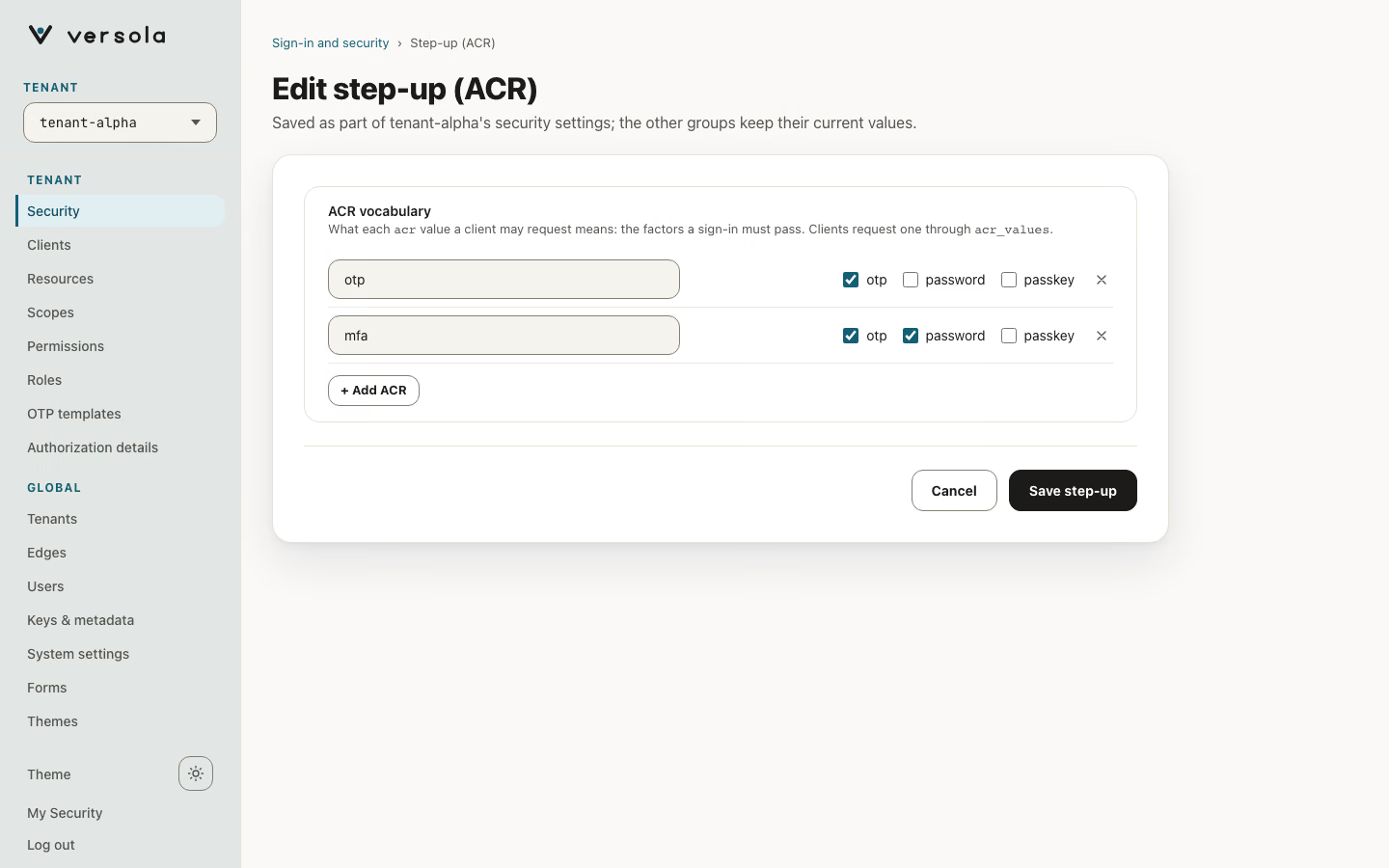
The card maps ACR names to the authentication factors they require. A client asks for one with the acr_values parameter. Each row has an ACR name (for example company_mfa) and checkboxes for the factors otp, password and passkey. A row needs a name that is not listed twice and at least one factor, otherwise the console refuses to save. Default: no entries. The same names appear as Step-up ACR choices on resources, see Resource.
Branding
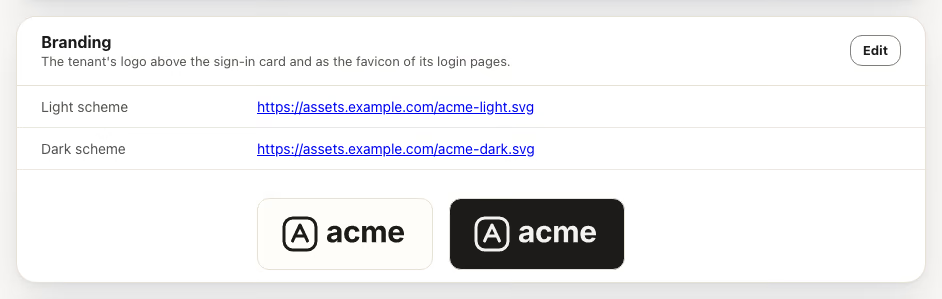
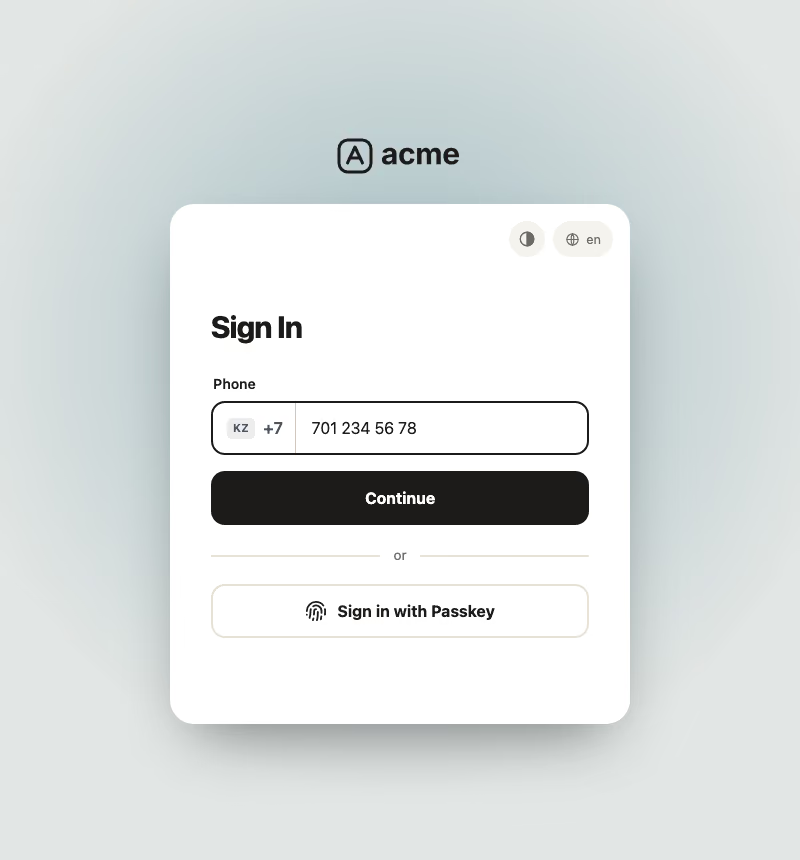
Branding holds the logo shown bare above the sign-in card of this tenant’s clients, and the favicon of its login pages: sign-in, one-time code, password, consent and the error screens. It is a pair of files, one for each colour scheme:
| Field | Artwork | Shown when |
|---|---|---|
| Logo for the light scheme (dark artwork) | Dark artwork | The page is in the light colour scheme. |
| Logo for the dark scheme (light artwork) | Light artwork | The page is in the dark colour scheme. |
The card previews each file on a light and a dark swatch. The page follows the visitor’s Auto, Light or Dark choice, so the logo switches with it. With no pair the screens show the Versola wordmark; so they do when either file fails to load. The favicon follows the browser’s own scheme: the light file in a light browser, the dark one in a dark browser.
| Rule | Detail |
|---|---|
| Both or neither | Setting one file only is refused: one file reused for both schemes would vanish on the page of the other. The console says The logo needs both a light and a dark file, or neither.; Central answers 400 with logoLight and logoDark must be set or cleared together. |
| URL | Absolute http or https URL with a host. Whitespace is trimmed in the console; Central refuses anything else with logoLight and logoDark must be absolute HTTP(S) URLs. |
| Format | SVG is recommended; PNG and WebP work too. The file is shown as an image, so scripts in an SVG do not run. |
| Text in an SVG | Convert text to outlines. Fonts are not loaded inside an image, so live text falls back to a default font. |
| No logo | Empty both fields. Pages that belong to no known client (a sign-out page opened without client_id) have no tenant and show the Versola wordmark. |
Default: empty. A deployment upgraded from a release that had a single system-wide logo starts with that file in both fields of every tenant; replace it with a proper pair.
Sessions
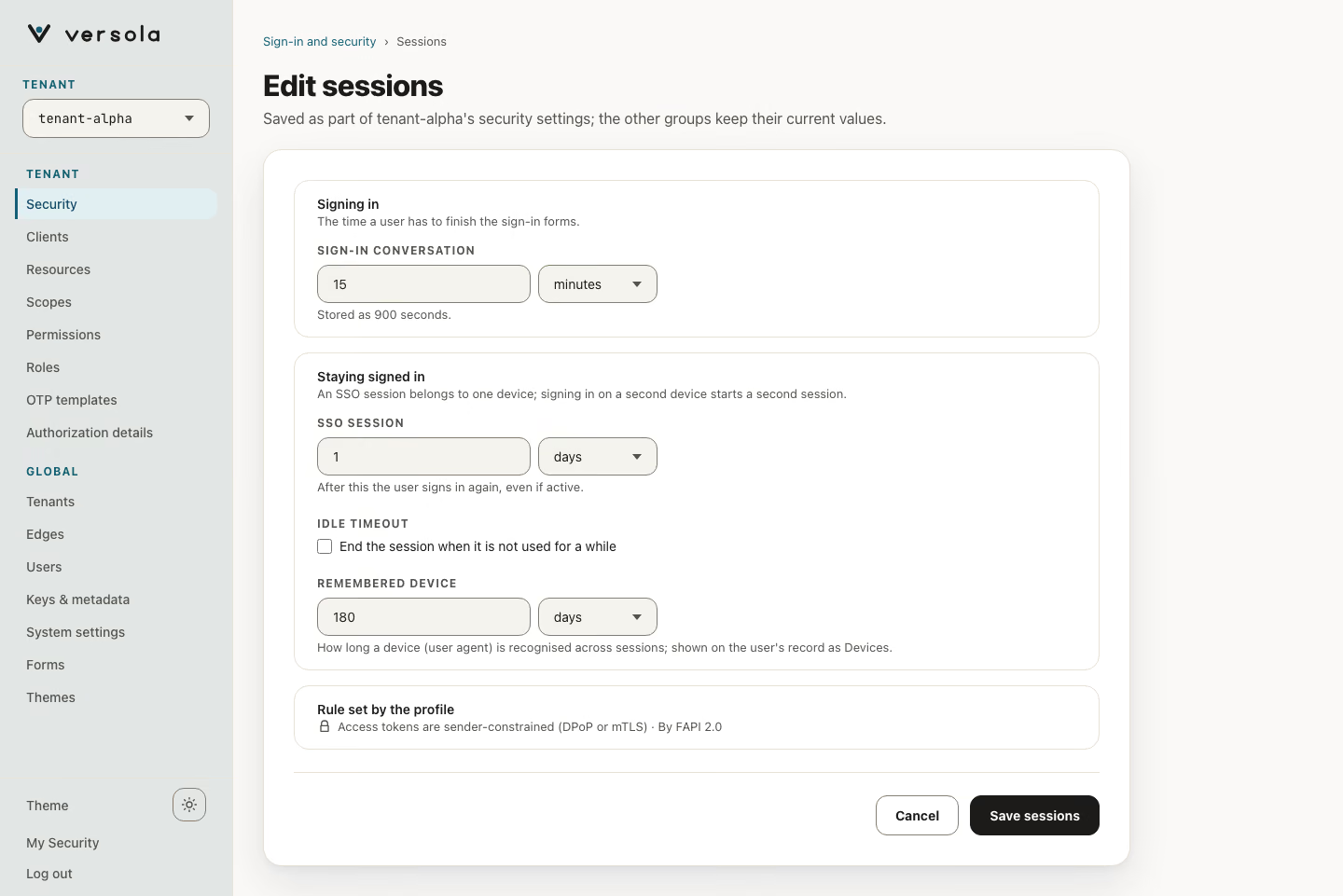
| Field | Controls | Default | Range |
|---|---|---|---|
| Sign-in conversation | How long an unfinished sign-in (the sequence of challenges for one authorization request) stays valid. | 15 min (900 s) | At least 1 s. |
| SSO session | How long the SSO session cookie stays valid after authentication, even if the user stays active. | 1 day | At least 1 s. |
| Idle timeout | Online sessions (no offline_access) expire after this much inactivity. It slides forward on each silent re-authentication. A checkbox, End the session when it is not used for a while, turns it on. | off | When on, at least 1 s and shorter than the SSO session. |
| Remembered device | How long a recognized device (user agent) is remembered before it must be verified again. Shown on the user’s record as Devices. | 180 days | At least 1 s. |
On a FAPI 2.0 tenant the page also shows a locked note, Rule set by the profile: access tokens are sender-constrained (DPoP or mTLS).
Tokens & keys
Signing key
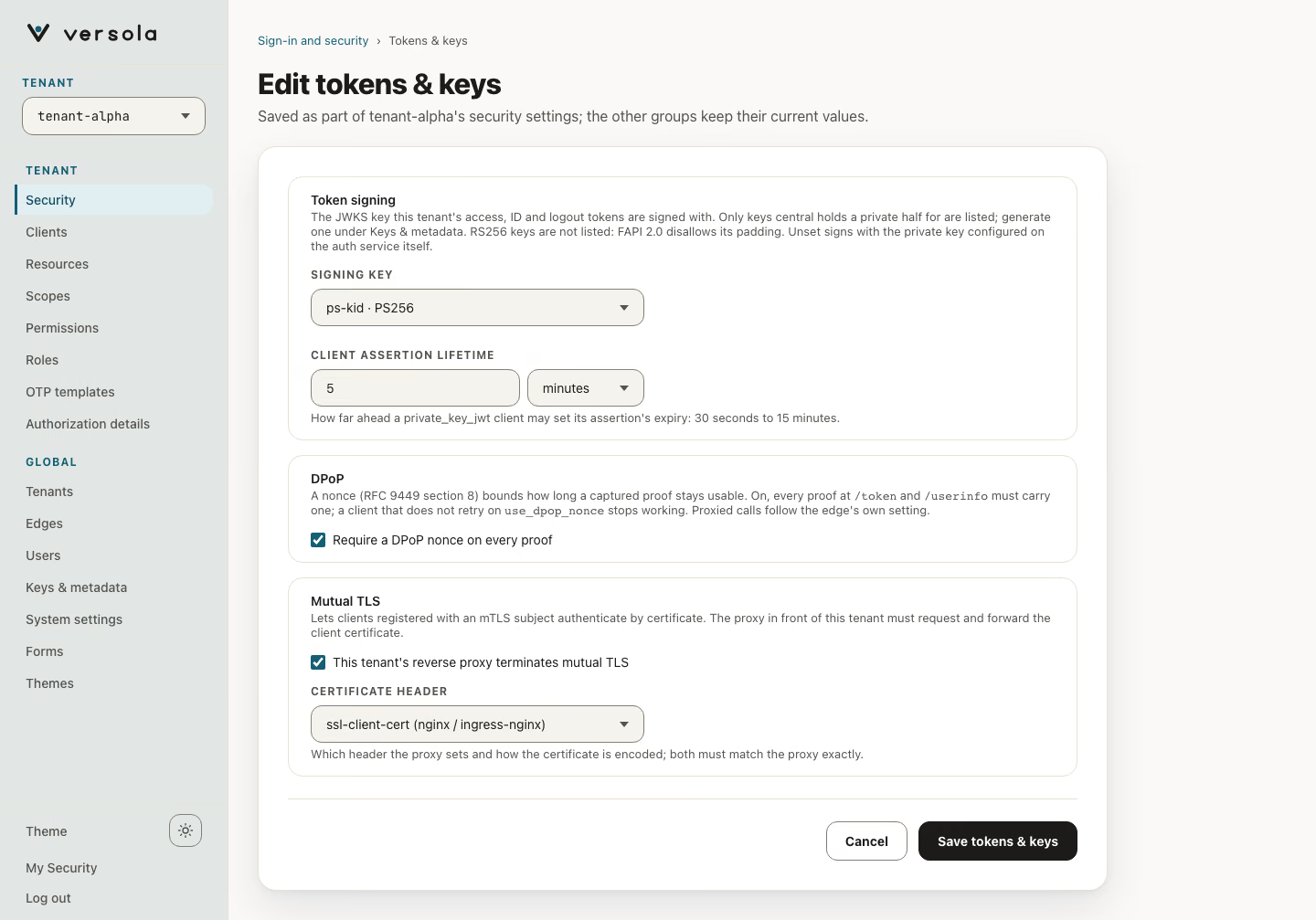
Signing key selects the JWKS key that signs this tenant’s access tokens, ID tokens and logout tokens. The list shows only keys Central holds a private half for, written as kid · algorithm. Keys that are published for verification only do not appear. Generate keys on Keys & metadata; the read-only card links the selected key there.
| Option | Result |
|---|---|
| A key from the list | auth signs with that key. Central checks the key when you save. |
| Auth service’s configured key | The setting is empty. auth signs with the private key from its own jwt.private-key configuration, under whatever algorithm that key has (RSA or EC; a freshly generated deployment holds an EC P-256 key, so ES256). |
A new tenant starts on the most preferred signable key: PS256 first, then ES256, newest kid first. If none exists, it starts on the configured key. RS256 keys are listed only when the tenant uses the Standard security profile. On a FAPI 2.0 tenant Central refuses them (Key '<kid>' signs RS256 ... Select a PS256 or ES256 key instead). The profile is fixed at tenant creation, see Security profiles. Other refusals: an unknown kid, and a verify-only key.
To move a deployment that signs with an RSA key to ES256, generate an ES256 key and select it here; the steps are on Keys & metadata.
When you switch a tenant to a freshly generated key, auth signs with the new key only after it has synced it. Until then it keeps signing with the previous key, so tokens keep flowing during the switch.
Client assertion lifetime
Client assertion lifetime limits how far in the future a private_key_jwt client assertion may set its exp (RFC 7523). auth remembers each assertion’s jti until it expires, so a longer lifetime costs storage; a shorter one rejects clients that mint long-lived assertions.
| Default | Range |
|---|---|
5 min (300 s) | 30 s to 15 min. The console and Central both refuse a value outside it. |
DPoP
Require a DPoP nonce on every proof makes every DPoP proof that this tenant’s clients send to /token and /userinfo carry a server-issued nonce (RFC 9449, section 8). A request without a nonce is answered with use_dpop_nonce and a fresh nonce in the DPoP-Nonce header, and the client has to retry. The read-only card says Required on every proof or Not required. Default: off.
Turn it on only after every DPoP client of the tenant retries on use_dpop_nonce: one that does not stops getting and refreshing tokens. Clients that do not use DPoP are unaffected. Turning it off takes effect at once and breaks nothing. The setting covers auth’s own endpoints only; calls proxied through an edge follow that edge’s own DPoP Nonce setting on the Edges screen. See Sender-constrained tokens.
Mutual TLS
The Mutual TLS checkbox, This tenant’s reverse proxy terminates mutual TLS, tells auth that a proxy in front of this tenant requests the client certificate and forwards it in a header. With it on, you also choose where the certificate arrives:
| Field | Meaning |
|---|---|
| Certificate header | The header the proxy sets. Presets: ssl-client-cert (nginx / ingress-nginx, URL-encoded PEM) and X-Forwarded-Tls-Client-Cert (Traefik, Base64-encoded DER). Custom… shows Header name and Encoding. |
| Encoding (custom only) | URL-encoded PEM (urlEncodedPem) or Base64-encoded DER (base64Der). |
There is no standard for this header, so both values must match your proxy configuration exactly. Header and encoding are saved together; with the checkbox off both are cleared and the read-only card says Not terminated by the reverse proxy. Default: off.
Warning: Central refuses to register a client that carries an mTLS subject while this tenant has no certificate header. The error is
mtlsAuth needs the client's tenant to set mtlsCertificateHeader - without it no certificate ever reaches auth for this client. It applies to a Web app created in the wizard (edgeprovisions its certificate and Central records the subject) and to any client edited to use the mTLS credential. A Mobile or desktop app fronted byedgeis exempt: it reachesauthon its own mTLS listener, which reads the certificate from the handshake, so the header is not consulted. Turn on Mutual TLS and save before you create such a client. See Client and Sender-constrained tokens.
Logout
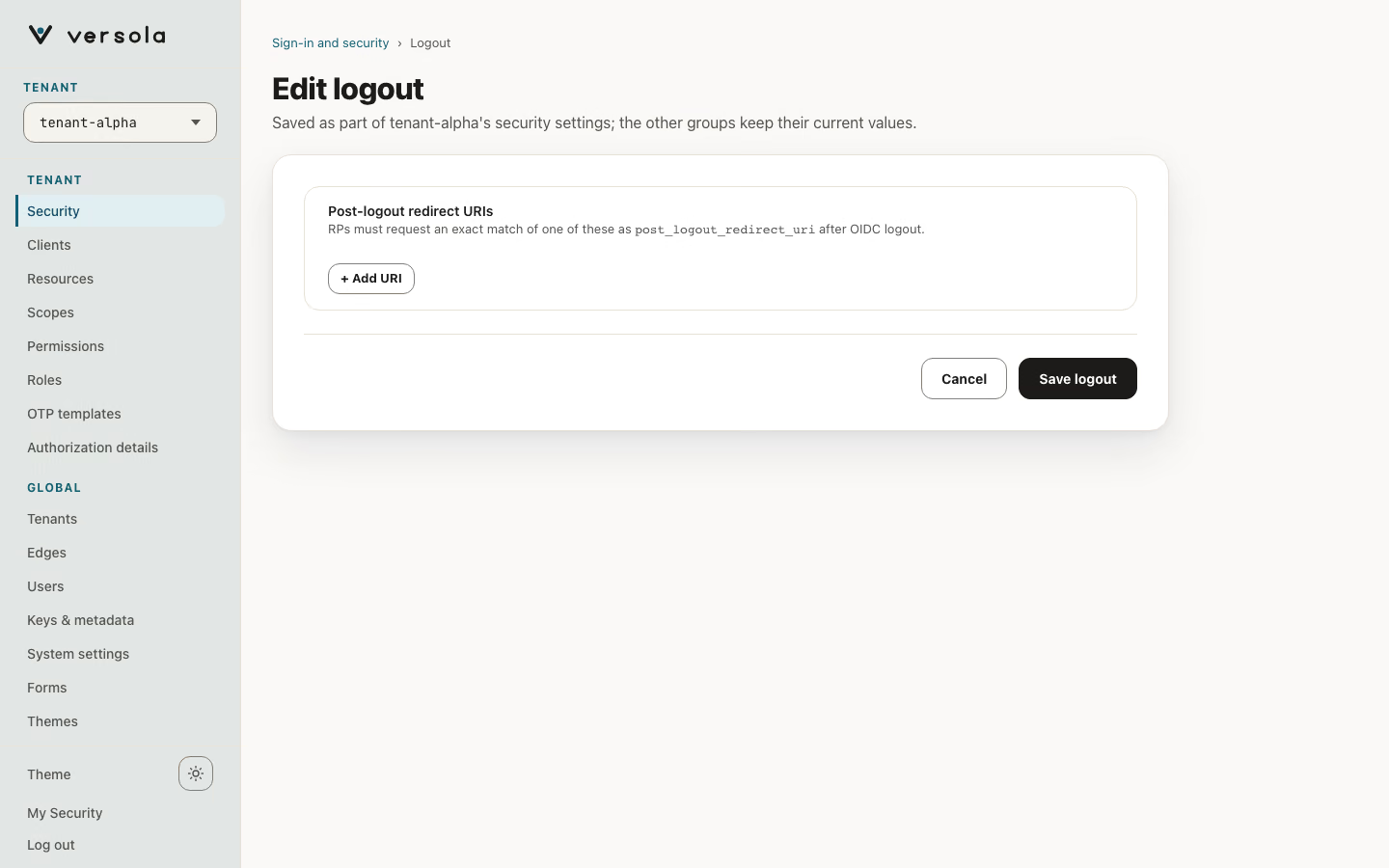
Post-logout redirect URIs lists where /logout may send the user afterwards. A relying party must send one of them, character for character, as post_logout_redirect_uri (OpenID logout). Each entry goes through the same redirect URI check as client redirect URIs; a rejected entry blocks saving and the error names it. Default: empty, so no relying party can request one.
Submission limits
Submission limits throttle repeated attempts. The read-only card shows each category as chips such as 5 per 15m, or No limit, and the ban duration.
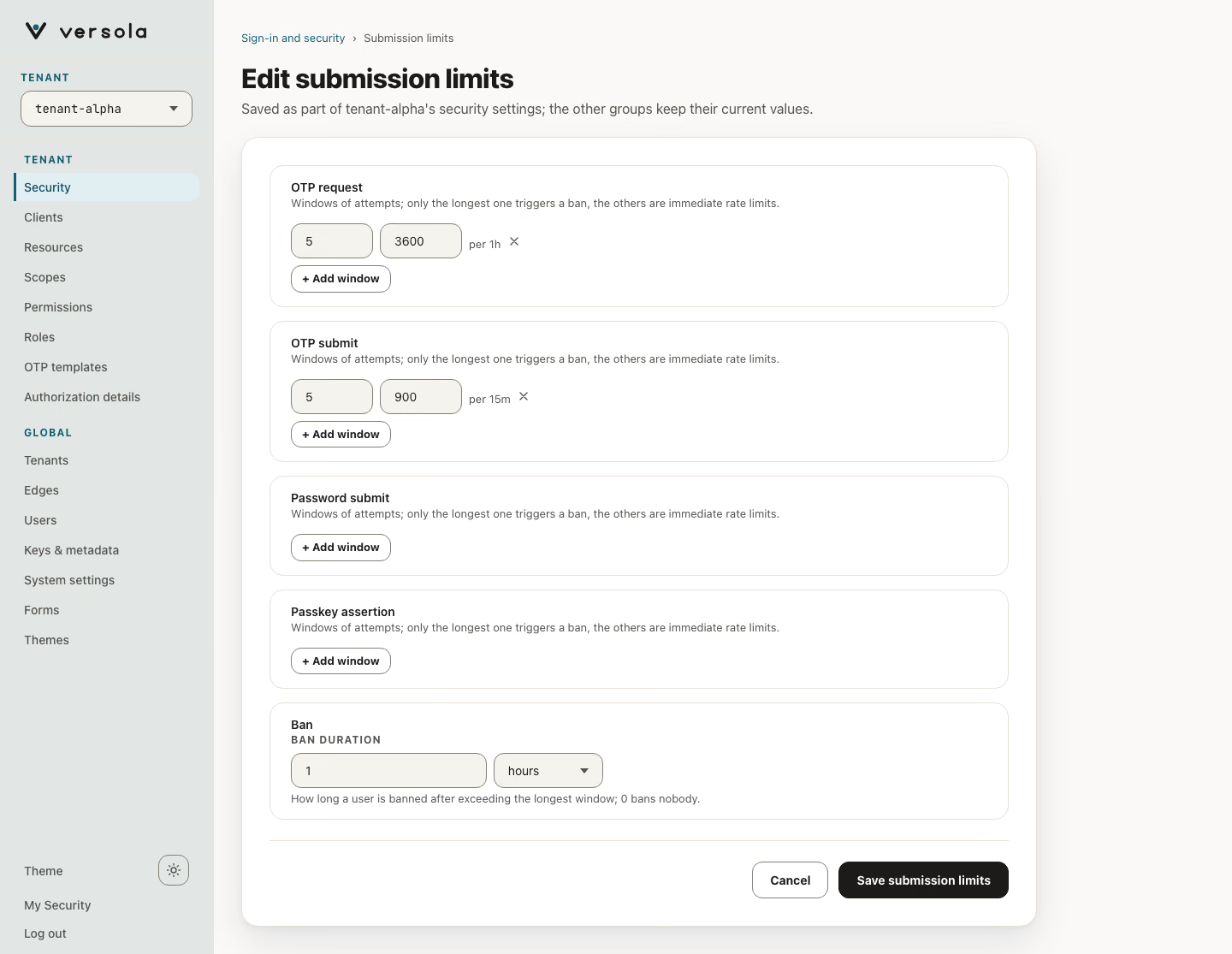
| Field | Meaning |
|---|---|
| Ban duration | How long a user is banned after exceeding the longest window. 0 bans nobody. |
| OTP request, OTP submit, Password submit, Passkey assertion | Each category holds one or more windows of maximum attempts per window length. |
Only the longest window of a category triggers a ban. The shorter windows answer with an immediate rate limit. Both numbers of a window must be at least 1. Defaults for a tenant created in the console:
| Category | Windows | Ban duration |
|---|---|---|
| OTP request | 2 per 60 s, 5 per 3600 s | 1800 s for all categories |
| OTP submit | 3 per 120 s, 5 per 3600 s | |
| Password submit | 5 per 900 s, 10 per 3600 s | |
| Passkey assertion | 5 per 300 s, 10 per 3600 s |
A category you leave without any window is not throttled at all. If auth has no settings row for a tenant, it applies the defaults above. Users who hit a limit can be released from the user card with Reset Limits, see User.
Security profile
The last card, Security profile, is read-only and marked Fixed: the profile is chosen when the tenant is created. It says whether the tenant is FAPI 2.0 (PAR, PKCE S256 and sender-constrained tokens are enforced for every client) or Standard (clients choose their own protections). See Tenant and Security profiles.
Next steps
- OTP templates for the text of one-time codes and temporary passwords
- Authorization details to register
authorization_detailstypes - Keys & metadata to generate and publish signing keys
- Security profiles and Sender-constrained tokens