A form is one screen of the sign-in flow that auth renders in the browser: the login field, the password, the one-time code, consent and so on. The Forms screen lists them, and each one opens as a page where you edit its texts, style and script, compare its versions and switch the active one. The themes that style them are on their own screen, Themes. Read the note on what the console can and cannot change before you edit a script.
Before you start
Forms sits under GLOBAL in the sidebar. Forms and locales are shared by all tenants. You need forms:read to see the screen. Saving a version and switching the active version need forms:manage; without it the screen is read-only.
How forms reach the sign-in screens
Each form has an ID, and auth asks for forms by fixed ID. A form is made of:
- a compiled Solid.js script, the part that runs in the browser;
- its source (TSX), stored next to it;
- a CSS file for the form;
- translations, one set of strings per language;
- backend properties, the values the backend passes into the form.
The built-in forms are written in the central-ui/forms/ directory of the product repository. npm run build:forms there compiles each one and places the script, source, CSS and translations in the resources of central, which loads them into the database on start.
| Form ID | Shown when |
|---|---|
credential | The user enters a login, email or phone number, or chooses a passkey. |
password | The user enters a password. |
set-password | The user must set a new password, for example after signing in with a temporary one. |
otp | The user enters a one-time code. |
passkey-enroll | auth offers to register a passkey. |
consent | The client asks the user to approve scopes. |
access-denied | The user is blocked, for example after too many failed attempts. |
conversation-expired | The sign-in took too long and the conversation is gone. |
service-unavailable | auth cannot continue. |
confirm-logout | /logout asks the user to confirm. |
signed-out | The user has been signed out. |
auth-settings | The account page with the user’s sessions and passkeys. On a new deployment, removing a passkey, starting to add one and signing another session out ask for a fresh sign-in first, and the page takes the user to the login that asks for it; see Edge policies. |
auth renders only the active version of a form, with the translations of the languages that are active in Locales on System settings. If a form is missing, auth answers with a plain “not found” page.
The list
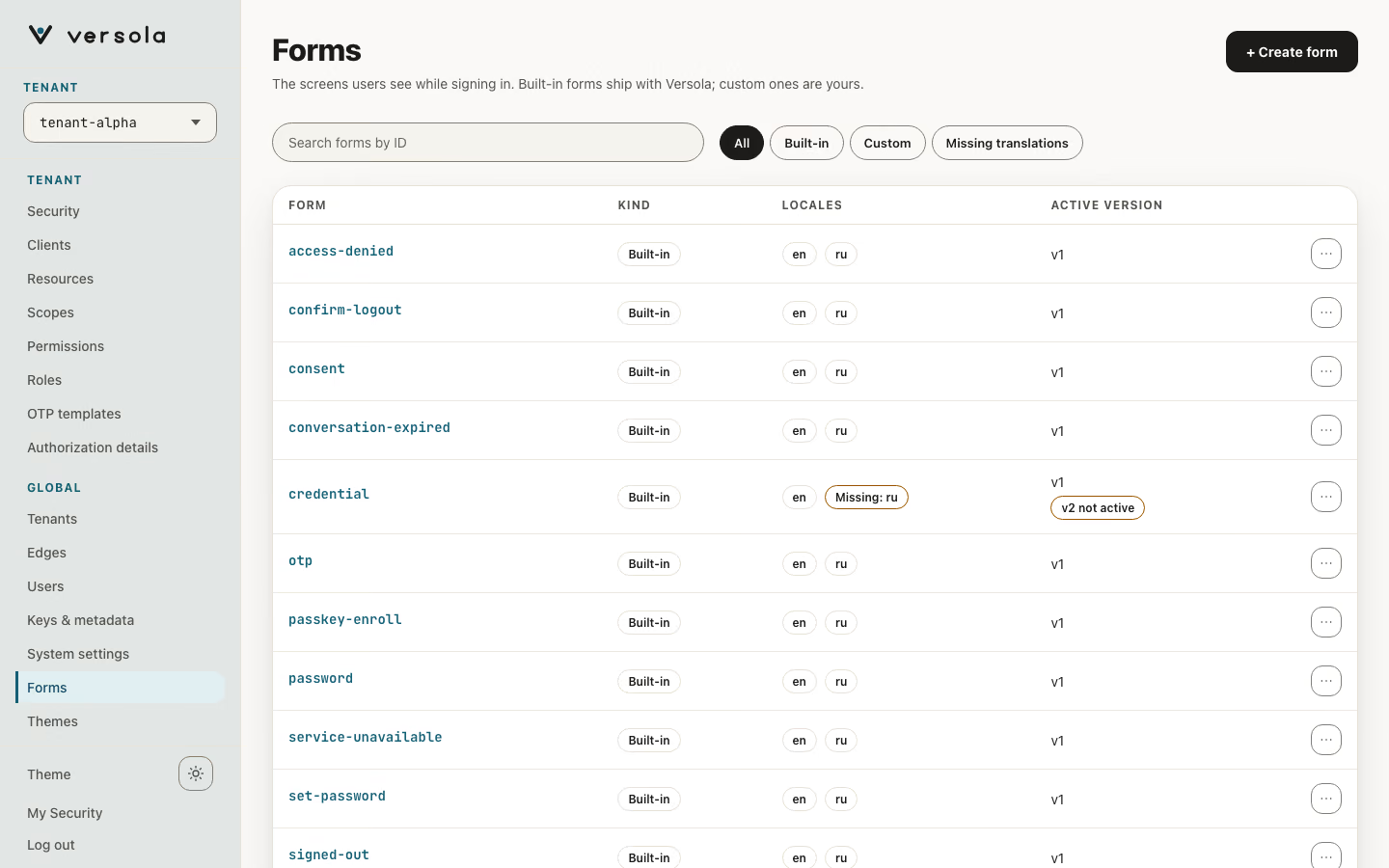
One row per form, not per stored version.
| Column | Meaning |
|---|---|
| Form | The form ID. |
| Kind | Built-in for a form that central lists preview states for (see Preview), Custom for any other. The console infers it; there is no field for it. |
| Locales | The active languages the form has every text in, as chips (en ru and +1 for the rest, which names them on hover). A language that lacks texts is named in a Missing: ru, kk chip. Languages are those active in Locales on System settings; the judged version is the active one, or the newest when none is active. |
| Active version | The version auth serves (v7). A v8 not active chip means a newer version is stored and not live. No active version means auth has nothing to render for the form. |
The filters are All, Built-in, Custom and Missing translations, next to a search by form ID. The row menu has Open and Copy ID. + Create form opens the editor with an empty form.
A form’s page
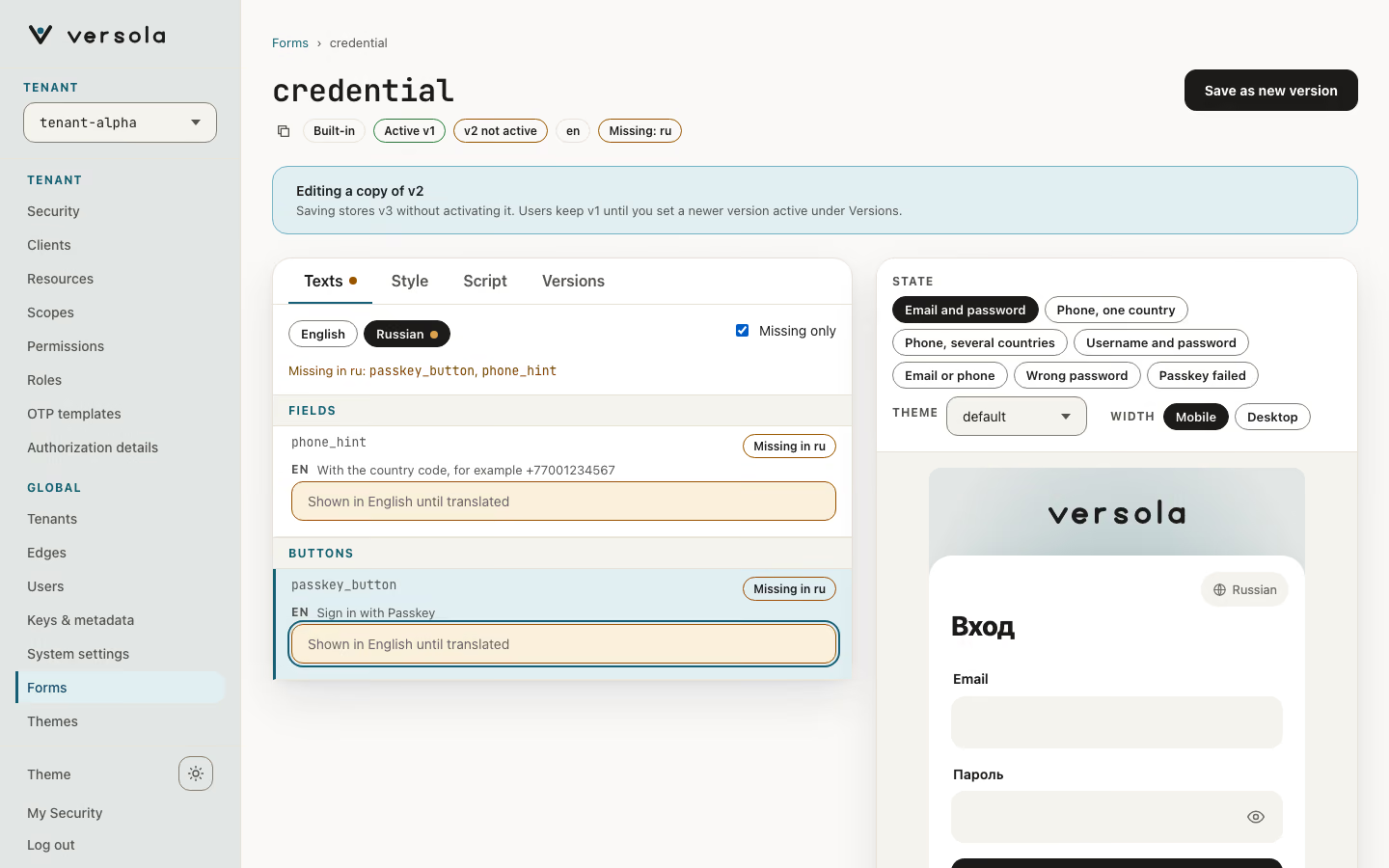
Click a row to open the form. The page is the editor: its header has the form ID, Built-in or Custom, the active version, any newer stored version and the languages, and the one primary action, Save as new version. Under the header a note says what saving does: Saving stores v9 without activating it. The editor has tabs and, beside them, a live preview that stays on screen.
| Tab | What it holds |
|---|---|
| Texts | The texts of the form, one language at a time (see below). |
| Style | The form’s own CSS, applied on top of the theme. |
| Script | The source of the form (TSX), for reference. A built-in form’s source has its shared modules inlined and its types removed. |
| Properties | Boolean, AnyOf (a list of allowed values) and Number backend properties, added with + Add Boolean, + Add AnyOf and + Add Number. Only a custom form has this tab: a built-in form’s states and properties are central’s, and the version you save keeps the properties it had. |
| Versions | Every stored version, with Preview, Edit a copy and Set active. |
The tab is in the address (&edit=style), so a link opens it.
Texts
Choose the language to edit with the buttons above the entries; a dot marks a language that has gaps. Missing only keeps the entries the language lacks, and a line under the buttons names the first two missing keys and +N for the rest.
Entries are grouped under Page, Fields, Buttons and Errors, read from the key’s name. Each entry shows the key, the default language’s text as a muted reference, and the field. A missing translation is a warning field that says Shown in English until translated: until you type a text, users see the default language’s.
The keys are the ones the form’s stored texts already have; the console adds no new key.
The preview
The preview draws the form with the unsaved edits, in the language you are editing, in the theme you choose and at phone or desktop width. The text of the key you are typing in has a dashed accent ring, and the English text that stands in for each key the language lacks has a dashed warning ring. A key whose text has a placeholder ({{minutes}}) is not ringed.
For a built-in form, State lists the situations central knows for it, each with realistic data: for sign-in, email and password, a phone number with one country or several, a wrong password and a failed passkey; for the one-time code, the resend timer, a locked input and a wrong code; for consent, a typical request, every standard scope and a request with nothing optional. The list is part of the central build: it is not stored and the console cannot change it. A custom form has no such list, and its preview uses the backend properties on its Properties tab, shown as controls in the preview. The preview runs the stored compiled script. Below 900 px the preview is a collapsible band above the tabs.
Versions and rollback
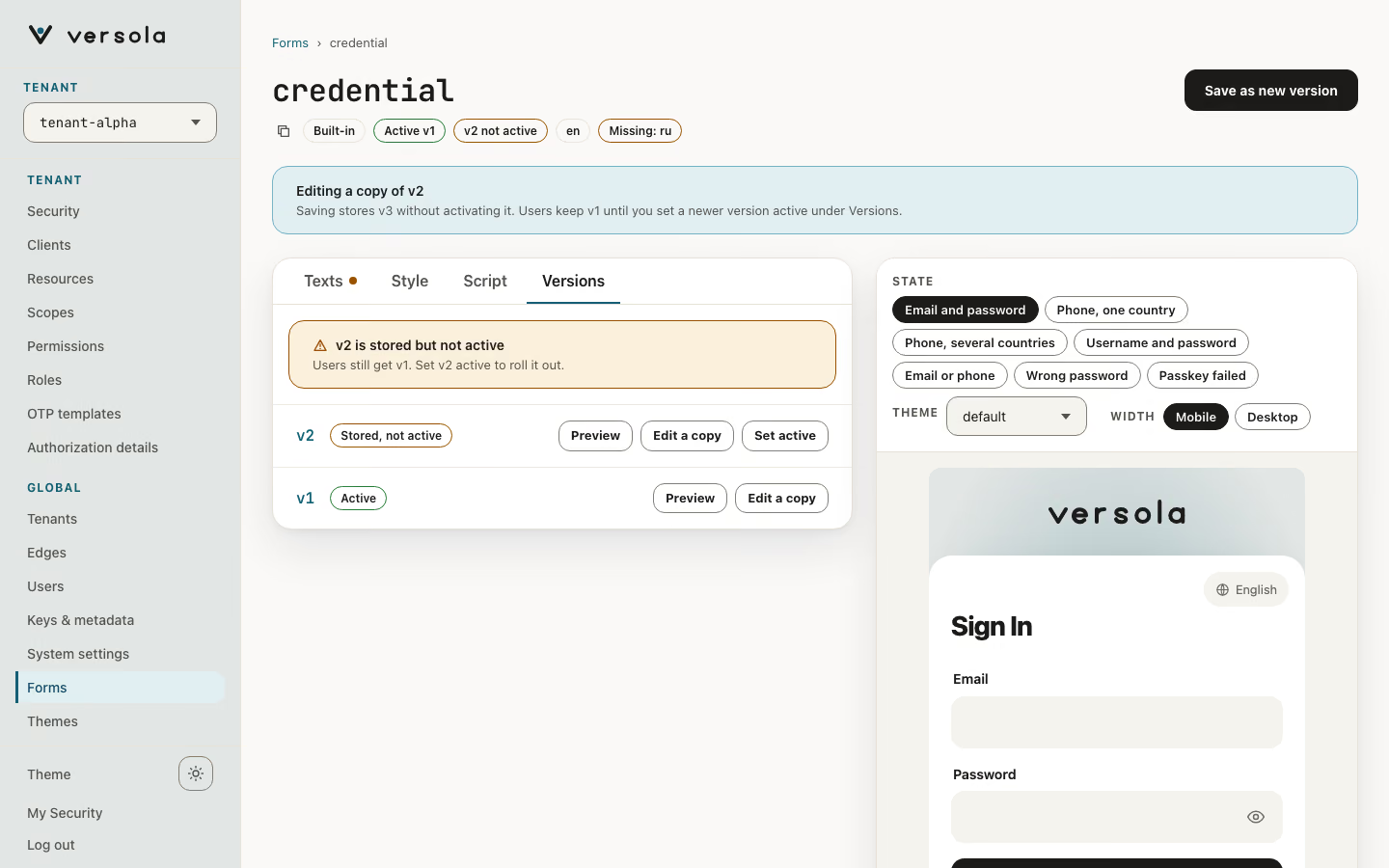
| Action | What happens |
|---|---|
| Save as new version | Adds the next number (v2, v3, and so on) and stays on the page. It does not activate the version, except for the first version of a form, which is active at once. A banner says what was stored and links to Versions. |
| Set active | Makes that version the active one and deactivates the others. It works on any stored version, so it is also the rollback. |
| Edit a copy | Loads that version into the editor as the base of the next save. It asks first when you have unsaved edits. |
| Preview | Draws that stored version in the preview; Back to my edits returns to your working copy. |
| Retention | Central keeps the five newest versions and the active one. Older inactive versions are deleted when you save. |
A version newer than the active one carries Stored, not active and a warning above the list: v8 is stored but not active. Users still get v7. A version is never edited in place. To change a form, edit, Save as new version, then Set active on it. If it misbehaves, Set active on the previous version. auth picks the change up on its next configuration sync, not instantly. A form has no delete: central has no endpoint for it, so the page has no danger card.
Leaving the page with unsaved edits asks for confirmation.
Create a form
+ Create form opens the editor with a Form ID field, on the Script tab, and no version. The ID takes lowercase letters, digits and dashes, and is fixed once stored. auth only asks for the IDs in the table above, so a form with another ID is stored but never shown. Save as new version stores v1 and opens the new form on Versions.
What the console can and cannot change
Note: The console has no compiler. Save as new version sends the compiled script of the version you started from unchanged, together with the text in the Script tab. Changing the Solid.js source in the console therefore does not change what users see. CSS, translations and backend properties do take effect. To change the behaviour of a form, build it outside the console and send the compiled script in the
jsCompiledfield ofPUT /configuration/formsin the Central API.
The backend properties of the built-in forms are declared, but the values come from elsewhere. credential declares primaryCredentials, inlinePassword and passkey, which auth takes from the client’s sign-in settings. otp declares length and resendAfter, which come from the tenant’s challenge settings.
Warning: When the configuration of
centralhas abootstrapblock,centralcompares the active version of each built-in form with the copy bundled in its image on every start. If they differ, it saves the bundled copy as a new version and makes it active. Your edit stays in the version list and you can activate it again, but the next restart replaces it once more. Thecentral.confthatversola configuregenerates has abootstrapblock.
Themes
A theme styles every form, and has a screen of its own: Themes. The Theme selector in a form’s preview lists the themes available to the selected tenant, so you can see a form in each.