System settings holds the settings that apply to the whole deployment instead of one tenant: the password policy and the Locales card. Passwords belong to the user, not to a tenant, so the policy that governs them is global too, and so are the languages. The page is not scoped to the tenant selector in the sidebar. The logo on the login pages is a per-tenant setting, see Branding.
Before you start
| Need | Permission |
|---|---|
| See the password policy | security:read |
| Change the password policy (the Edit button) | security:manage |
| See the Locales card | locales:read |
| Change locales | locales:manage |
The settings live in Central and reach auth through its configuration sync, so a saved change applies after the next refresh. edge does not use them.
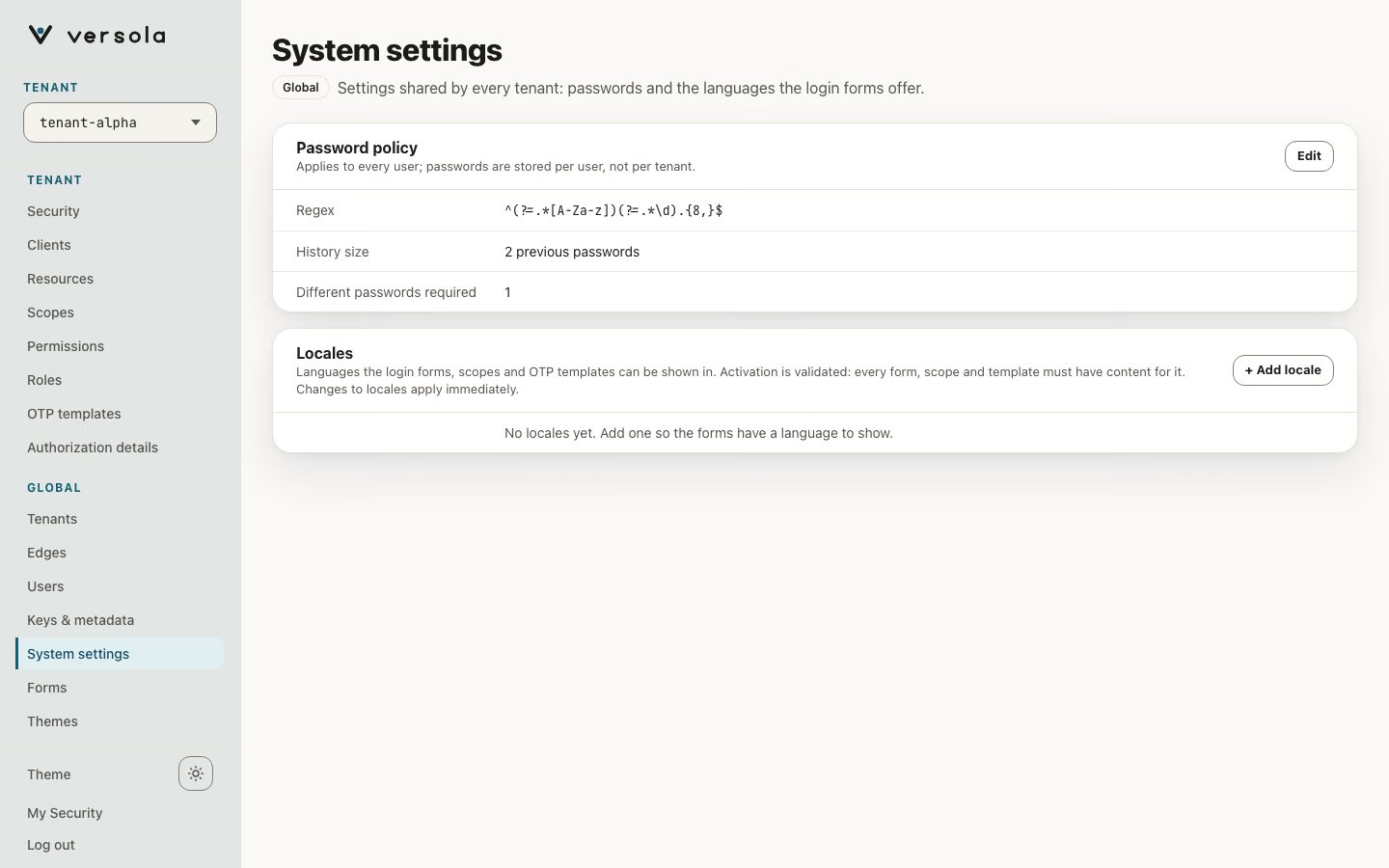
Password policy
The Password policy card shows the three values below. Edit opens Edit password policy. Save password policy writes all three values at once; Cancel discards them.
| Field | Controls | Default | Validation |
|---|---|---|---|
| Regex | The pattern every password a user types must match in full. | ^(?=.*[A-Z])(?=.*[a-z])(?=.*\d).{8,}$ (at least 8 characters with an uppercase letter, a lowercase letter and a digit) | Required. The console refuses a pattern that is not a valid regular expression. |
| History size | How many previous passwords Versola keeps per user, counting the current one. | 2 | A whole number, 0 or more. |
| Different passwords required | How many of the most recent kept passwords a new password must differ from. | 1 (the new password must differ from the current one) | A whole number, 0 or more. |
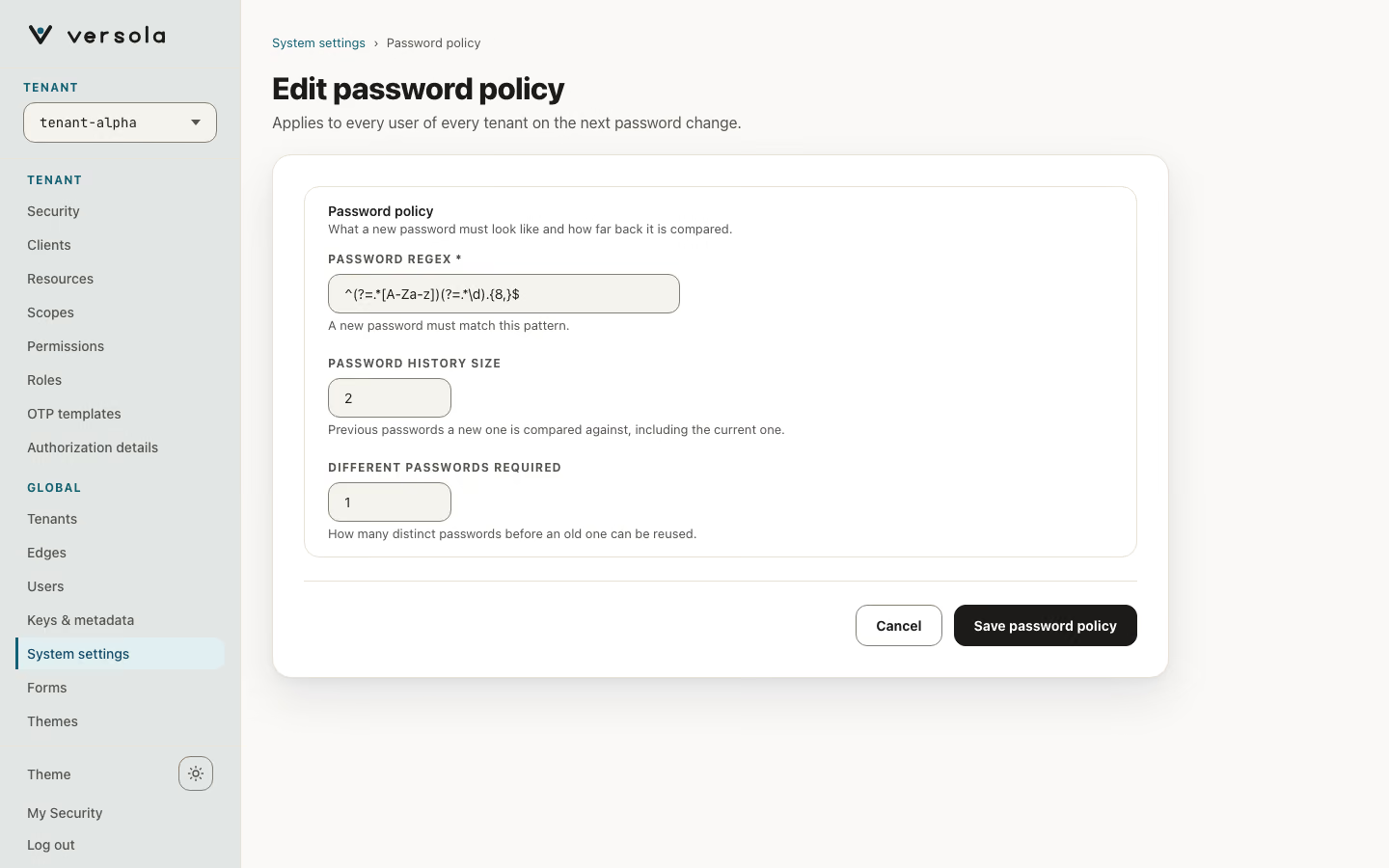
Central does not validate the regular expression; the check in the console is the only one. The browser form checks it as a JavaScript pattern, while auth evaluates it in Java, so keep to constructs both support (character classes, quantifiers, lookaheads).
Only passwords that are kept count. Different passwords required larger than History size adds nothing, because auth has no older passwords to compare with.
How the policy is applied
The regular expression is checked by auth on the server whenever a password is typed into a sign-in page: the password step, the combined login-and-password step and the Set New Password step. A submission that does not match is rejected with 400 before the password is checked against the stored one.
Warning: The pattern also applies to sign-in, not only to new passwords. After you make it stricter, a user whose existing password no longer matches cannot submit it on the login page. Change the pattern together with a plan for those users, for example a password reset.
If the pattern is not a valid Java regular expression, auth treats every password as matching. The console blocks invalid patterns, so this happens only if the setting was written to Central through the API.
The history rules apply when a user sets a permanent password. A new password is refused when it equals one of the last Different Passwords Required passwords. After it is stored, only the newest Password History Size passwords stay on record. If a user signs in with an old password that is still on record, auth does not accept it and shows when the password was changed.
First sign-in and password reset
Temporary passwords come from two places: the bootstrap password of the first administrator and the Reset Password button on the user card (see User). Both follow the same path:
- The user signs in with the temporary password.
authaccepts it as the password factor, finishes the remaining factors (for example the OTP code) and then shows Set New Password. An expired temporary password is refused. - The new password must match Regex and pass the history rules above. A password that repeats a recent one is refused with a reuse message, and the failed attempt counts against the password submission limits of the tenant (see Security).
- Saving the new password stores it as permanent, deletes the temporary one and keeps the temporary password out of the history.
Reset generates a temporary password of 16 characters that satisfies Regex, trying up to 20 times. If your pattern is so strict that random passwords rarely match it, the reset fails instead of issuing a weak password. A reset without a lifetime expires after 12 hours. In a production environment the password is delivered to the user by email or SMS with the password template from OTP templates; showing it in the console is allowed outside production only.
The internal POST /users/password/set call of auth applies the history rules but does not run Regex.
Locales
The Locales card below the password policy lists the languages that sign-in screens, one-time-code messages and the consent screen can use. It has its own permissions and applies at once, without an Edit step. See Locales.
Next steps
- Security for password submission limits
- OTP templates for the temporary-password message
- User and How to register a user
- Locales