A role is a named set of permissions that you assign to users per tenant. This page creates one in the admin console. For the fields and rules, see Role.
Prerequisites
- A tenant, selected in the console.
- The permissions the role should grant.
1. Open Roles
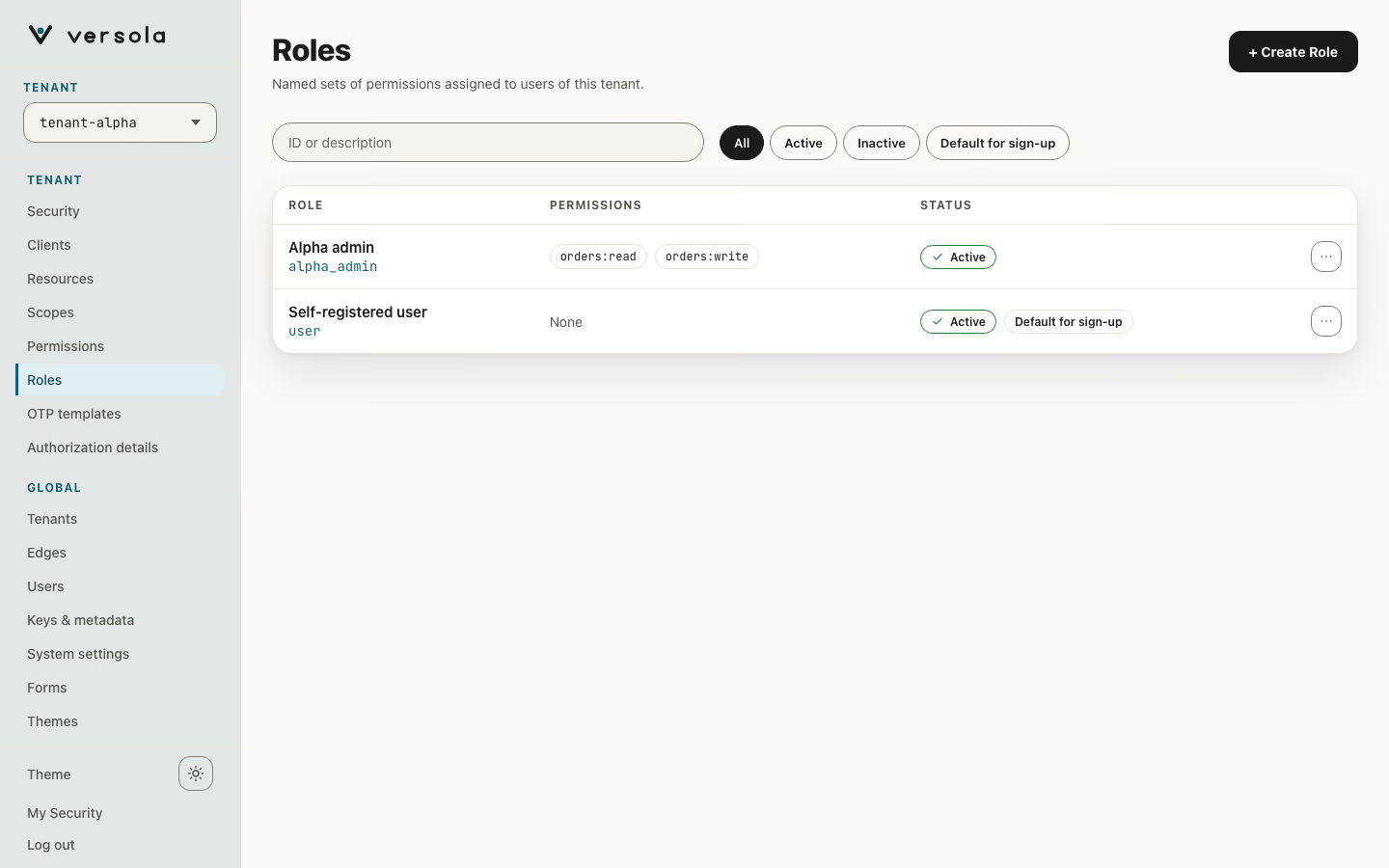
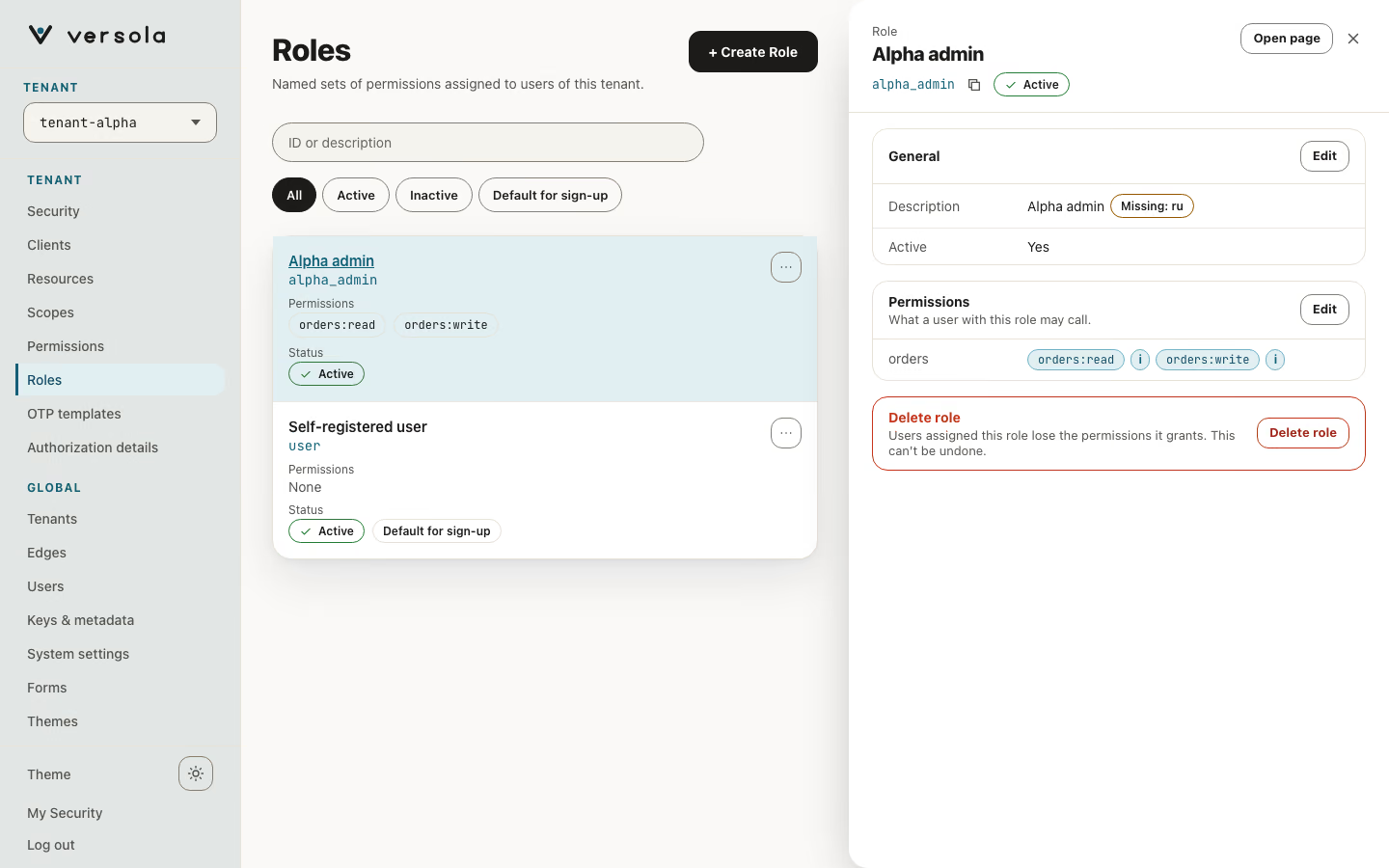
Open Roles under the tenant. Each card shows the description, the role ID and an Inactive badge for a role that is switched off. Expand a card to see its permissions.
2. Start a new role
Press + Create Role.
3. Fill in the role
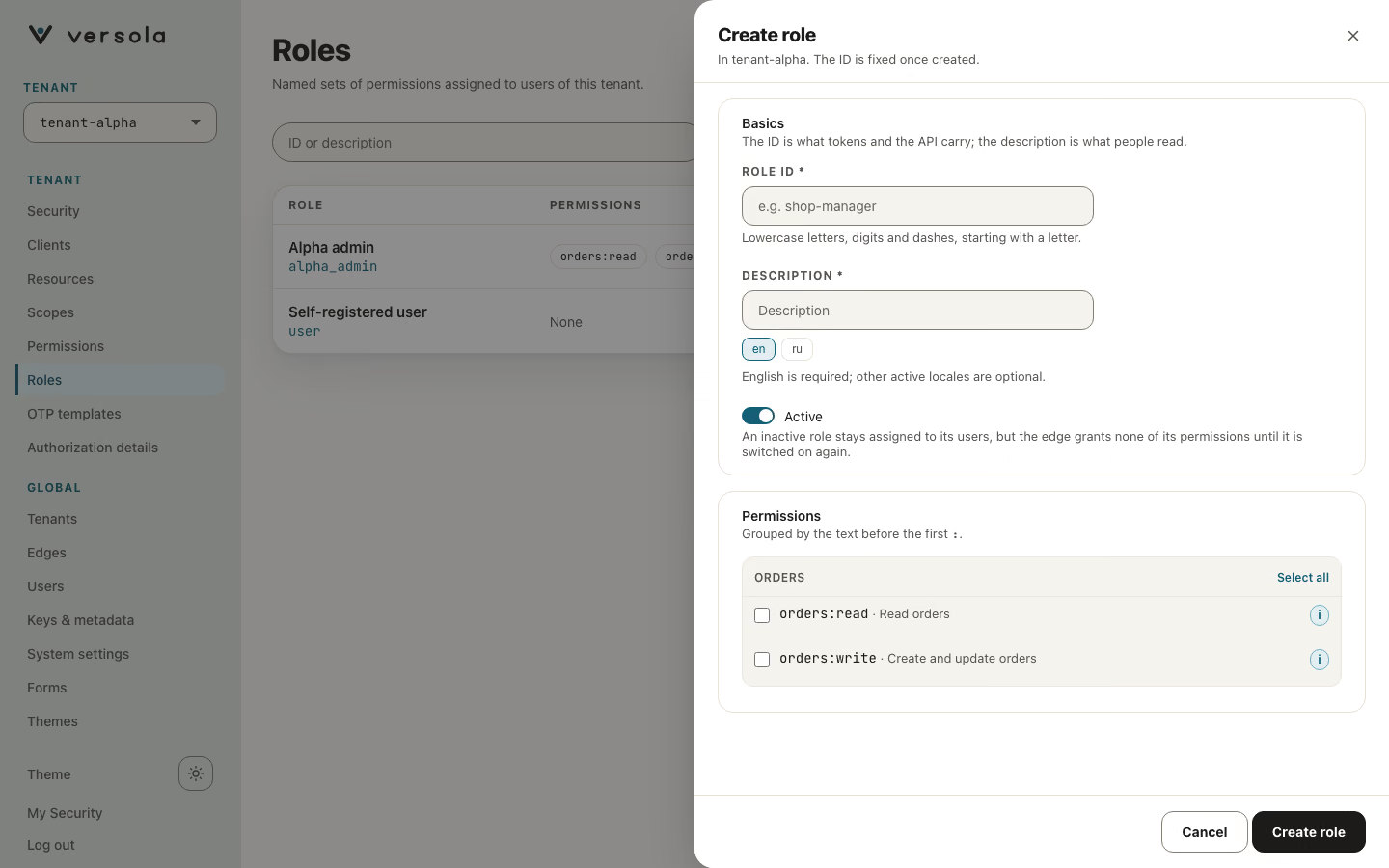
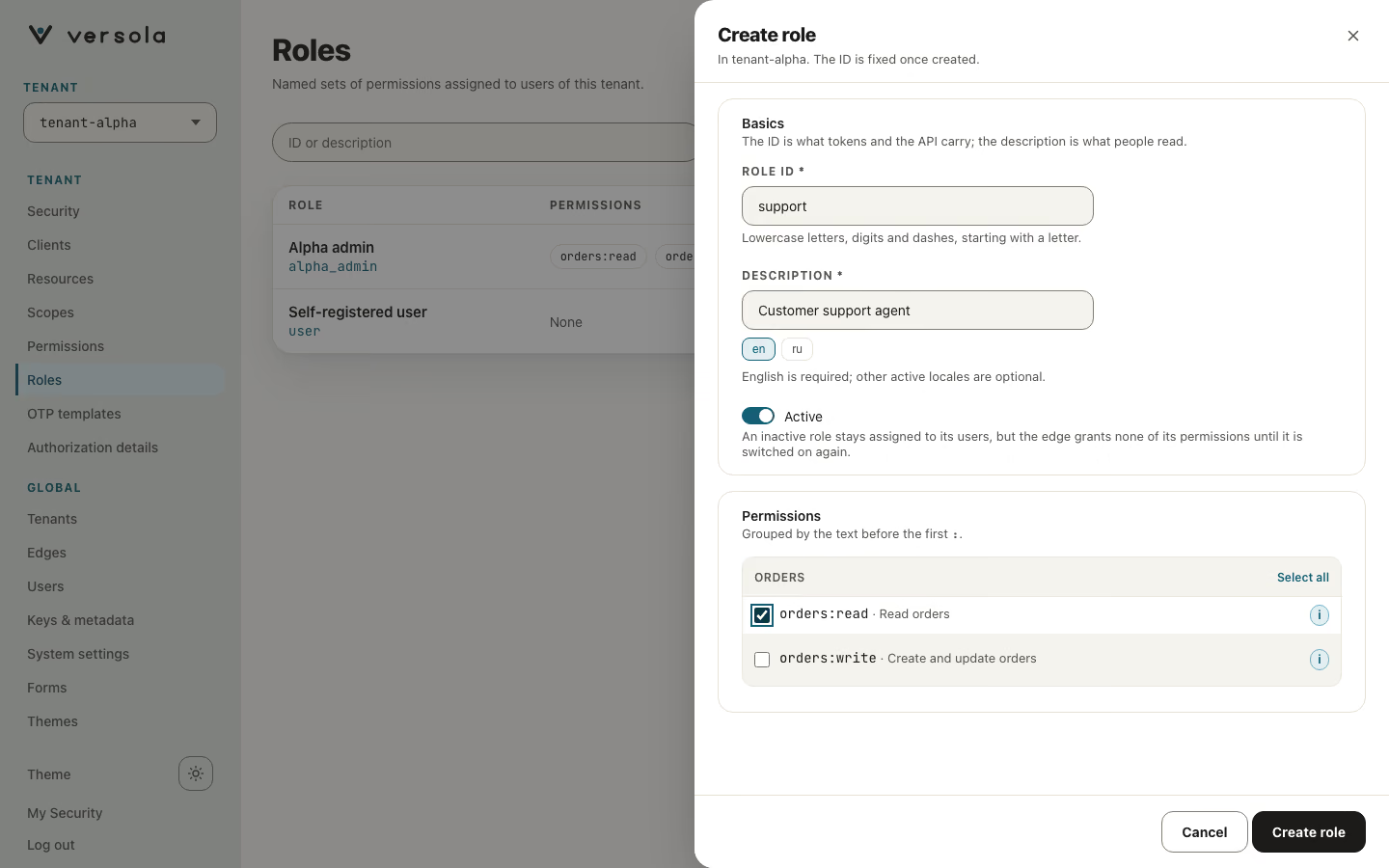
- Role ID: lowercase letters, digits and hyphens, starting with a letter, for example
auditororpayments-admin. Underscores are rejected, although the hint under the field mentions them. You cannot change the ID later. - Description: required, in English.
- Active: leave it on so the role grants access at once. Switch it off to keep the role without letting it grant anything.
- Permissions: tick each permission the role grants. The i next to a permission lists the resources and endpoints it covers.
4. Create the role
Press Create Role. The role is ready to assign. Open the user, press Get Roles on the card for the right tenant and add the role. See How to register a user.
At request time edge unions the permissions of every role the user holds in the token’s tenant. The role IDs are copied into the token when it is issued, so a role you add or remove reaches the user’s next issued or refreshed token.
Edit or delete a role
Press the pencil on a card to change the description, the active state or the permissions. The ID cannot change. The cross deletes the role after a confirmation. Users keep the assignment, but the ID no longer maps to any permission. To retire a role and keep it, switch Active off instead.
Next steps
- How to register a user: assign the role.
- How to register a permission: add permissions to choose from.
- Role: how roles reach authorization decisions.