The OTP templates page lists the messages auth sends with a one-time code or a temporary password. Pick the tenant in the sidebar first; the templates belong to it. Each template carries one text per active language.
Before you start
| Need | Permission |
|---|---|
| See the page | security:read |
| Create, edit or delete a template | security:manage |
Without security:manage the page is read-only: + Create Template, the Edit button and the delete actions are not shown. The languages come from the Locales card on System settings; only active languages get a text.
The list
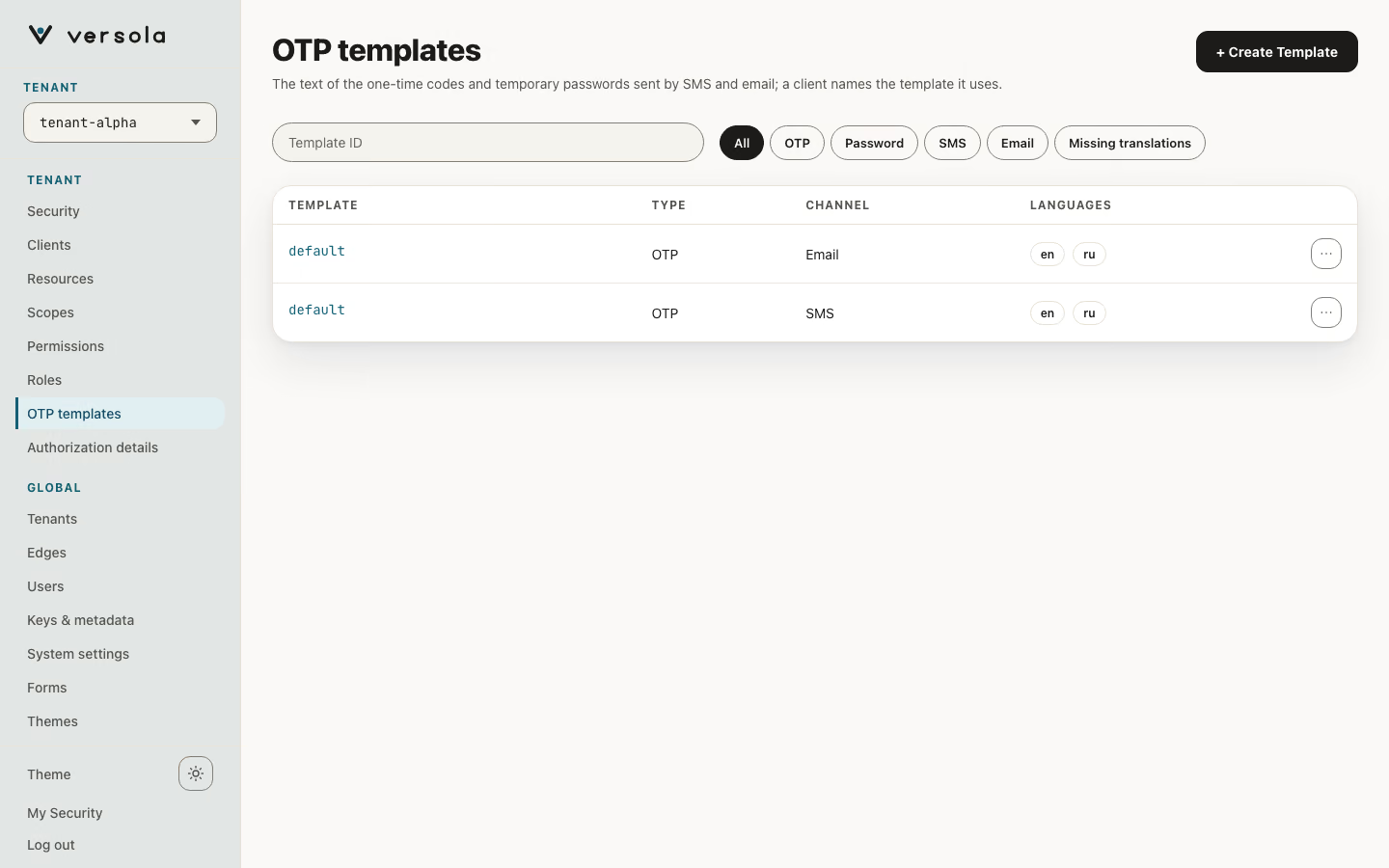
The table has one row per template, with the columns Template (the ID), Type, Channel and Languages. The search field matches the template ID. The filters narrow the table by type (OTP, Password), by channel (SMS, Email), or to the templates that lack a text for an active language (Missing translations). The row menu offers Open, Copy template ID and Delete template. Selecting a row opens its side panel.
| Column | Meaning |
|---|---|
| Type | OTP (one-time code) or Password (temporary password sent when an administrator resets a user’s password). |
| Channel | SMS or Email. |
| Languages | Which active languages have a text. |
A template is identified by its ID, type and channel together, so one ID can have an SMS and an email version, or an OTP and a password version. The panel lists them under Other variants. A client picks an OTP template by ID in its OTP Settings (OTP Template and OTP channel, see Client). A password template is found by channel alone: auth takes the one password template of the channel the administrator chose, whatever its ID.
The template panel
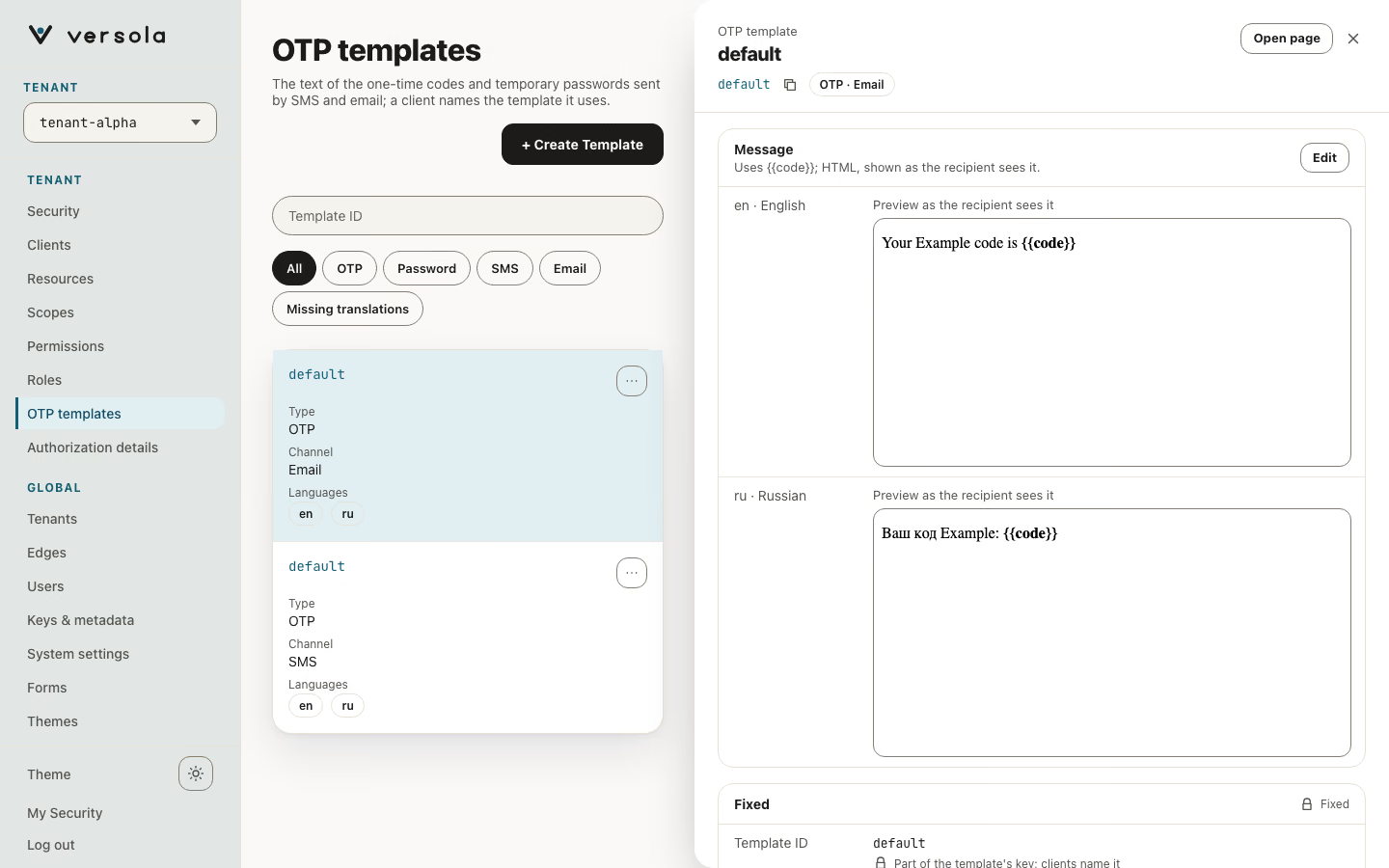
The panel shows:
- Message, with one entry per language. A text message is shown as plain text; an email body is shown as the recipient sees it, in a sandboxed frame. The card’s Edit opens the message editor.
- Fixed: the ID, type and channel, which are part of the template’s key and cannot be changed. To change one, create a new template and delete the old one.
- Other variants, when the same ID exists for another type or channel.
- Delete template, with a confirmation.
A warning at the top of the panel, Missing translations for …, appears when an active language has no text. Edit Message adds it.
Create a template
+ Create Template opens the side panel in create mode.
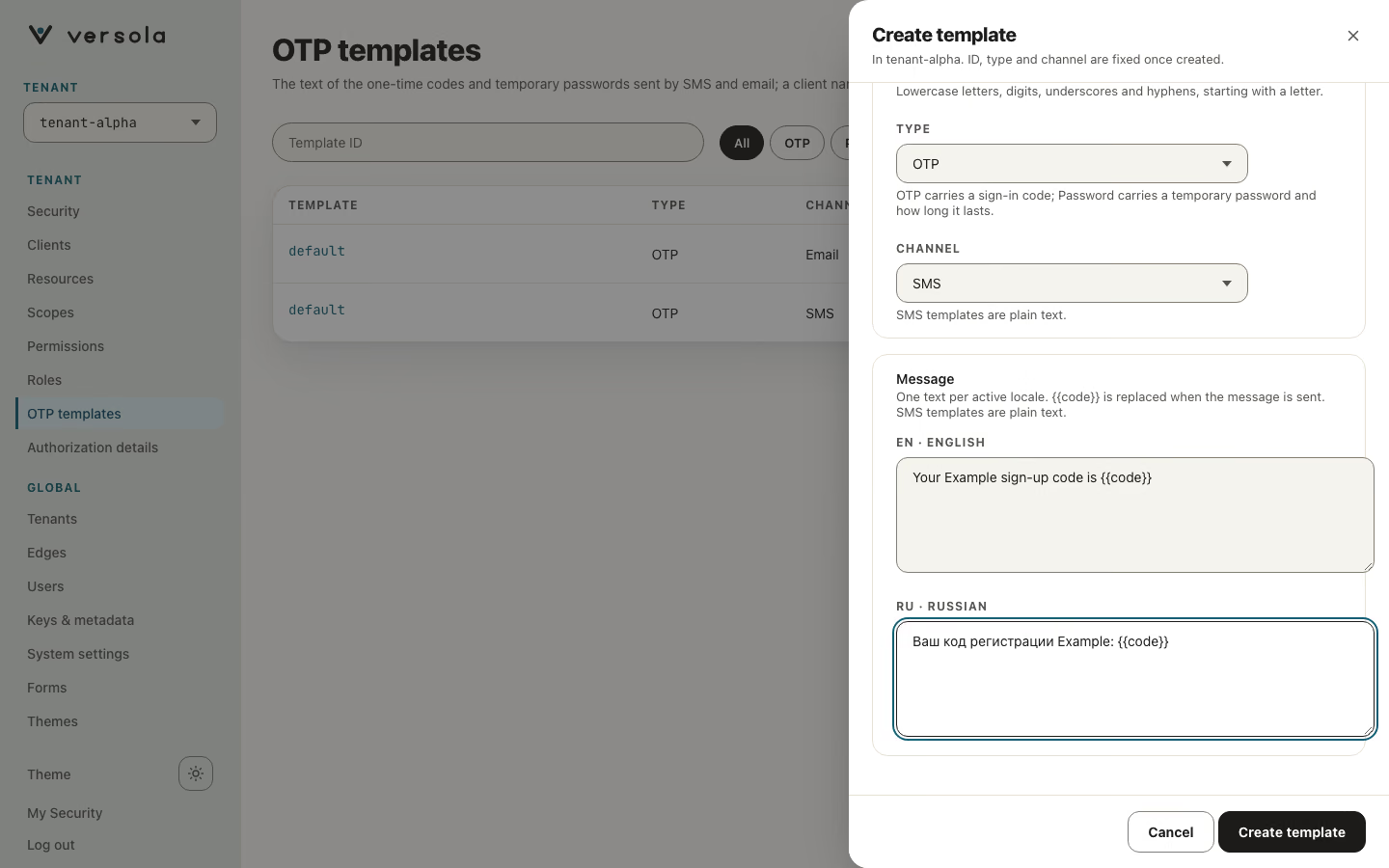
| Field | Rules |
|---|---|
| Template ID | Required. Lowercase letters, digits, underscores and hyphens, starting with a letter. Used by clients to refer to the template. |
| Type | OTP or Password. |
| Channel | SMS or Email. SMS templates are plain text. Email templates must contain valid HTML and are written in a code editor, with a Preview toggle per language. |
| Message | One text per active language. |
Placeholders are checked when you save, in the console and again in Central:
| Type | Required placeholders | Other placeholders |
|---|---|---|
otp | {{code}} | {{appName}} is replaced with the client’s name in the user’s language. |
password | {{password}} and {{expiresHours}} | none |
When auth picks the text it tries the user’s UI locales first, then the default locale, then any available localization.
Delete a template
Delete template removes the template for its type and channel after a confirmation. Central does not check whether a client still uses it. A client that points at an ID with no template for its channel has no text to send, so change the client’s OTP Template before you delete the old one.
Next steps
- Security for the code length and the resend interval
- System settings to activate the languages the texts are written in
- Client to choose the template a client uses