A user is a person who can sign in through a client registered with Versola: the OAuth resource owner. Versola stores each user once, in auth, whatever the number of tenants, clients or resources. This page describes the Users screen field by field. For the concept, see Entities; for the steps, see How to register a user.
Before you start
You need users:read to open Users and search. Creating users, editing them, signing devices out, forgetting devices, revoking offline access, resetting passwords and limits, and deleting a user need users:manage; with users:read alone the page shows everything and offers none of those buttons. Roles, Reset limits and Reset password work against the tenant selected in the sidebar, so select one first. Without a tenant the page says so, hides Roles and disables those two buttons.
Users are not tenant-scoped: a person has one identity across the platform. Their roles are per tenant, and a user can be an administrator in one tenant and an ordinary user in another.
Search
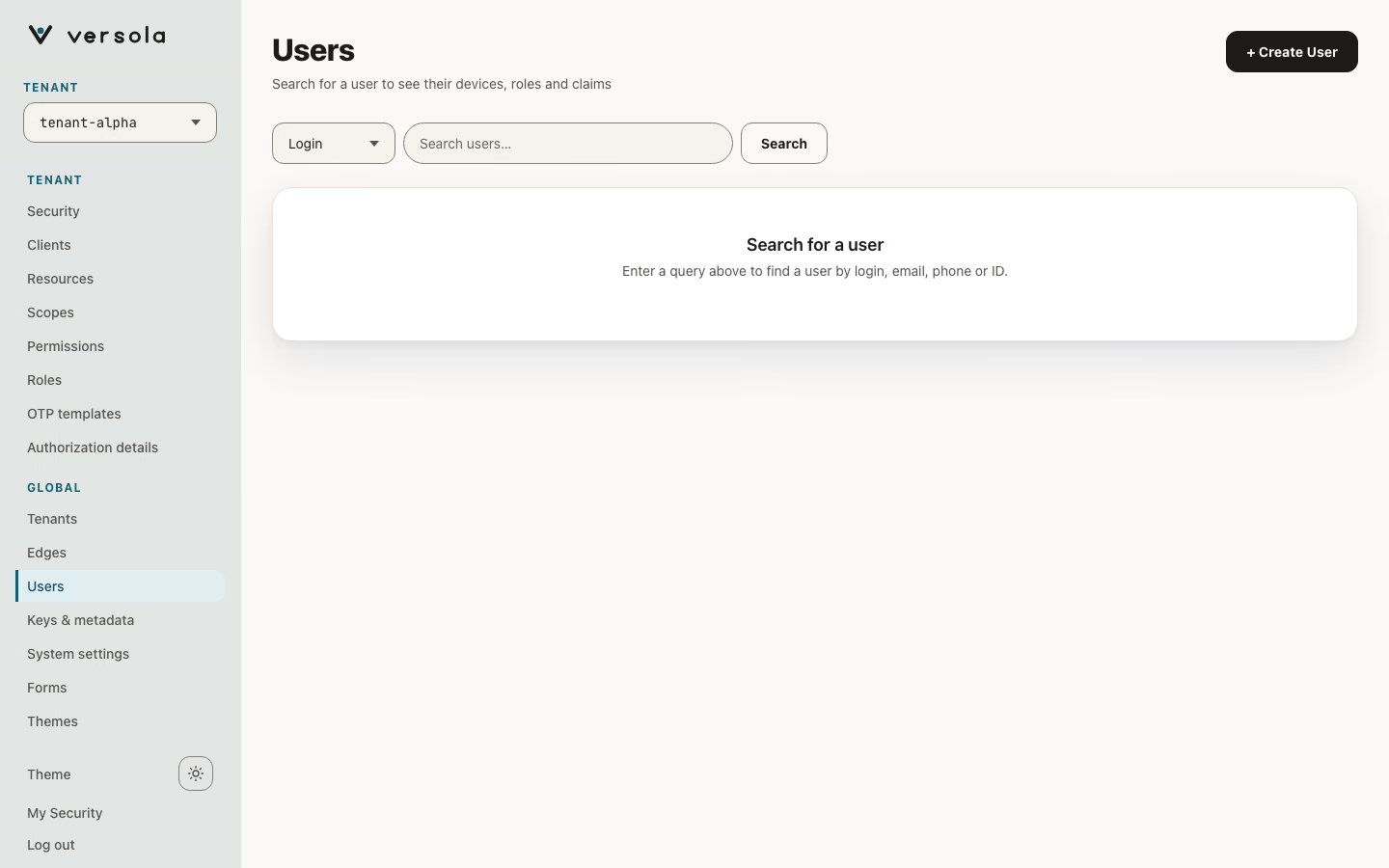
The screen lists nobody until you search. Pick Login, Email, Phone or ID and type the value. The match is exact on that one field and returns at most one user: there is no partial or wildcard search. A phone number is normalised the same way as when it is stored, so +14155552671 finds the user however it was typed at creation.
While you type, the selector follows the value: a UUID selects ID, a leading + selects Phone, an @ selects Email, anything else selects Login. You can still change it by hand.
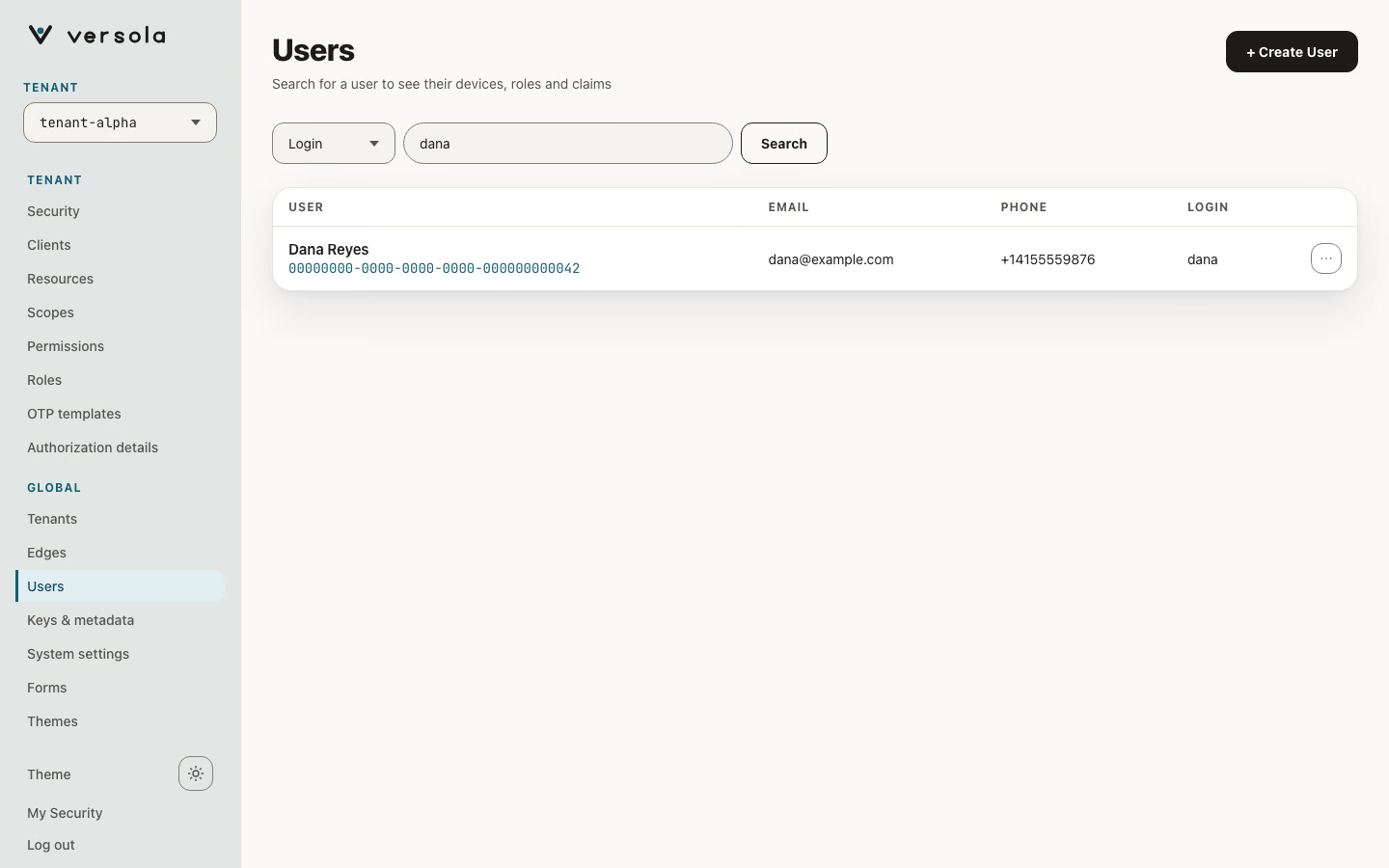
The result is a table with the user’s name and ID, Email, Phone and Login. The name comes from the name claim, or from the given and family name claims; a user with none shows No name, which is a display fallback and not a validation rule. Click the row, or choose Open in its menu, to open the user. Copy ID copies the user ID.
The user page
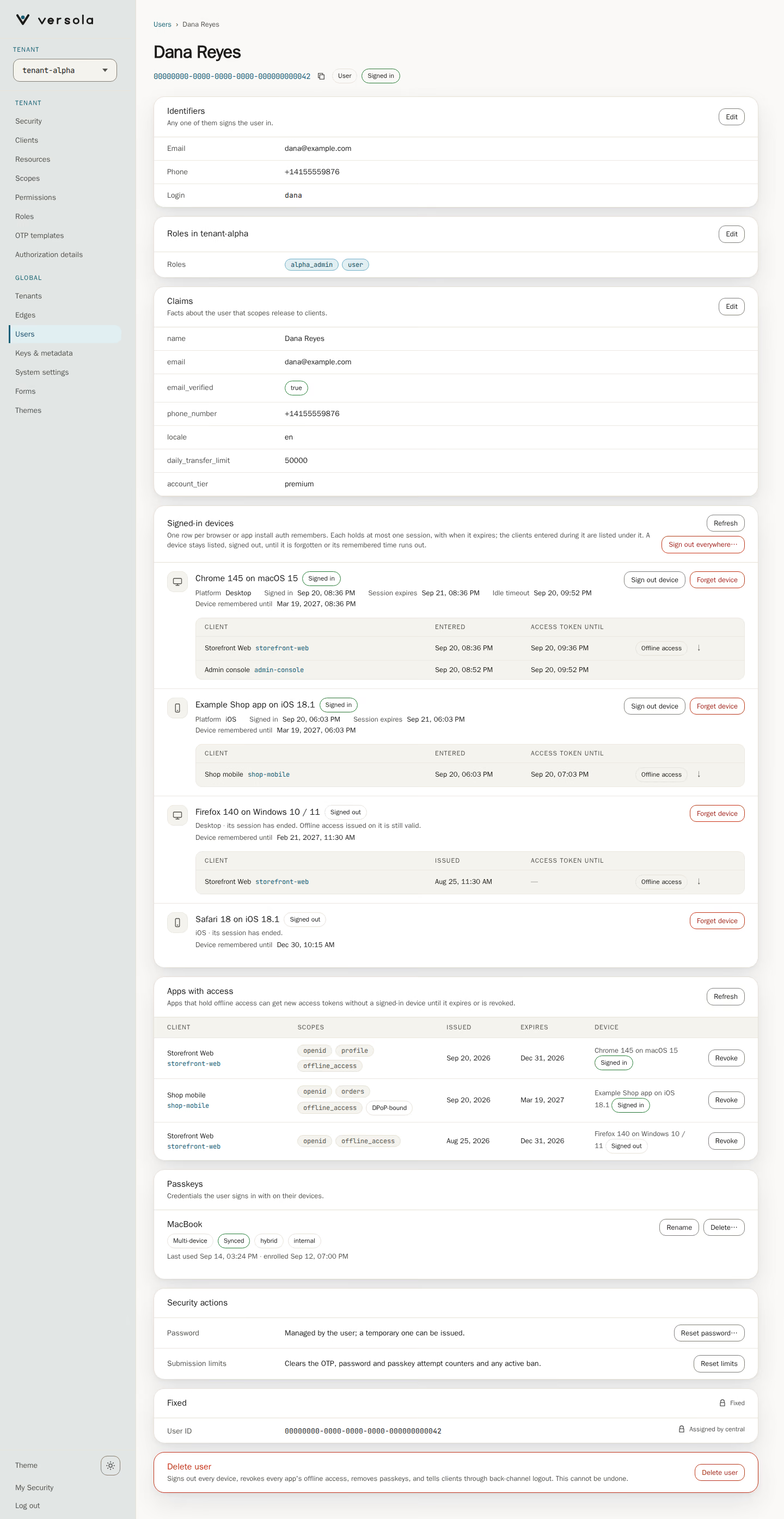
The page opens at ?view=users&id=<user ID>, so you can share the address or reload it. The header shows the name, the user ID with a button that copies it, a User chip and, while the user is signed in on at least one device, a Signed in chip. Each card that you can change has its own Edit button, which opens only that group as a page with Cancel and a Save button; saving returns you to the user.
Identifiers
| Field | Rules |
|---|---|
| Optional. Unique across the platform. | |
| Phone | Optional. Must be a valid phone number in E.164 form, for example +14155552671. Stored in canonical E.164: spellings that denote the same number, such as a national trunk prefix, end up as one value. Unique across the platform. |
| Login | Optional. Unique across the platform. |
Each identifier is optional on its own, but a user needs at least one to sign in, and the editor refuses to save with none. Any of them can start an authentication flow. If another user already has one of the values, the editor stays open and says One of the identifiers is already taken by another user. Only the fields you change are sent; clearing a field removes that identifier.
Roles
The card is called Roles in and the selected tenant. Edit opens the roles of that tenant as a list of checkboxes with each role’s description. Tick a role to assign it, untick one to remove it, and click Save roles. See Role.
Claims
Claims are the profile attributes of the user. Edit groups them by the scope that releases them in the selected tenant. A checkbox enables a claim; unchecking it removes the claim. email and phone_number show the user’s identifiers and are edited in Identifiers instead. Values true and false, numbers and JSON arrays or objects are saved as such, and everything else as a string. Which claims a client receives depends on the scopes it was granted; see Scope.
Signed-in devices
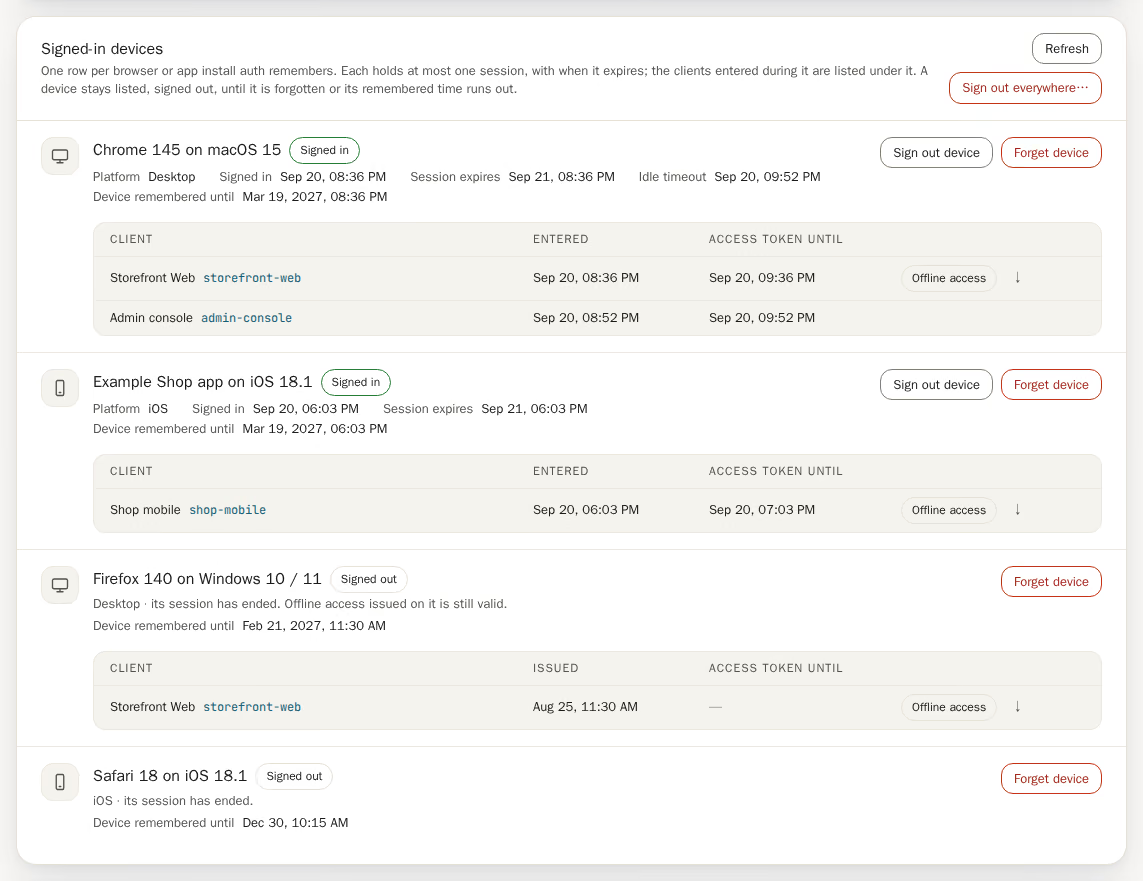
Versola recognises a browser or an app install by a cookie, a user agent. Each row of this card is one user agent that auth still remembers, named by its browser and operating system (Chrome 130 on macOS 14.6) from the User-Agent header it sent at sign-in, with its platform and the time of sign-in. A user agent holds at most one session at a time; under it the card lists the clients entered during that session.
Under the name, up to three facts say how long each part lasts:
| Line | Meaning |
|---|---|
| Session expires | When the session ends whatever the user does. Shown while the device is signed in. |
| Idle timeout | Shown only when the tenant sets an idle timeout: the session also ends if the user does nothing until then, and activity pushes the time forward. |
| Device remembered until | When auth stops remembering this user agent. Signing in on it again pushes the time forward. auth stores no separate last-seen time. |
| Column | Meaning |
|---|---|
| Client | The client’s name and ID. |
| Entered | When the user entered that client in this session. |
| Access token until | When the access token issued for that entry stops being valid. |
| Marker | Offline access when the client also holds a refresh token issued on this session; the arrow beside it moves to the Apps with access card. |
The tables of all devices share one set of columns, so the dates line up from one device to the next.
When a session ends, the user agent stays listed as a signed-out device under its own name, with the same Device remembered until line, until that time runs out or you forget it. If refresh tokens issued on its sessions are still valid, the clients that hold them are listed under it, so you can see why an app still works. A refresh token names only its session, so auth can tie it to a device only while it still stores the ended session. A token whose session is gone appears under an unnamed Signed-out device row, which has no Forget device button: revoke it from Apps with access.
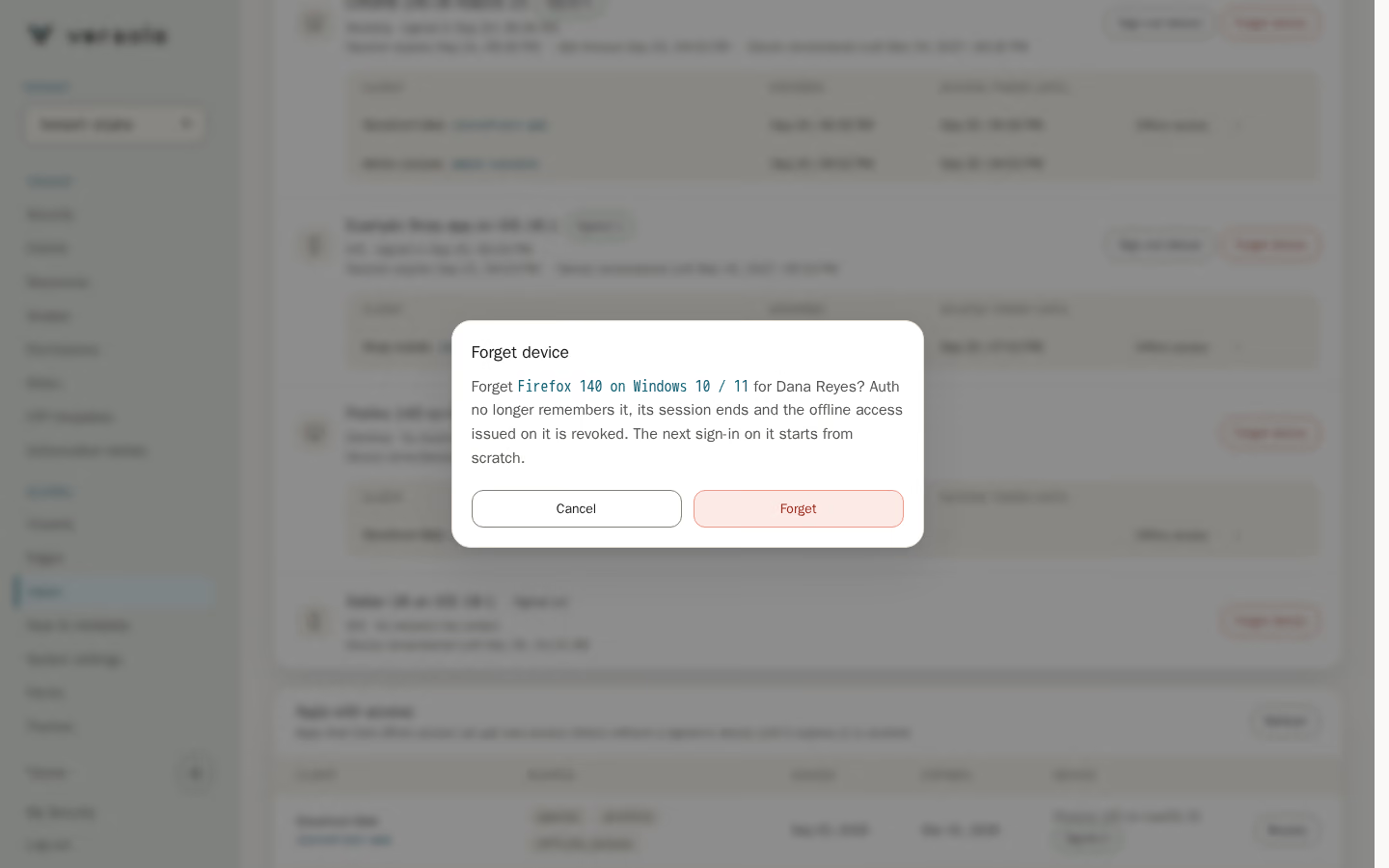
| Button | What it does |
|---|---|
| Sign out device | Ends that device’s session, as the user’s own sign-out would, and tells the clients entered on it through back-channel logout. The device stays listed, signed out, and no offline access is revoked. The user’s other devices stay signed in. |
| Forget device | After a confirmation, removes the user agent from what auth remembers, ends its session if it is signed in (clients are told through back-channel logout) and revokes the offline access issued on its sessions. The next sign-in on that browser or app install starts as a new device. Refresh tokens whose ended session auth has already deleted are out of reach; revoke them from Apps with access. |
| Sign out everywhere… | After a confirmation, ends every session on every device and revokes the offline access of every app. The devices stay listed as signed out. |
| Refresh | Reloads the devices and the offline access. |
Apps with access
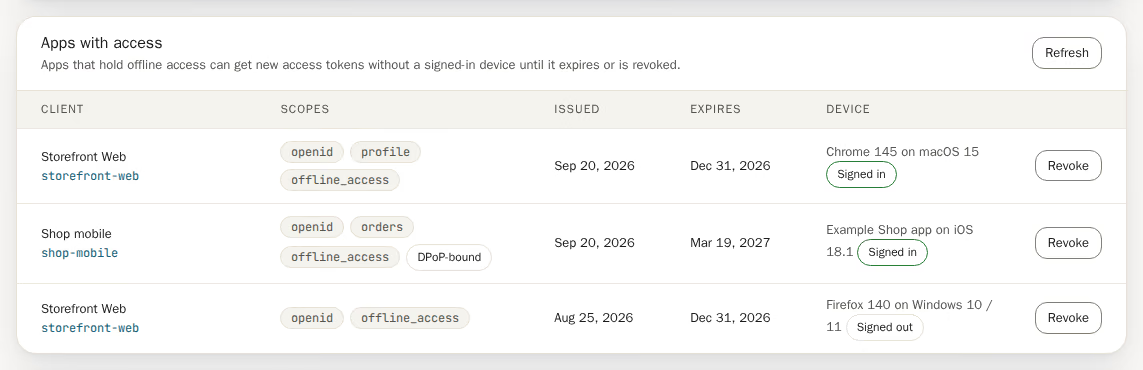
An app that holds offline access has a refresh token: it can get new access tokens for the user without a signed-in device, until the token expires or is revoked. The card has one row per refresh token.
| Column | Meaning |
|---|---|
| Client | The client’s name and ID. |
| Scopes | The scopes the token was issued for. A DPoP-bound chip means the token is bound to the client’s DPoP key (RFC 9449), so nobody else who obtains a copy can redeem it. |
| Issued, Expires | When the token was issued and when it stops working. |
| Device | The device the token was issued on, and whether it is Signed in or Signed out. |
Revoke asks for confirmation, then expires every refresh token that client holds for the user. The client can no longer get new access tokens without sending the user through sign-in again. The user stays signed in, and access tokens already issued run out on their own.
Passkeys
The card lists the user’s registered passkeys with name, device type (Multi-device or Single device), whether it is Synced, its transports and when it was last used and enrolled. Rename asks for a new name. Delete… asks for confirmation and removes the passkey, so the user can no longer sign in with it.
Security actions
Reset password sets a temporary password. See Reset password. Reset limits clears the user’s rate-limit counters and any temporary ban in the selected tenant, and the card confirms with Limits reset. Both need a tenant.
Fixed
User ID is assigned by auth when the user is created and never changes.
Delete user
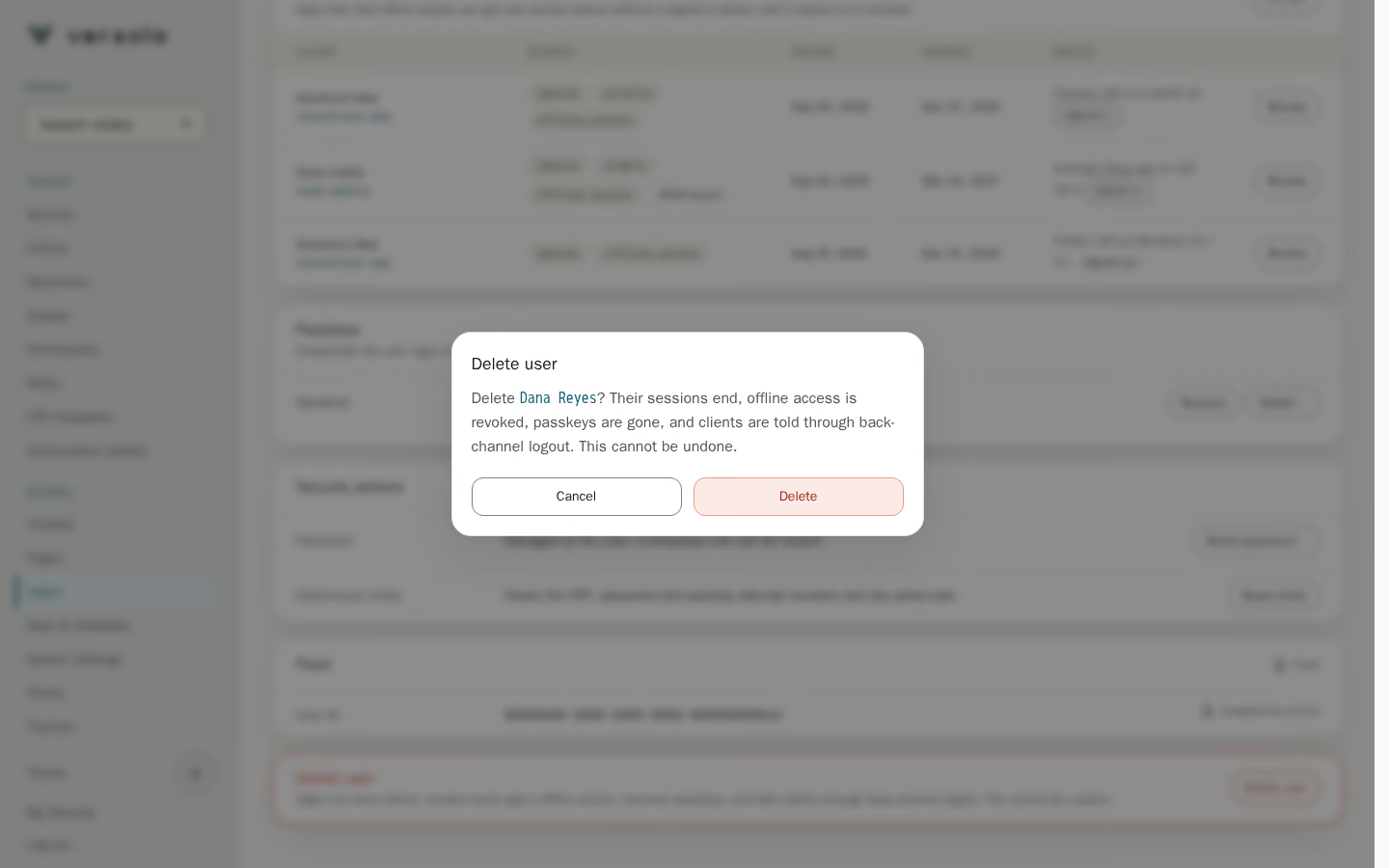
The last card deletes the user. The confirmation names the user and says what follows: their sessions end, offline access is revoked, passkeys are gone, and clients are told through back-channel logout. The user’s roles, claims, consents and throttling records go with them. Access tokens already issued stay valid until they expire. This cannot be undone. After deleting you return to the search.
Reset password
Reset password opens a dialog and sets a temporary password for the user.
| Field | Meaning |
|---|---|
| Temporary password lifetime (hours) | A whole number of hours, at least 1. Default 12. |
| Deliver via | Email or SMS, shown only when the user has that identifier, and Show — display it here in non-production environments. |
In production, auth sends the password by the chosen channel and does not show it. In a non-production environment nothing is sent: choose Show to see the password once, with a Copy password button. If the user has no email or phone and the environment is production, the dialog offers no channel and you cannot confirm.
When the user signs in with the temporary password, auth completes the other required steps and then asks for a new password. An expired temporary password is refused. There is no console button for setting a permanent password. The Central API has POST /users/password/set for that, and it answers 404 in production.
First sign-in and lockout
The seeded administrator signs in to the console for the first time with a temporary password. The flow: enter the login and the temporary password, enter the one-time code, then the Set New Password screen, then a Set up a Passkey offer that you can skip with Not now. The local demo steps are in Run Versola locally.
Repeated failed attempts lock the sign-in. auth counts attempts per challenge type, and with the default submission limits a tenant gets these windows:
| Challenge | Default limits |
|---|---|
| One-time code request | 2 per 60 s, 5 per 3600 s |
| One-time code submit | 3 per 120 s, 5 per 3600 s |
| Password submit | 5 per 900 s, 10 per 3600 s |
| Passkey assertion | 5 per 300 s, 10 per 3600 s |
Exceeding a shorter window slows the user down: the form reports the limit and the user can try again later. Exceeding the longest window bans the user for banDurationSeconds, 1800 s by default, which is 30 minutes. During the ban the sign-in shows Access Denied, even for a correct code or password. The limits and the ban time are set per tenant in the Submission limits card of Security.
To lift a ban before it expires, another administrator opens the user and clicks Reset limits. If you locked out the only administrator, wait out the ban.