A tenant is the namespace that owns clients, resources, scopes, permissions and roles. This page walks through creating one in the admin console. Decide on the security profile first: you cannot change it afterwards. For the conceptual picture, see Entities.
Before you start
Have ready:
- A Tenant ID you are happy to keep: it is immutable after creation.
- A decision on the Security profile. Keep FAPI 2.0 (recommended) unless a client you must support needs a client secret, an RS256 key or a public native client. See Security profiles.
- Optionally, the
edgedeployment this tenant is assigned to.
1. Open the Tenants screen
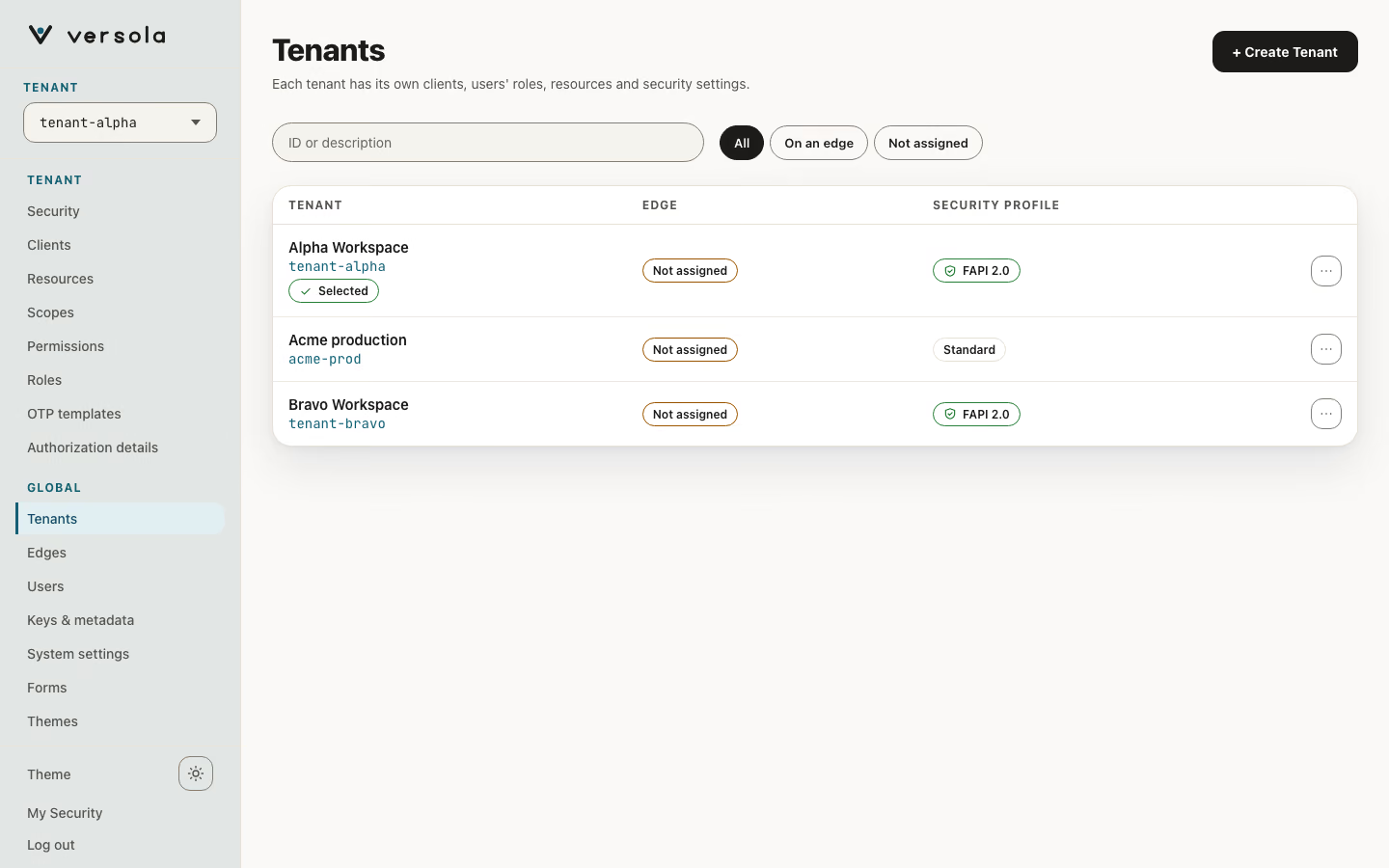
Open Tenants in the sidebar. Each card shows the tenant’s description (or its ID, if there is no description), a Selected badge on the tenant you are working in, and the edge it is assigned to.
2. Start a new tenant
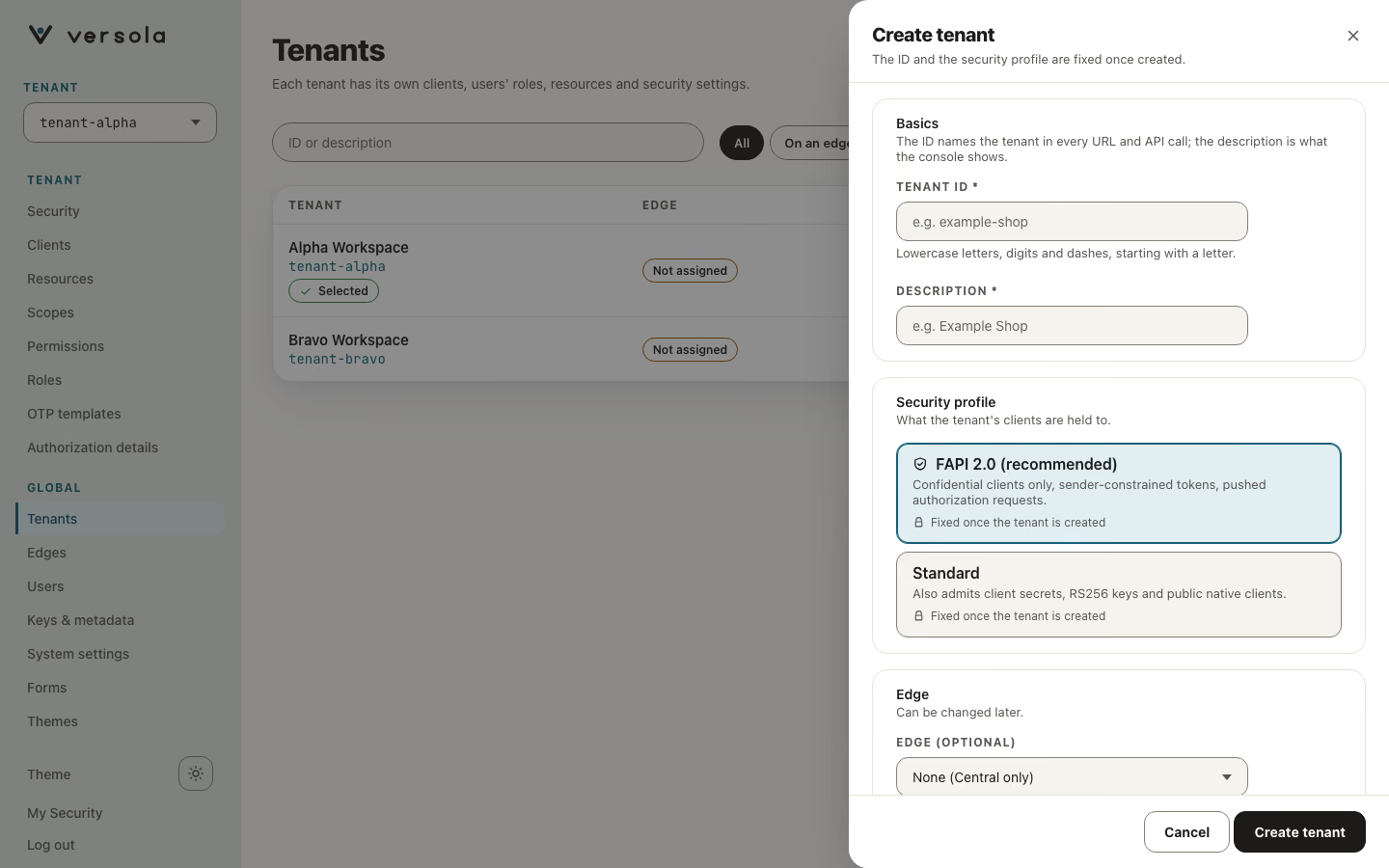
Press + Create Tenant. The form opens with Security profile set to FAPI 2.0 (recommended).
3. Fill in the form
- Tenant ID — lowercase letters, numbers and hyphens, starting with a letter. Immutable.
- Description — a free-text label. If you leave it blank, the console shows the tenant ID.
- Security profile — FAPI 2.0 (recommended) or Standard. The text under the field says what the choice admits and that it is fixed once the tenant is created.
- Edge (Optional) — pick an
edge, or leave None (Central only).
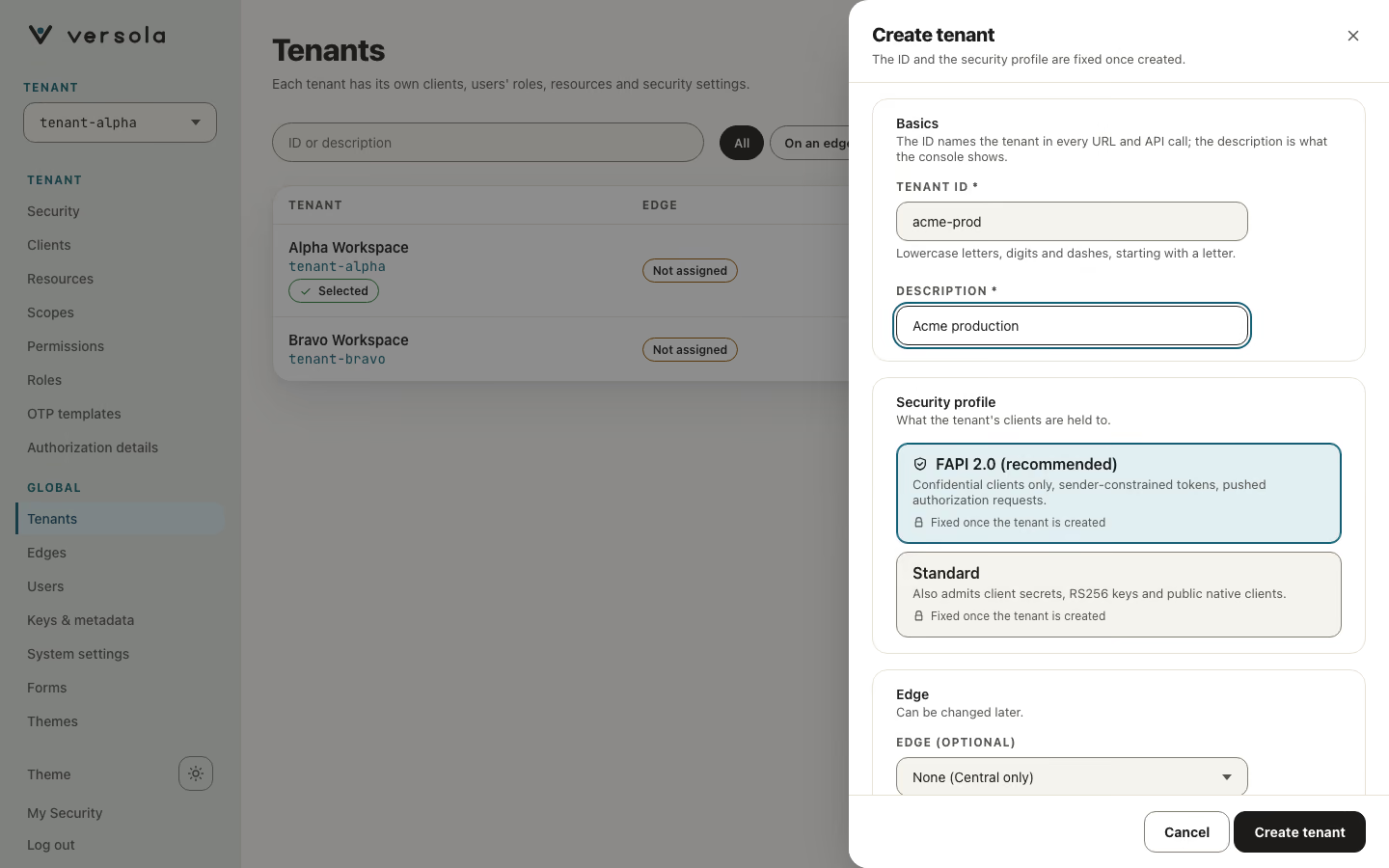
If you pick Standard, the help text changes to the list of what that profile also admits. Choose Standard only when a client you must support cannot meet FAPI 2.0: the profile is discouraged and kept only for compatibility.
4. Create the tenant
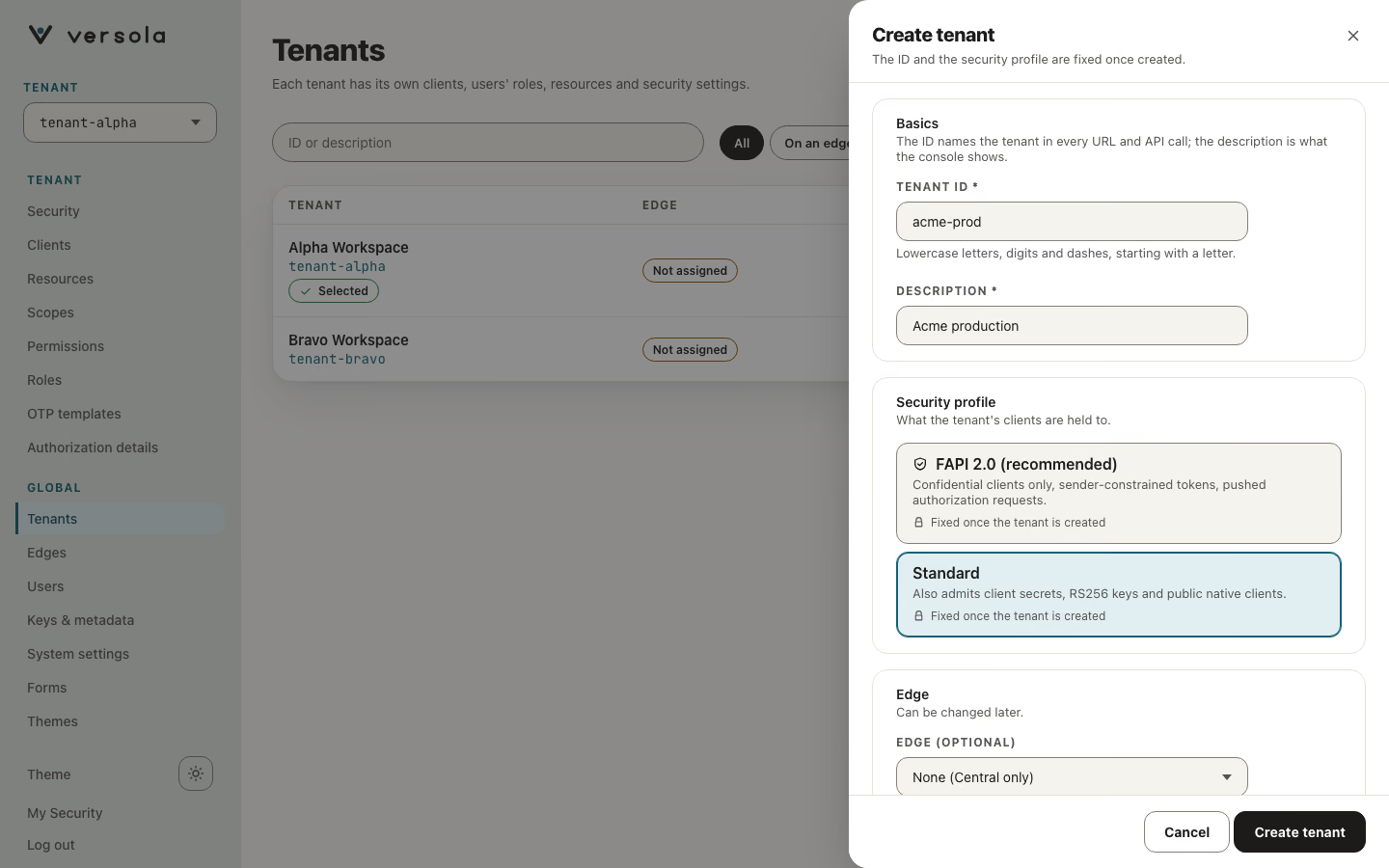
Press Create Tenant. The tenant appears in the list and in the tenant switcher. You can now register scopes, resources, clients, permissions and roles inside it.
Editing or deleting a tenant
Press the ✎ icon on a tenant’s card to change its description or edge assignment. The tenant ID and the security profile are not offered in the edit form. The ✕ icon deletes the tenant after a confirmation; there is no undo.