A scope is a named bundle of claims that a client can request about a user. This page creates one in the admin console and grants it to a client. You need a tenant. For the fields and rules, see Scope.
Prerequisites
- A tenant, selected in the tenant switcher of the console.
- The claims the scope should release, each with a short description for the consent screen.
1. Open Scopes
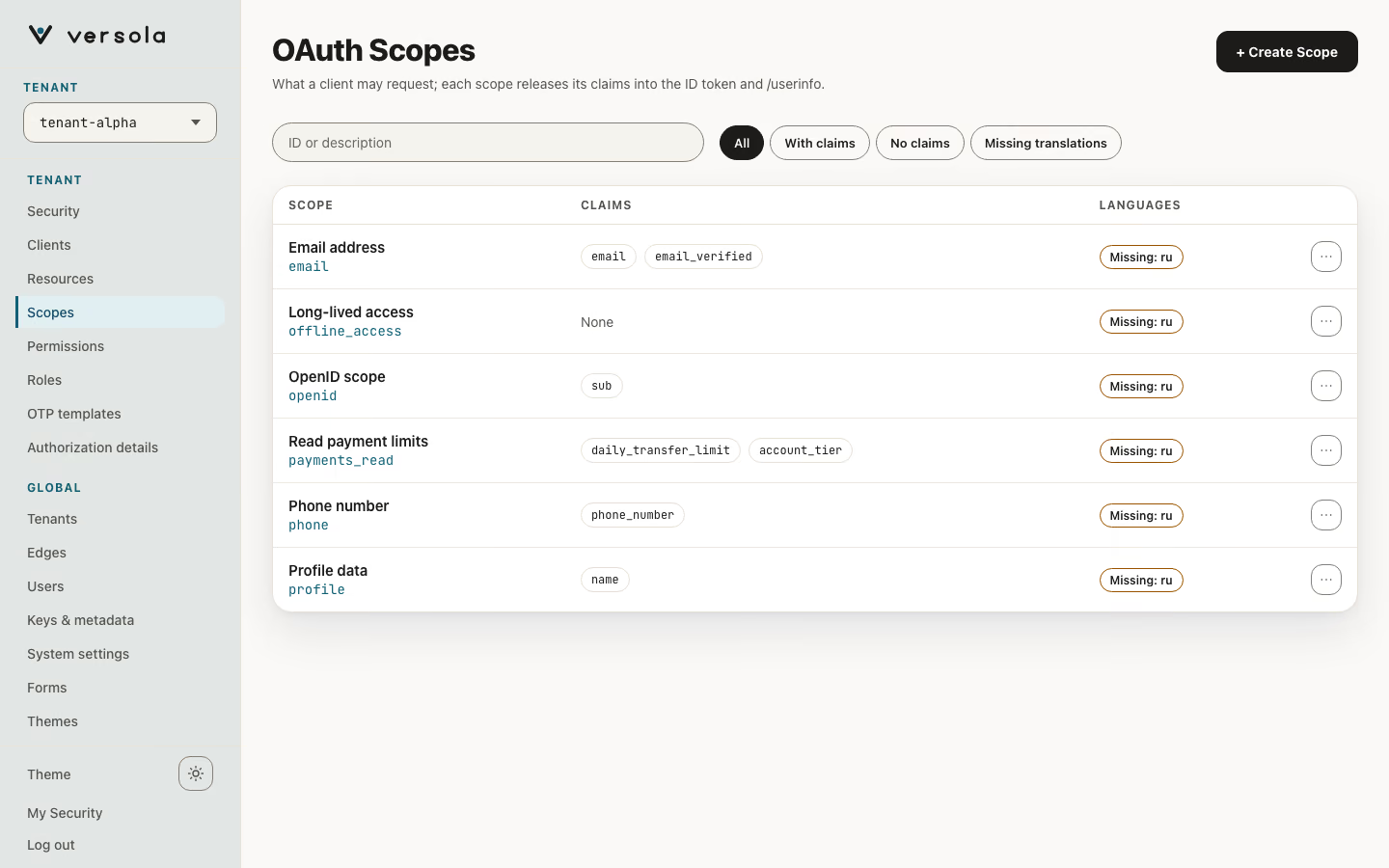
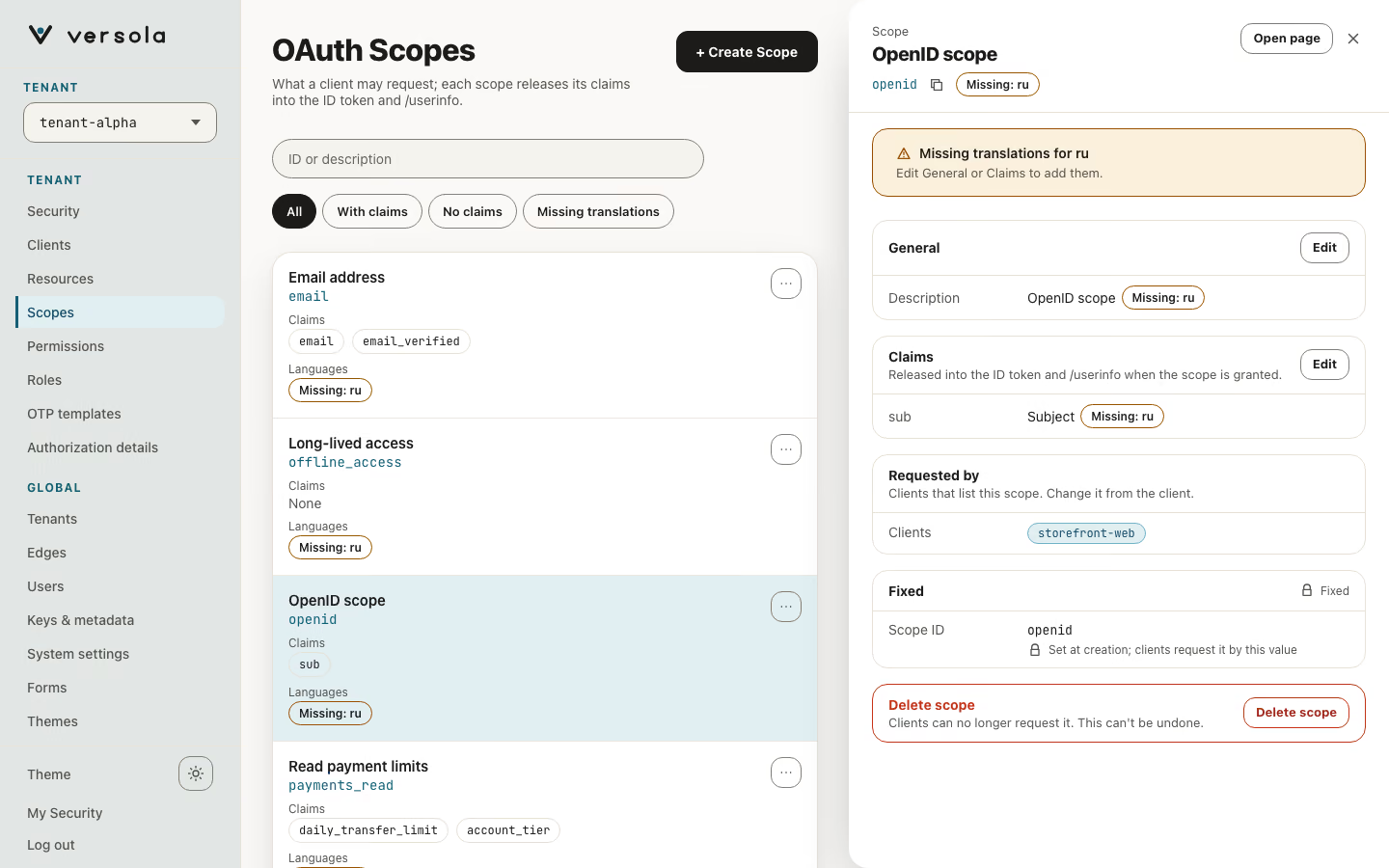
Open Scopes under the tenant. The page is titled OAuth Scopes. Each card shows the description and the scope ID. Expand a card to see its claims.
2. Start a new scope
Press + Create Scope.
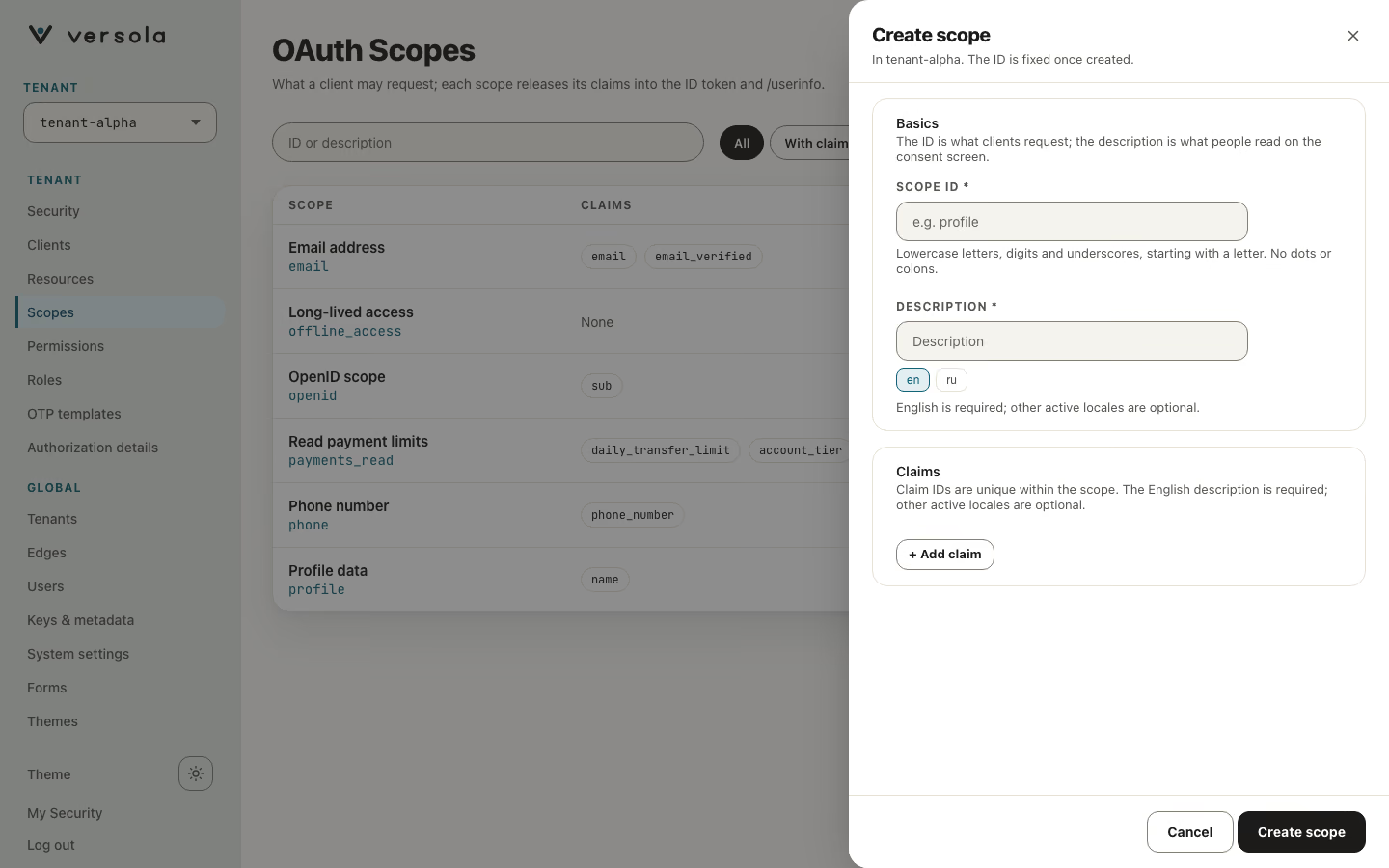
3. Fill in the scope
- Scope ID: lowercase letters, digits and underscores, starting with a letter, for example
payments_export. Colons, dots and hyphens are rejected, sopayments:exportis not a valid scope ID. You cannot change the ID later. - Description: the text the user sees on the consent screen. The tabs under the field,
enandruhere, are the languages active in Locales on System settings. English is required. - Optional claims. Type a Claim ID, the name of the user claim to release, such as
email. Add its description, then press Add Claim. Repeat for each claim. Claim IDs follow the same character rules as scope IDs.
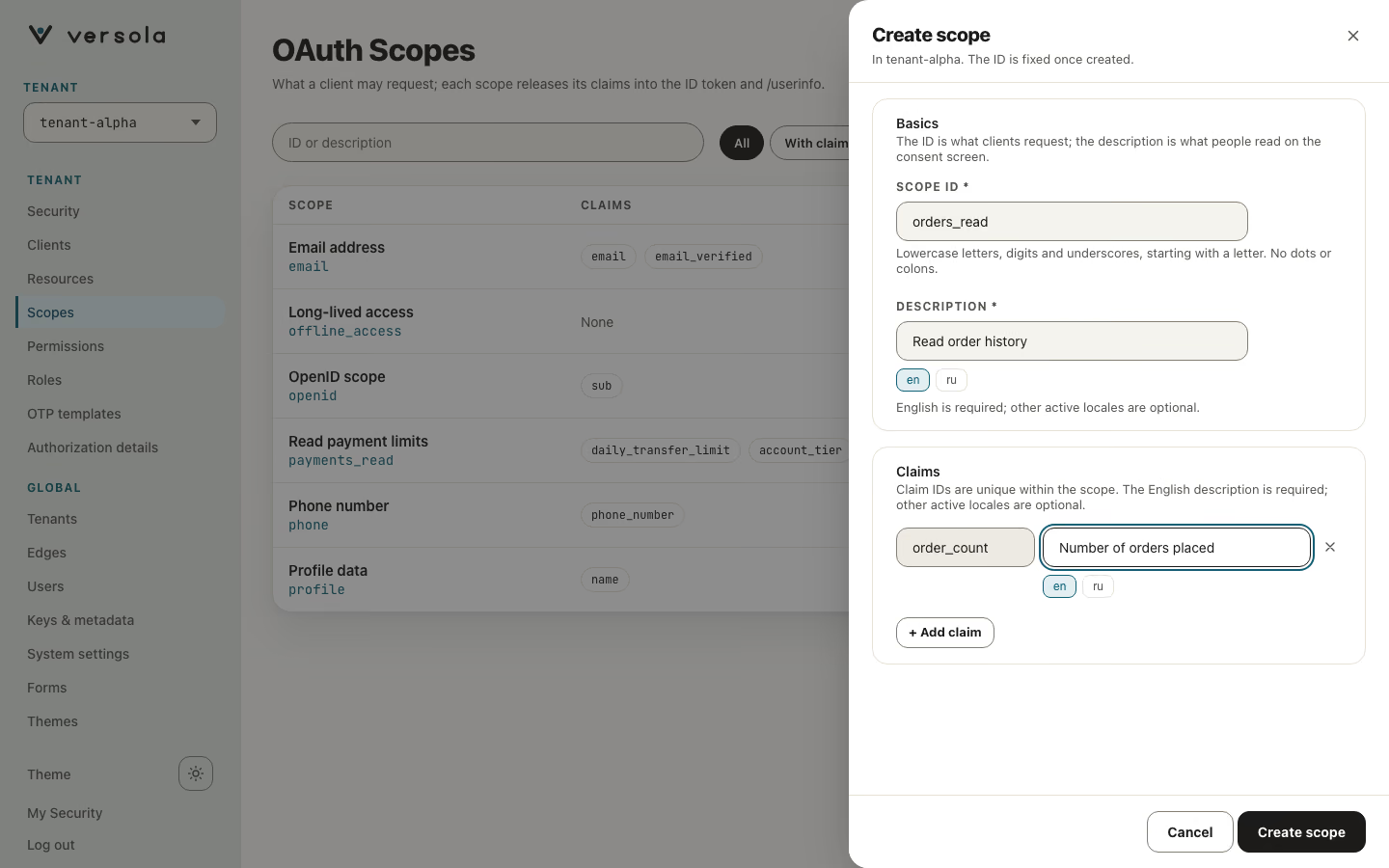
4. Create the scope
Press Create Scope. The scope appears in the list. If an ID or claim does not meet the rules, the Central API rejects the save and the console shows the error.
5. Grant it to a client
A scope does nothing until a client may request it. Open the client, press Edit in its Scopes section, and switch the scope on. See Client. A service app has no scopes, so use permissions for it.
Edit or delete a scope
Press the pencil on a card to change the description or the claims. The ID cannot change. The cross deletes the scope after a confirmation. Clients keep the ID in their scope lists, but it no longer releases any claim, so remove it from them too.
Next steps
- How to register a client: grant the scope.
- Scope: how
authreleases claims atuserinfoand in the ID token. - How to register a permission: control access to your APIs.