A locale is a language that sign-in screens, one-time-code messages and the consent screen can use. The Locales card on System settings keeps the list, marks one language as the default and activates or deactivates the others. A language can be activated only when all the texts it needs exist.
Before you start
The Locales card sits on System settings under GLOBAL in the sidebar and applies to every tenant. You need locales:read to see the card and locales:manage to change it. Before you activate a new language, add its text to the things listed under Activating a language.
The list
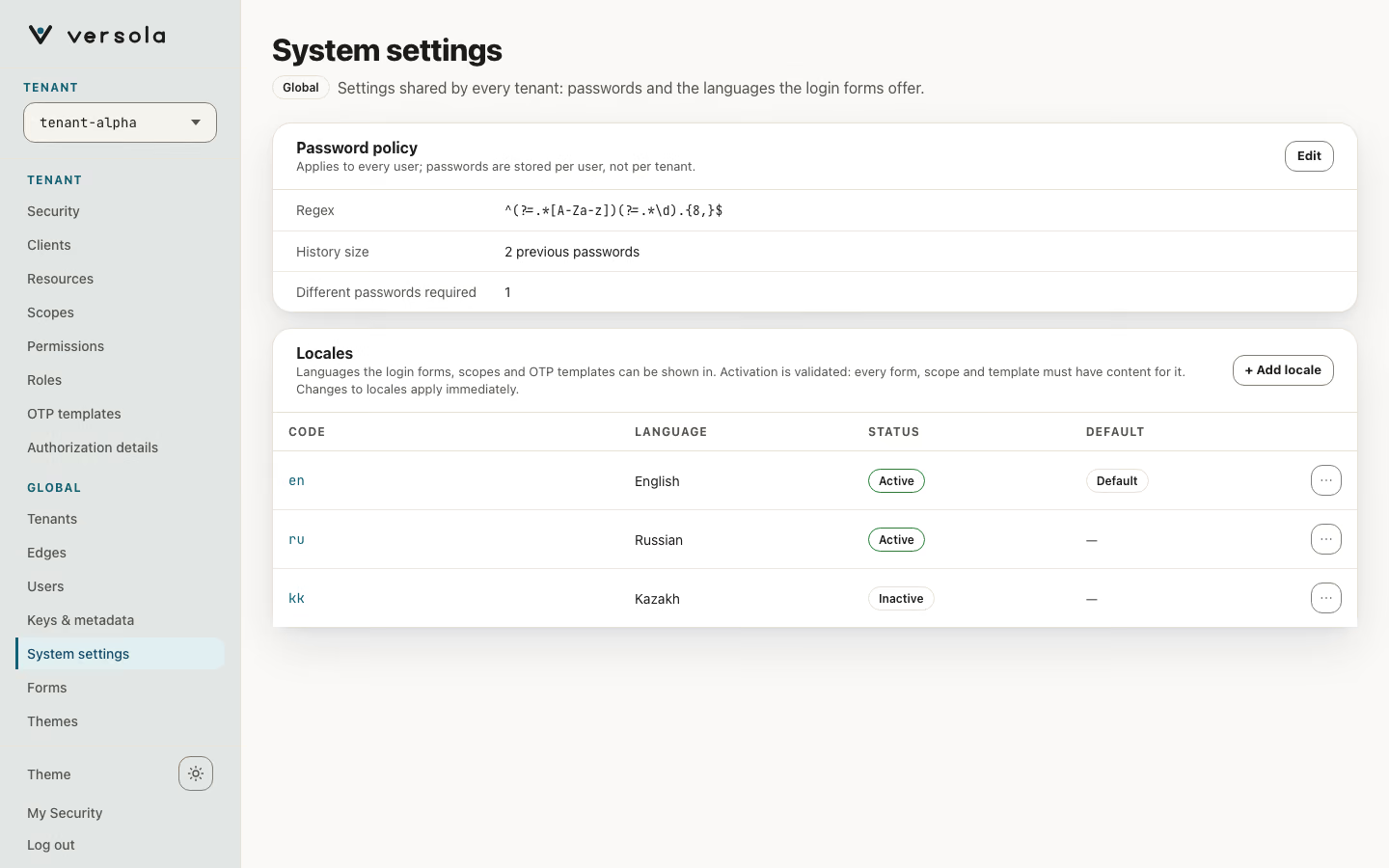
| Column | Meaning |
|---|---|
| Code | A code from a fixed list, such as en or ru. |
| Language | The language name, filled in from the code. The sign-in screens show it in their language switcher. |
| Status | Active or Inactive. Whether auth offers the language. Only active languages are used. |
| Default | The language used when nothing else matches. Exactly one. It must be active. |
A new installation has en (default) and ru, both active.
Change the list
Every change on the card is saved at once; there is no form to submit. The ⋯ menu of a row offers:
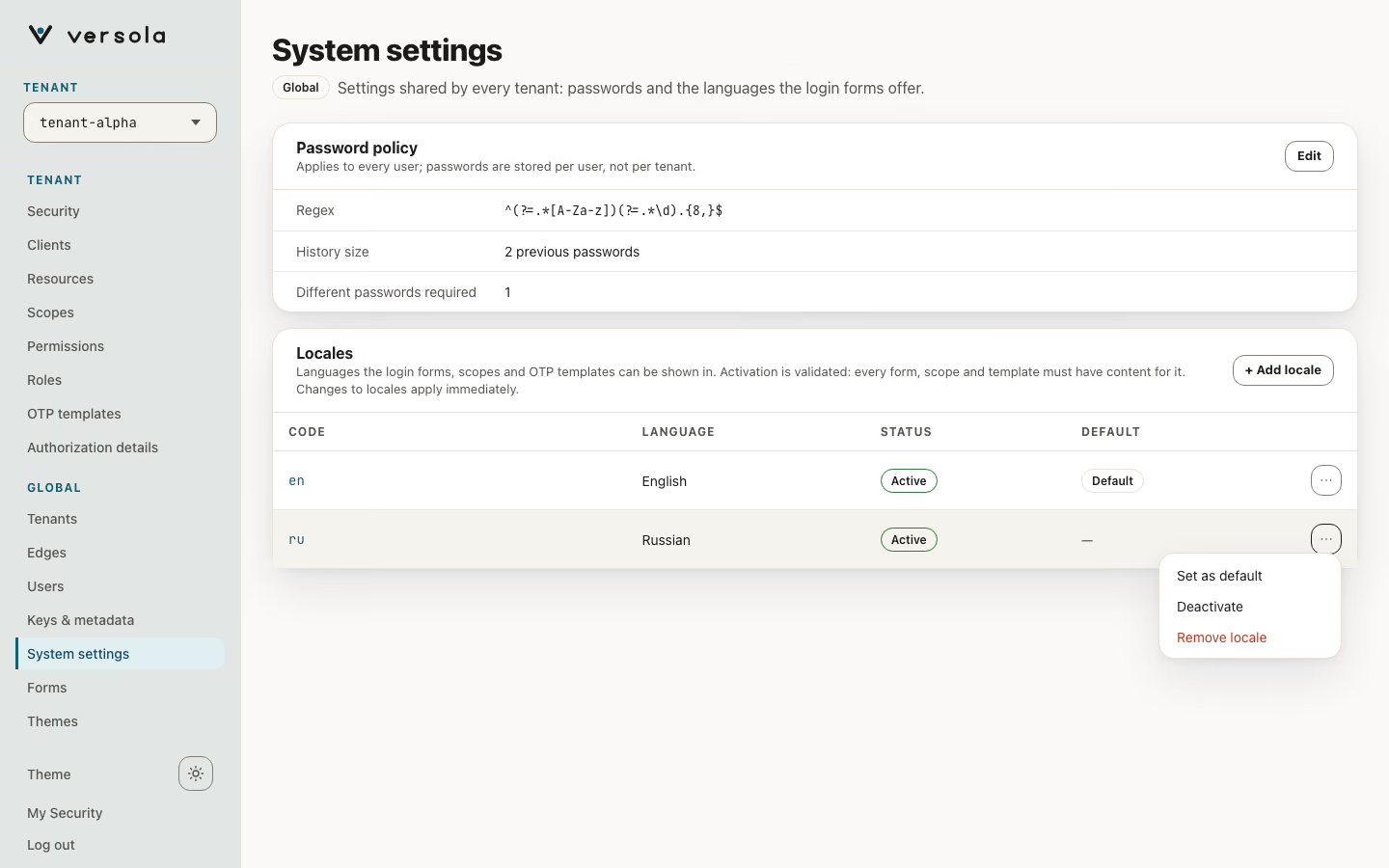
| Action | Result |
|---|---|
| Set as default | Makes an active, non-default language the default. |
| Activate / Deactivate | Turns the language on or off. Activation is validated, see below. Deactivate asks for confirmation: login pages stop offering the language and users who chose it fall back to the default. It is disabled for the default language, with the reason Pick another default first. |
| Remove locale | Removes the language after a confirmation: login pages stop offering it and users who chose it fall back to the default. It also deletes the language’s texts from every form and from the OTP and password templates. Scope descriptions and client names in that language are kept. Re-adding the language later does not bring the form and template texts back. Disabled for the default language too. |
+ Add locale opens a small form.
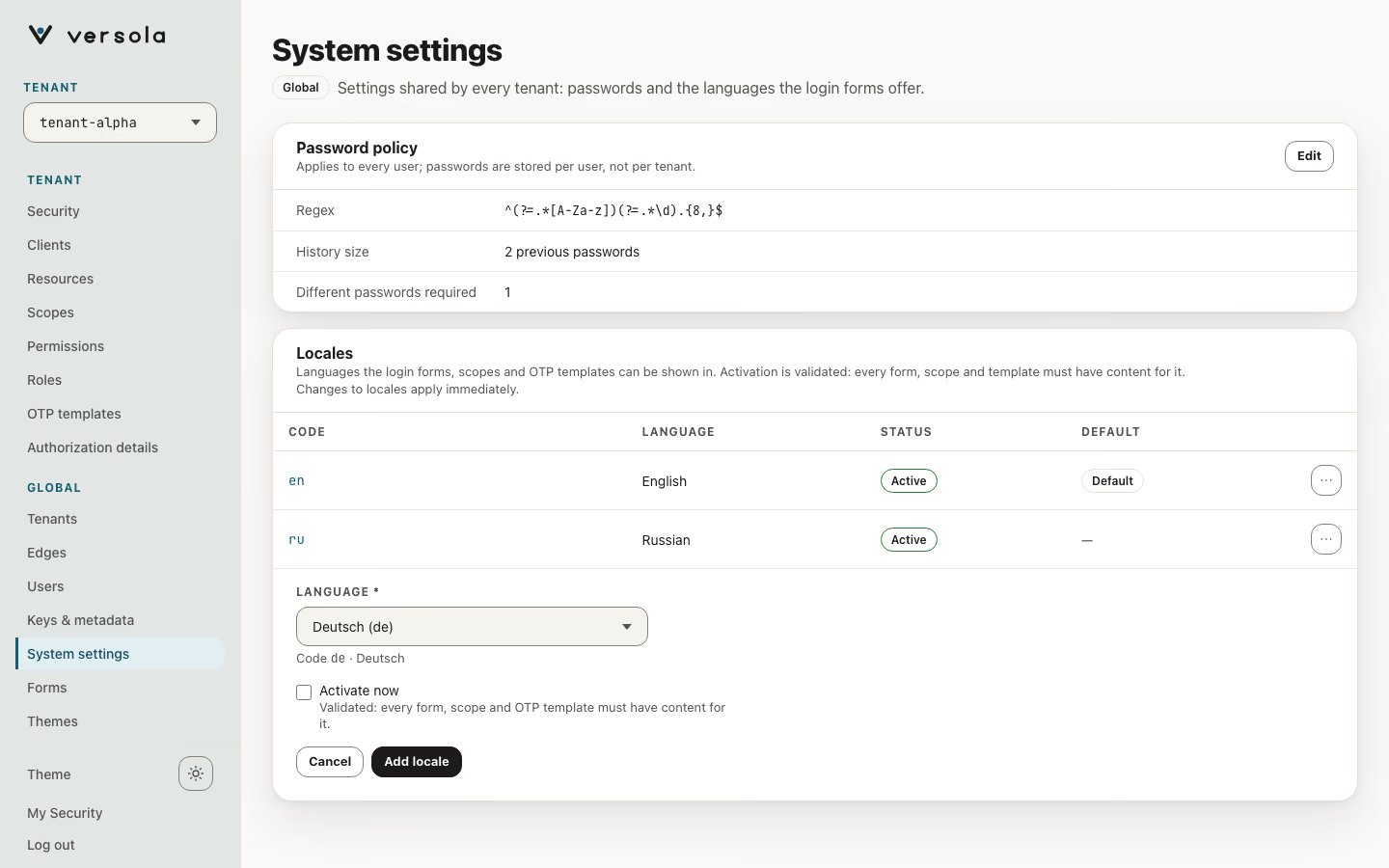
- Pick a language in the Language list. The code and the name follow it.
- Tick Activate now to validate and activate it at once. Left off, the language is added Inactive.
- Click Add locale.
Activating a language
Activating a language that is not active yet fails unless these records all have non-empty text in it:
| Record | What is checked |
|---|---|
| Clients | The name of every client. |
| Scopes | The description of every scope, and the description of every claim in it. See Scope. |
| Forms | Every string of the active version of every form. See Forms. |
| Templates | Every OTP and temporary-password template. See OTP templates. |
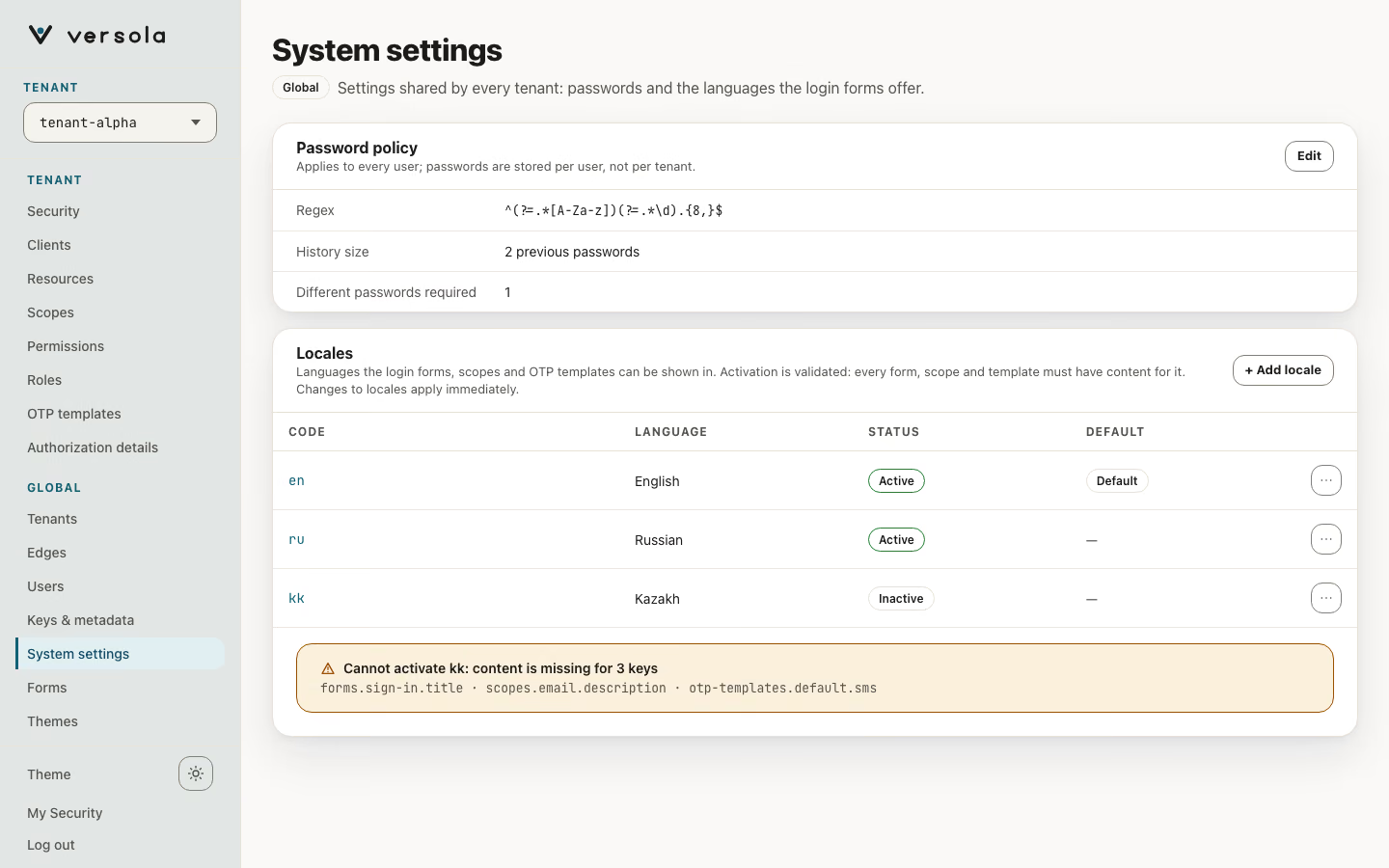
When the check fails, the card shows a banner, Cannot activate ru: content is missing for N keys, followed by the list of what is missing, for example scope 'payments_read' description or form 'otp' v1. Fill in the texts and activate again. The check runs only at activation. A language that is already active is not checked again when you change other things.
How a language is chosen
ui_locales is an OIDC request parameter: a space-separated list of language codes, most preferred first. It is a hint. A client can send it on /authorize, and an unusable value never fails the request.
On /authorize, auth keeps the codes from ui_locales that are active on this screen, in the order the client sent them. Matching is on the exact code: en-US does not match en. If none is left, auth uses the default language. Then each piece of text is resolved the same way:
- A form uses the first language in the list that exists in that form’s translations. Strings that language lacks fall back to the default language’s strings. The form’s own language menu lists the form’s languages that are active.
- One-time-code and temporary-password messages use the first language in the list that has a template text, then the default language.
- On the consent screen, scope and claim descriptions use the first language in the list that has a text, then the default language. If a scope has no description, the screen shows the raw scope ID.
/authorize ignores the Accept-Language header. The screens that follow do not (see below).
Which language a screen is shown in
Each time auth shows a screen, it builds a list of languages to try, most preferred first. The screens are the sign-in steps, the expired and service-unavailable pages, the logout confirmation and signed-out pages, and the account page.
| Order | Source | Where it comes from |
|---|---|---|
| 1 | The language the user picked | ui_locale, sent by the form that was just submitted. |
| 2 | The ui_locales hints | The codes kept at /authorize and stored with the sign-in, or the ui_locales query parameter of /logout and of the account page. |
| 3 | Accept-Language | The browser’s tags, ordered by their q weights. A tag with q=0 is dropped. |
| 4 | The default language | Used when nothing above is an active language. |
The first language in the list that is active on this screen is used. A form finds its translation ignoring case: pt-br finds pt-BR. A ui_locale or ui_locales value that is not a language tag is ignored.
The language the user picked is carried forward in the address. After a form is submitted, the redirect to the next step is /challenge?ui_locale=ru, and if the sign-in has expired in the meantime the user is redirected the same way, so the expired page keeps the language. The logout confirmation sends ui_locale with its form, so the signed-out page keeps it too.
The choice is not stored. There is no cookie, and a page opened directly with no ui_locale and no sign-in (an old expired tab, for example) uses the ui_locales hints and Accept-Language. A form that a tenant customised and that does not send ui_locale gets no continuity between steps for the same reason.