The Keys & metadata page manages the public configuration that Versola serves to the outside: the JSON Web Key Set (JWKS) that lets clients and APIs verify your tokens, and the overrides of the server metadata document. You use it to generate a signing key, publish a key you hold elsewhere, or retire an old one. A key only signs tokens for a tenant after you select it as Signing key under Tokens & keys on Security.
Before you start
| Need | Permission |
|---|---|
| See the keys and the metadata overrides | jwks:read |
| Generate, add, edit or delete keys, edit the overrides | jwks:manage |
| See which tenants use a key | tenants:read |
The page is global, not scoped to the tenant selector. Without jwks:manage the Generate key and Add key (paste JWK) buttons, the Edit buttons and the delete actions are not shown. Without tenants:read the Used by column and the Used by tenants card cannot be filled in and show a note instead.
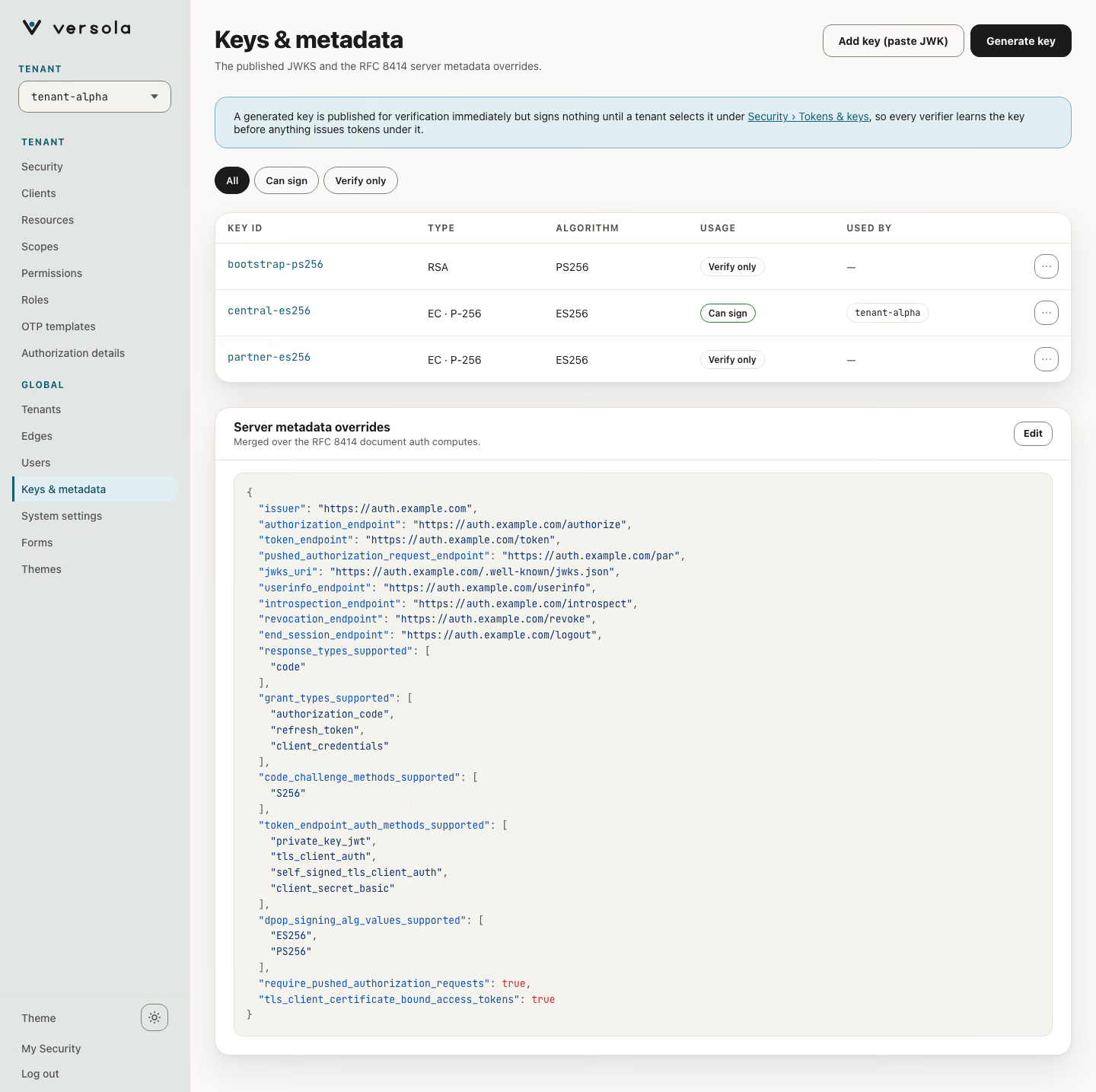
Keys
The table has one row per key, with the columns Key ID (the kid), Type (for example EC · P-256), Algorithm, Usage and Used by (how many tenants sign with it). The filters All, Can sign and Verify only narrow it. The row menu offers Open, Copy key ID and Delete key. A banner above the table states the consequence of generating a key: it is published for verification immediately but signs nothing until a tenant selects it.
The Usage chip tells you what Versola can do with the key:
| Chip | Meaning |
|---|---|
| Can sign | Central holds the private half and the key has a known alg. A tenant can select it as its signing key. |
| Verify only | Central holds only the public JWK. The key is published so verifiers accept it, but nothing signs with it. |
A deployment that is seeded from bootstrap.jwks starts with verify-only keys, because Central never receives their private halves. Generate a key to get one that can sign.
The key panel
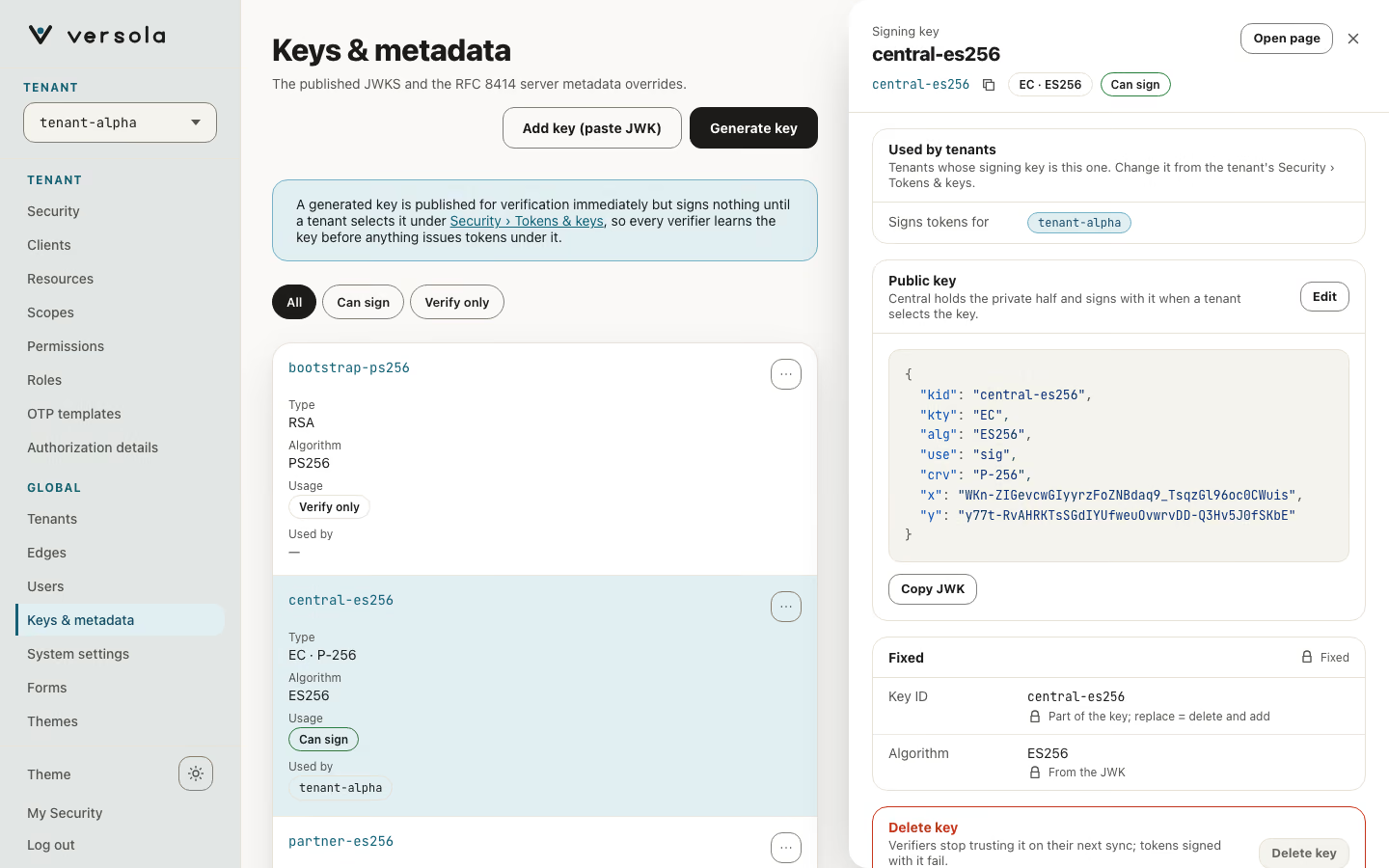
Selecting a row opens the panel:
- Used by tenants lists the tenants whose signing key is this one, each a link to the tenant. Change a tenant’s key under Security › Tokens & keys.
- Public key shows the JWK as published, with Copy JWK. Its Edit opens the JWK for editing.
- Fixed shows the key ID and the algorithm (taken from the JWK). The
kidcannot be changed: delete the key and add a new one instead. - Delete key, after a confirmation: verifiers stop trusting the key on their next sync, and tokens signed with it fail.
Central refuses to delete a key that a tenant still signs with, with Key '<kid>' is the signing key of <tenants>. Select another key for them before deleting it. The console disables the delete actions in advance and says Still selected by N tenants. Move them to another key first. Once a key is deleted it is no longer published, so nothing can verify tokens that were signed with it.
Generate key
Generate key opens a panel with the algorithm choice, creates a key pair, publishes the public half at once and stores the private half in Central, encrypted at rest. The private key is not shown and cannot be downloaded.
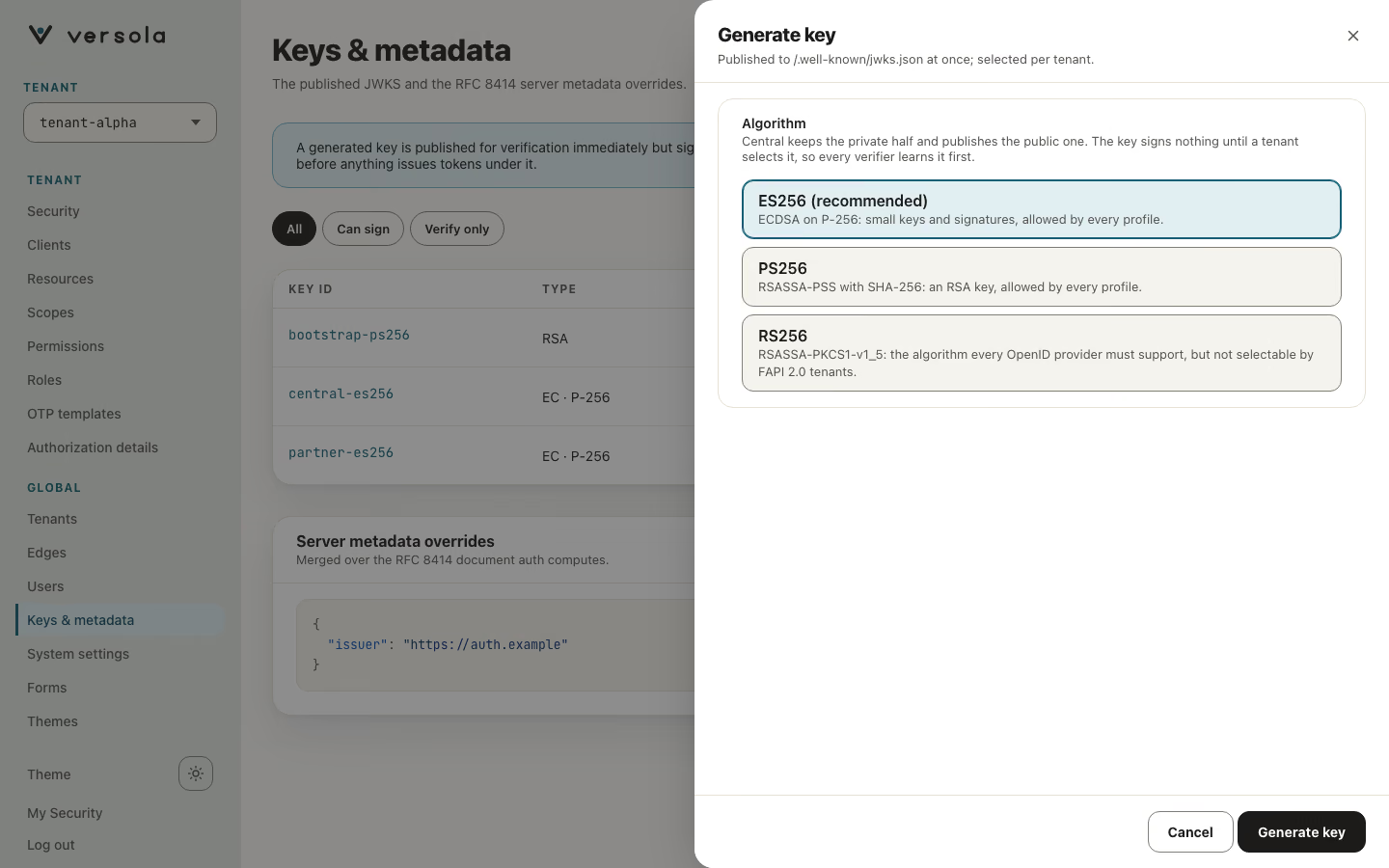
| Algorithm | Key generated | Notes |
|---|---|---|
ES256 (recommended) | EC, curve P-256 | Allowed by every security profile. |
PS256 | RSA-2048 | Allowed by every security profile. A new tenant starts on a PS256 key before an ES256 one when both exist. |
RS256 | RSA-2048 | Can be generated on any deployment but selected for signing only on a tenant with the Standard security profile. Central refuses it on a FAPI 2.0 tenant. |
HS256 is not offered: a shared secret has nothing to publish in a JWKS. The kid of a generated key is a timestamp plus the algorithm, for example 2026-10-14_07-29-17-es256.
Add key (paste JWK)
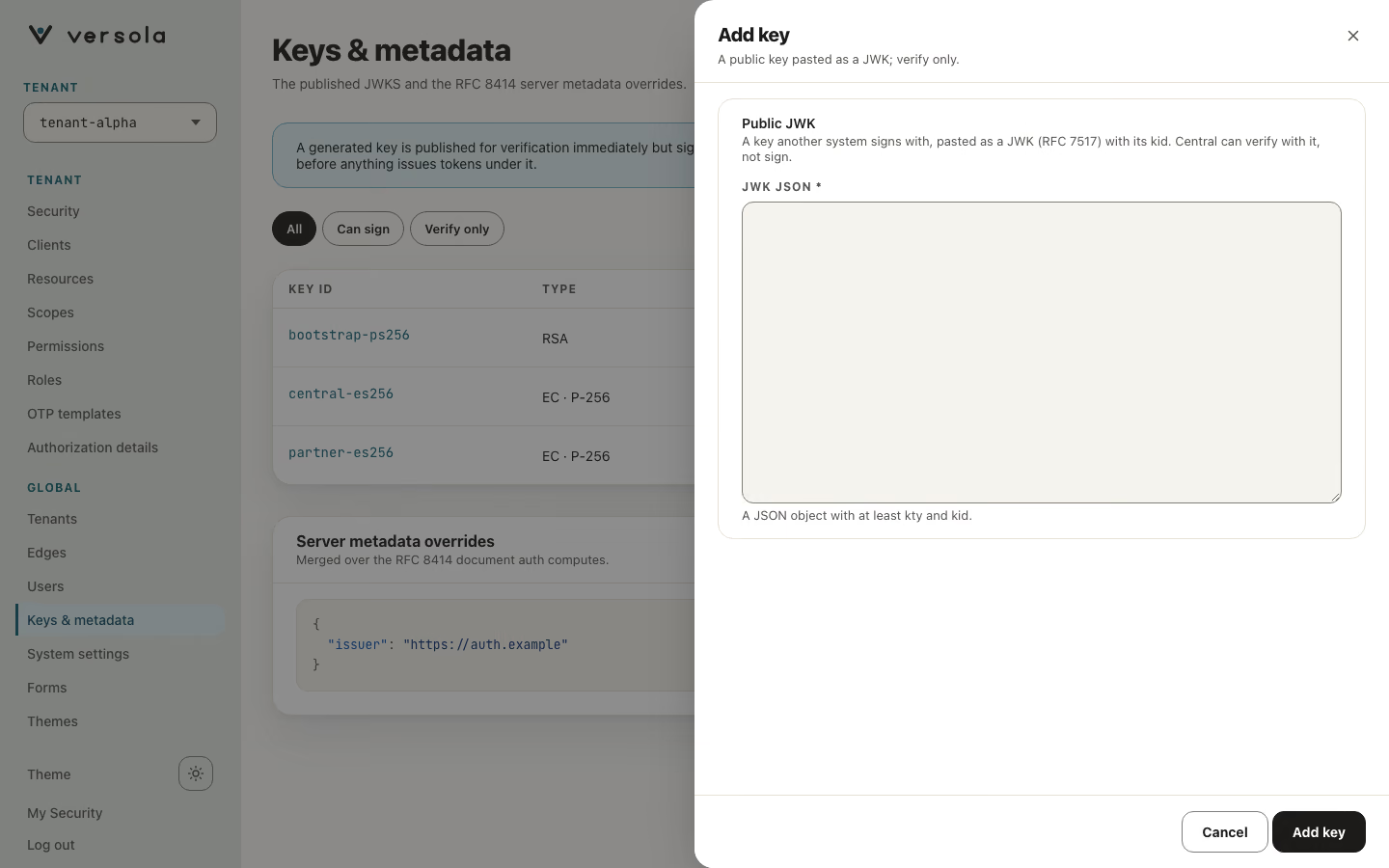
Add key (paste JWK) opens a panel with a JWK JSON field where you paste a public JWK. Use it to publish a key whose private half you keep elsewhere. The console requires kid and kty; Central requires a kid and answers JWK must contain a 'kid' field or Invalid JWK JSON otherwise. A key added this way is always Verify only.
Where the keys are used
| Consumer | Uses |
|---|---|
auth, signing | For each tenant, the key selected as Signing key signs access tokens, ID tokens and logout tokens. The algorithm comes from the key. A tenant with no selection signs with the private key in the jwt.private-key configuration of auth (RSA or EC; a freshly generated deployment holds an EC P-256 key and publishes only its public half as ES256). |
auth, publishing | GET /.well-known/jwks.json returns the public halves of all keys, with Cache-Control: public, max-age=86400. It needs no authentication. Resource servers should refetch on an unknown kid instead of waiting for the cache to expire. |
edge | Verifies tokens with the public halves it syncs from Central. It never receives a private key. |
| Central | Verifies the tokens of the admin console with the same keys. |
The format of the set is RFC 7517. The Central endpoints behind this page (/configuration/jwks) are described in the OpenAPI reference.
Rotating a signing key
The page supports a rotation in three steps:
- Generate key for the algorithm you want. The new key is published and nobody signs with it yet.
- Open Security for each tenant and select the new key as Signing key under Tokens & keys.
authswitches to it after it has synced the key; until then it keeps signing with the previous key. - Delete the old key when no token you still need to verify is signed with it. Wait at least as long as the longest-lived token signed with it and as long as verifiers cache the JWKS (24 hours for responses of
auth).
Versola does not rotate keys on a schedule and does not retire them for you.
Moving an existing deployment to ES256
A deployment generated by versola-cli signs with ES256 from the start. A deployment that already holds an RSA jwt.private-key keeps signing with it after an upgrade; nothing migrates by itself. To move it:
- Click Generate key and choose
ES256(or callPOST /configuration/jwks/generate?alg=ES256). The key is published and nobody signs with it yet. - Open Security for each tenant and select the new key as Signing key under Tokens & keys.
- Keep the old key published until the tokens issued under it have expired, then delete it, as in the rotation above.
A tenant that needs PS256 or RS256 selects such a key the same way. RS256 is never a default and is allowed only on a Standard tenant.
Server metadata overrides
Below the keys, Server metadata overrides shows, as JSON, the members that are merged over the authorization server metadata document auth computes (RFC 8414). Edit opens Edit server metadata overrides; Save server metadata stores them. A member you set here replaces the computed one. The console requires issuer, authorization_endpoint, token_endpoint, jwks_uri and response_types_supported and refuses to save without them. auth serves the document at /.well-known/openid-configuration and /.well-known/oauth-authorization-server. The authorization_details_types_supported member is kept in step with the types you register on Authorization details. With no overrides the card says No overrides set.
Next steps
- Security to select the signing key per tenant
- Security profiles for the RS256 rule
- RFC 7517 and the OpenAPI reference